Registrations
The event page is where you follow an event from the day you publish it to the day after. It shows what needs you, who registered, what they paid and how they answered.
The event page
Open Events and press an event. This page opens.
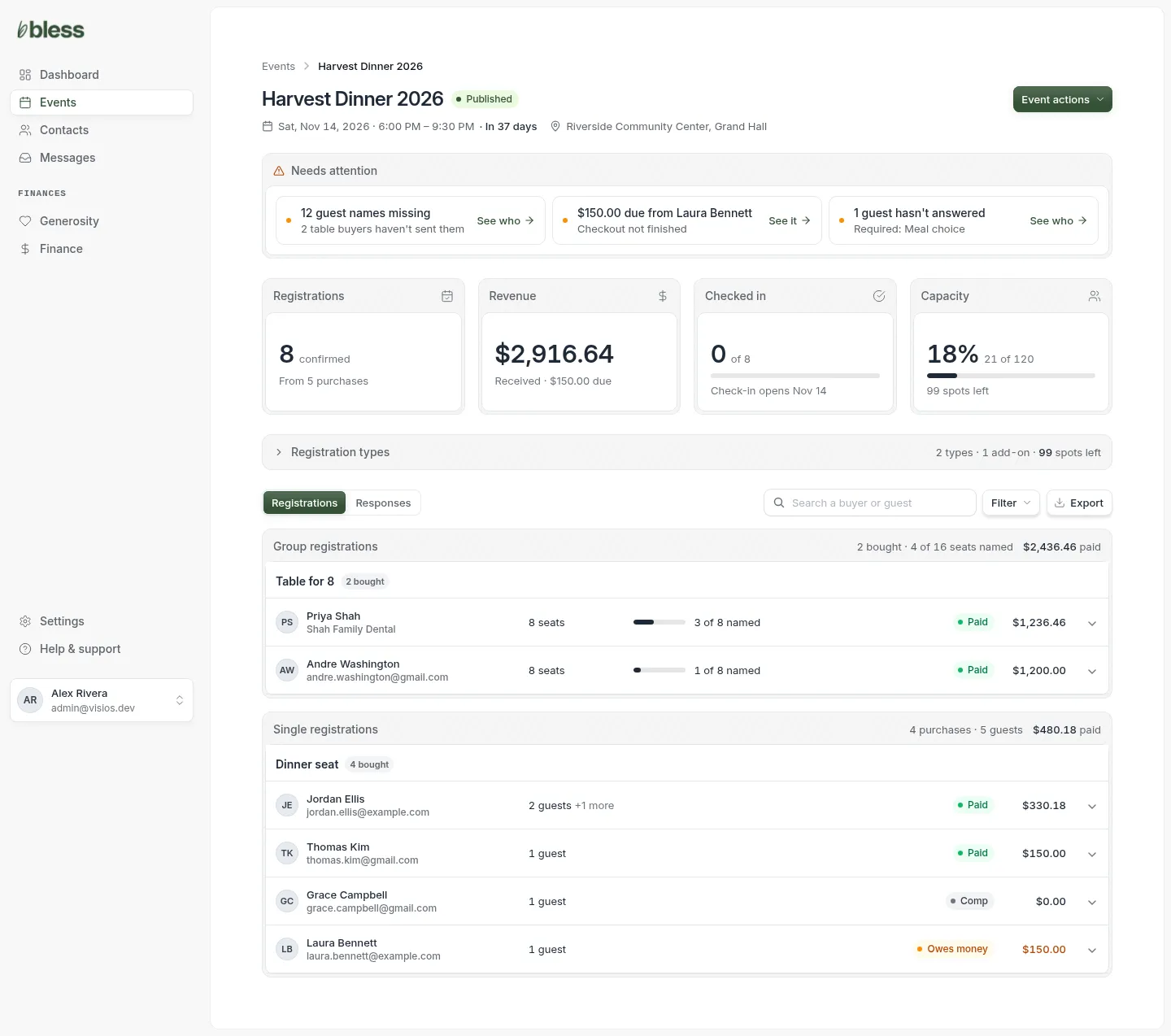
From top to bottom:
- Needs attention. What to do next.
- The numbers. Registrations, revenue, check-ins and capacity.
- Registration types. How each thing you sell is doing.
- Registrations and Responses. Who bought what, and how they answered.
Needs attention
Each card is one job. Press the link on the card to go straight to the people it is about.
| The card says | What to do |
|---|---|
| Guest names missing | Table hosts have open seats. Ask them for names. |
| Money due, “Checkout not finished” | A buyer stopped before they paid. Send a payment reminder. |
| A guest has not answered | A required question is blank. Ask for missing answers. |
| People on the waitlist | Someone wants a spot. Review the waitlist. |
The panel goes away when there is nothing to do.
The numbers
- Registrations. Confirmed people, and how many purchases they came from.
- Revenue. Money received. Money still due shows next to it.
- Checked in. People checked in so far. Before the event, it tells you when check-in opens. Press it to open check-in.
- Capacity. How full the event is, and the spots left. Open seats at a table count as taken.
Registration types
Press Registration types to open it.
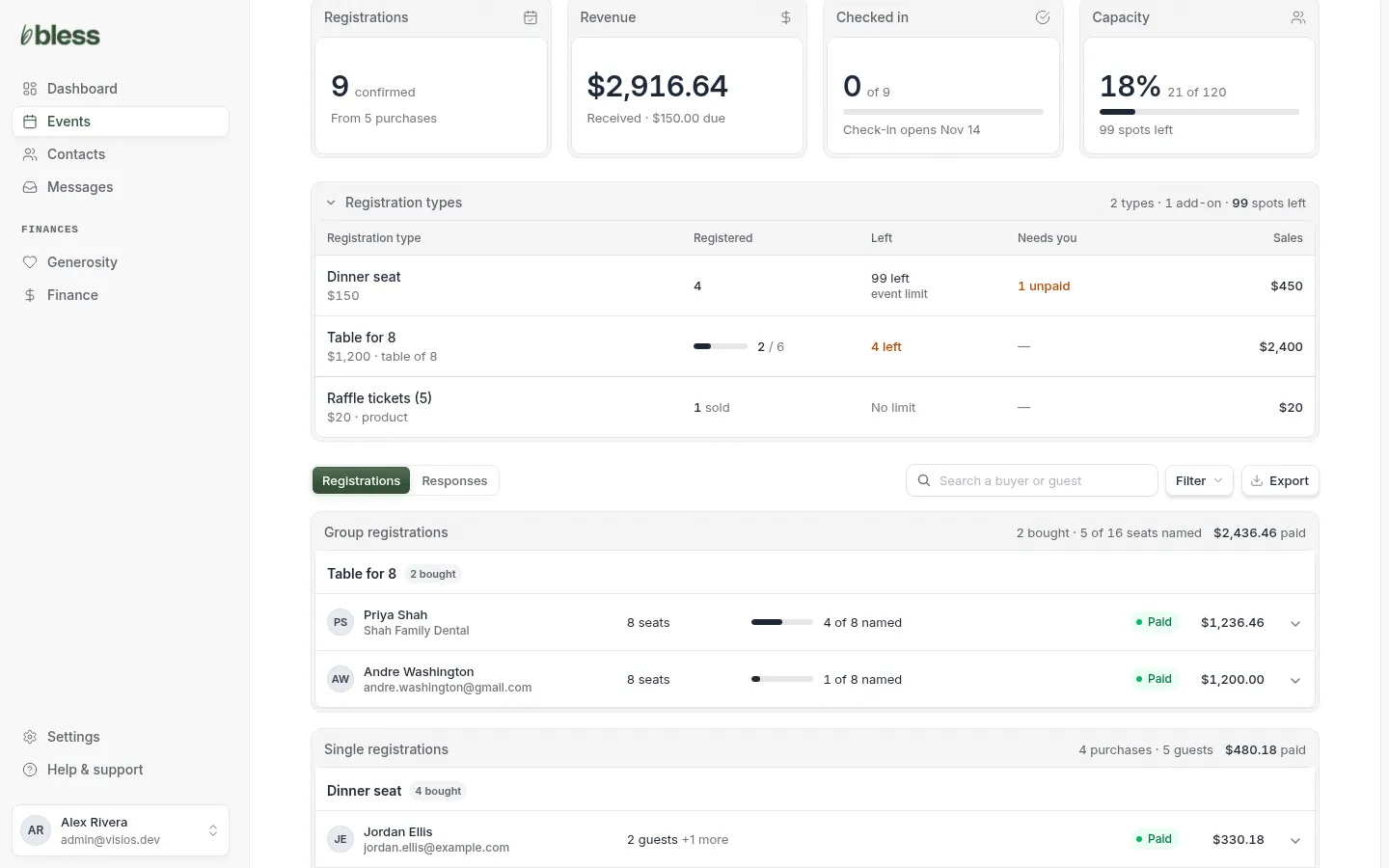
Each row shows how many registered, how many are left, anything that needs you, and the sales. A group shows groups sold out of groups available, such as “2 / 6”. To change a type, use Edit event.
The list of registrations
The Registrations tab lists every purchase. Group purchases come first, then single registrations, then add-ons bought on their own.
- Each row shows the buyer, the seats or guests, and the payment.
- A group row also shows how many seats have a name, such as “3 of 8 named”.
- Each type shows five rows. Press Show all to see the rest.
- Type in Search a buyer or guest to find a person.
The payment shows as one of these:
| Label | Meaning |
|---|---|
| Paid | The money arrived. |
| Owes money | Some or all of the money is still due. |
| Comp | Your team gave the registration for free. |
| Free | The registration costs nothing. |
| Waitlist | The person is on the waitlist. |
| Checkout not completed | The buyer started but did not finish. |
| Payment failed | The bank did not accept the payment. |
| Partly refunded, Refunded | Some or all of the money was given back. |
| Cancelled | The registration was canceled. |
See one purchase
Press a row to open it.
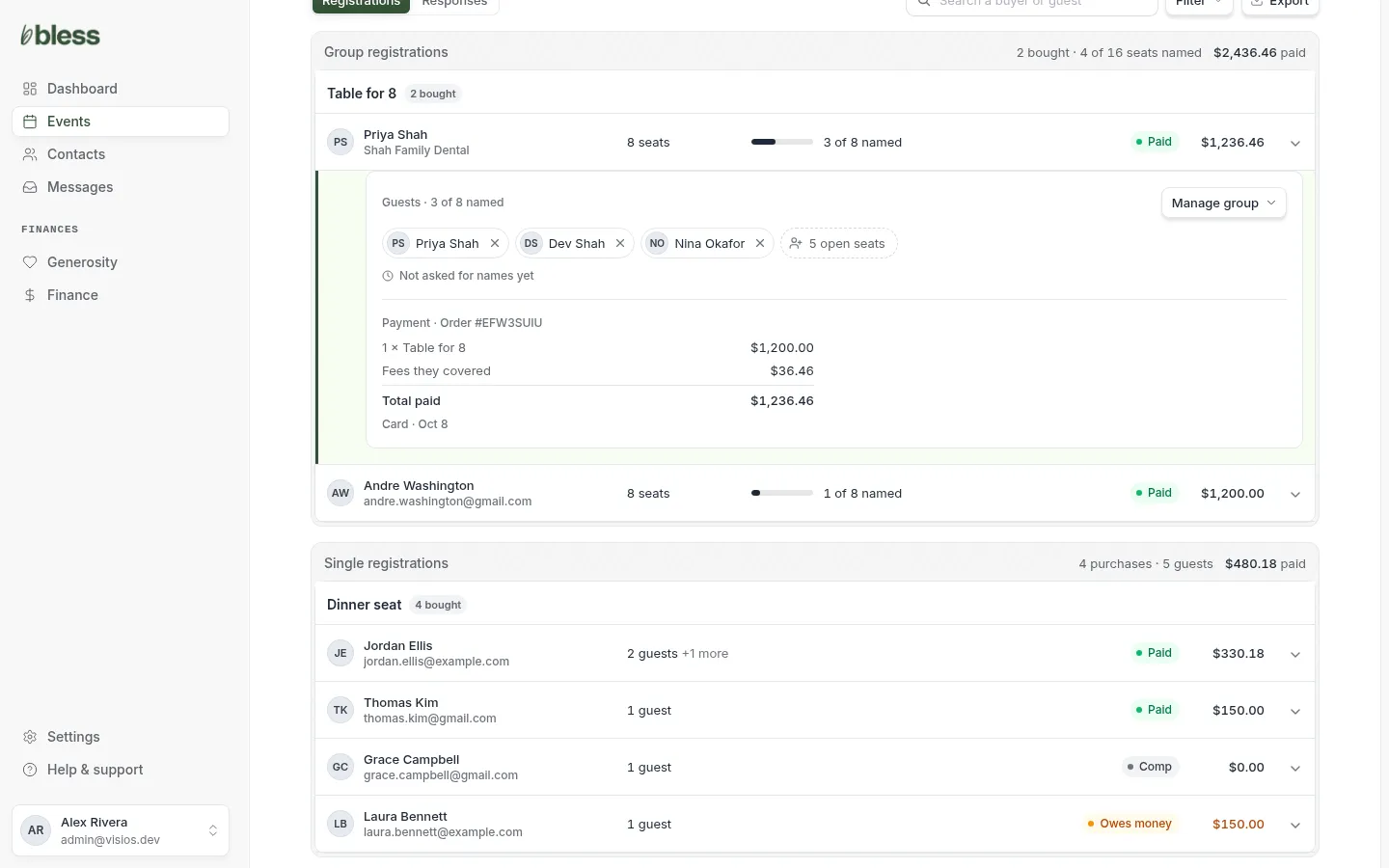
- Guests shows each person. Press a name to open their contact.
- For a group, the open seats show as a count, and you see when the host was last asked for names.
- Payment shows the order number, each line, any fees the buyer covered, the total and how it was paid.
- For a group, Manage group has the group jobs. See Groups and tables.
Filter the list
Press Filter, tick what you want to see, then press Show results.
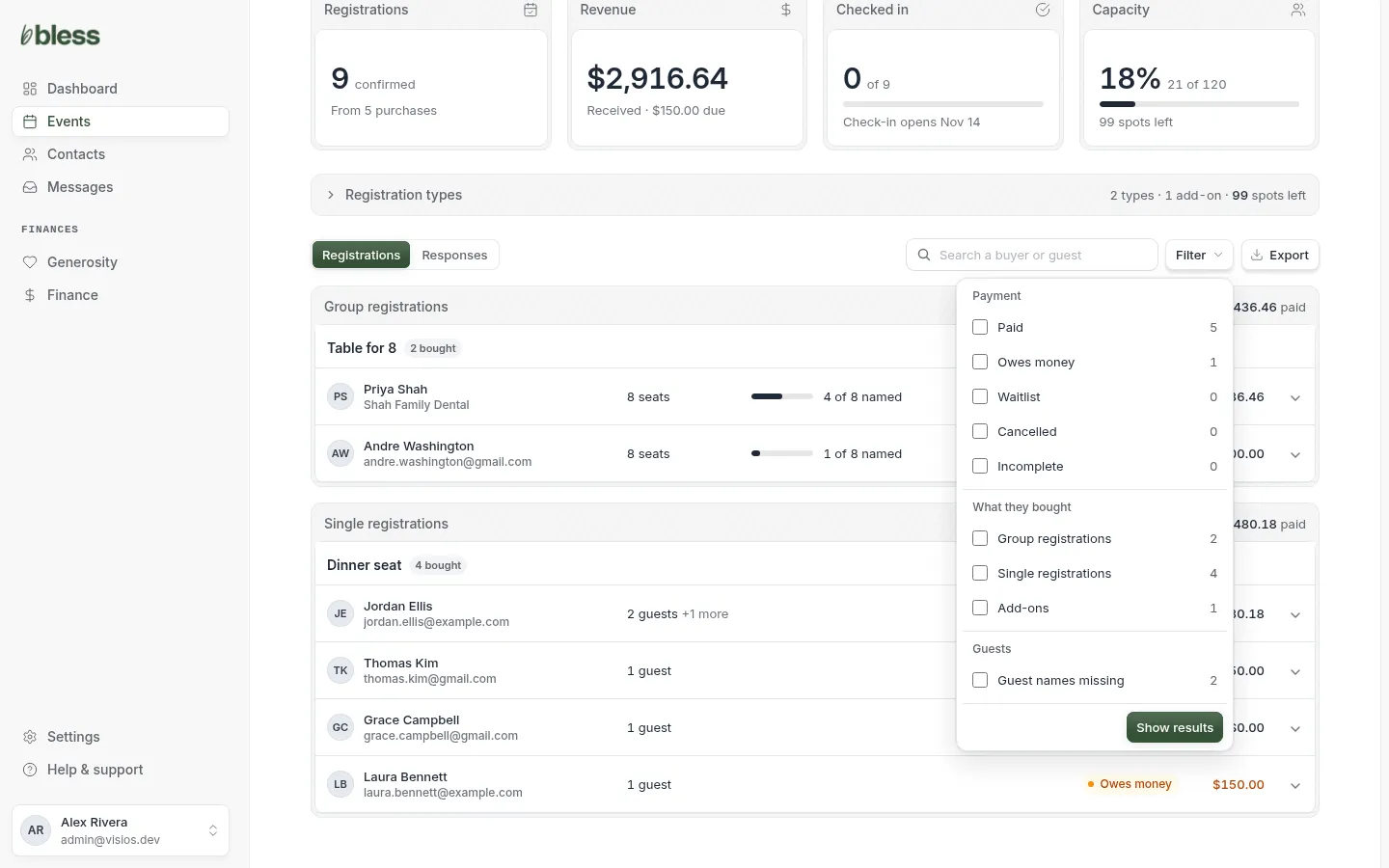
- Payment: Paid, Owes money, Waitlist, Cancelled, Incomplete.
- What they bought: Group registrations, Single registrations, Add-ons.
- Guests: Guest names missing.
Each filter shows as a chip above the list. Press its × to remove it. Some filters add a button for the people they show: Owes money adds Send payment reminder, and Guest names missing adds Ask all for names.
Payment reminders
For a buyer who did not finish paying.
- Open the purchase, or filter the list to Owes money.
- Press Send payment reminder.
The buyer gets an email with a link to finish. Bless sends one reminder a day at most to each buyer, and tells you if a buyer was already reminded.
The waitlist
When the event is full and the waitlist is on, guests can press Join waitlist on the event page. They then show on Needs attention and in the list with a Waitlist label.
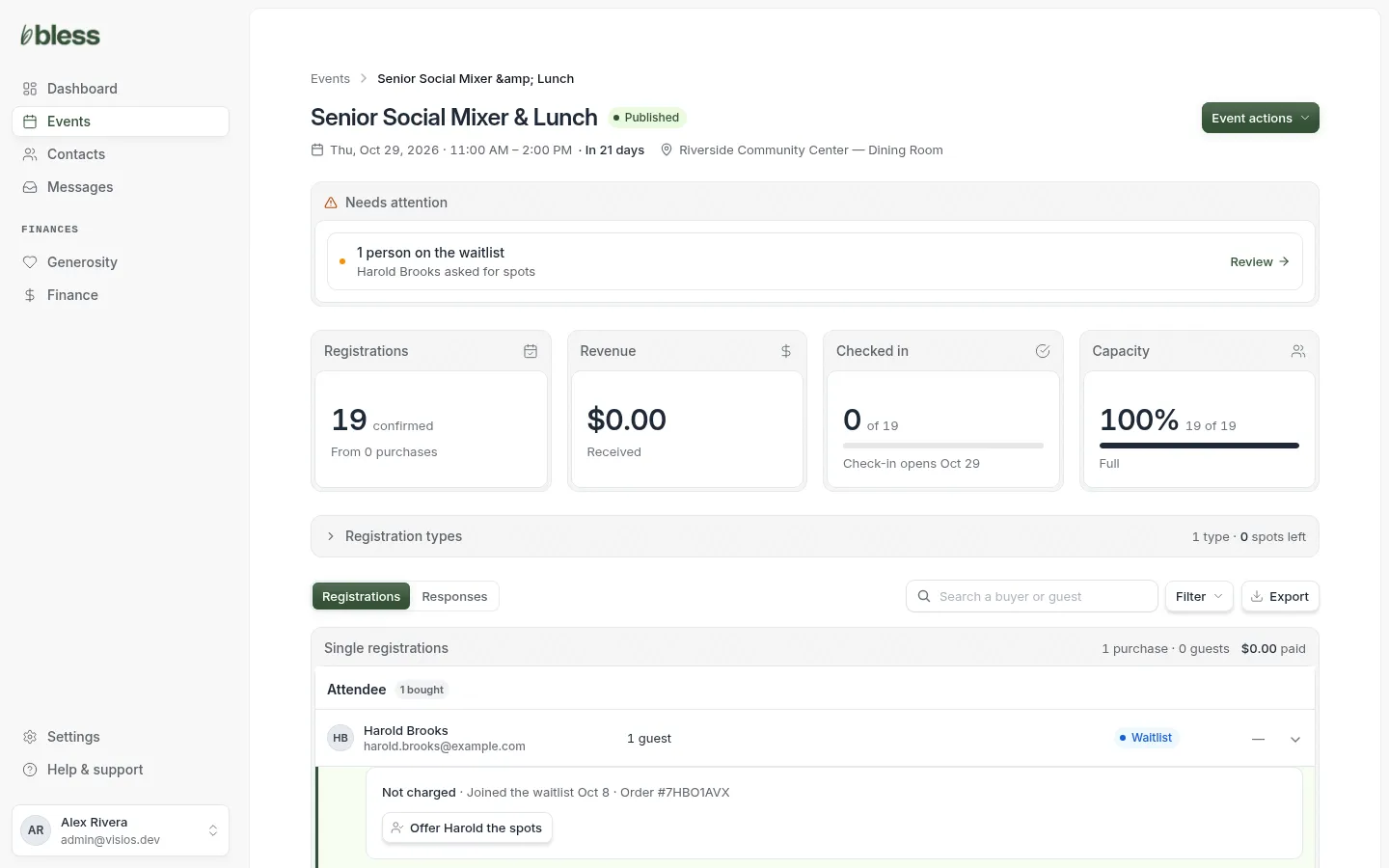
To let someone in:
- Make room. Raise the capacity in Edit event, or wait for a cancellation.
- Open the person’s purchase.
- Press Offer the spots. The button shows their first name.
For a free event, the spots are confirmed at once. For a paid event, the person gets an email with a link to finish registering and pay. If there is not enough room, Bless tells you.
Responses
The Responses tab shows the answers to your questions. You see it when the event asks at least one question.
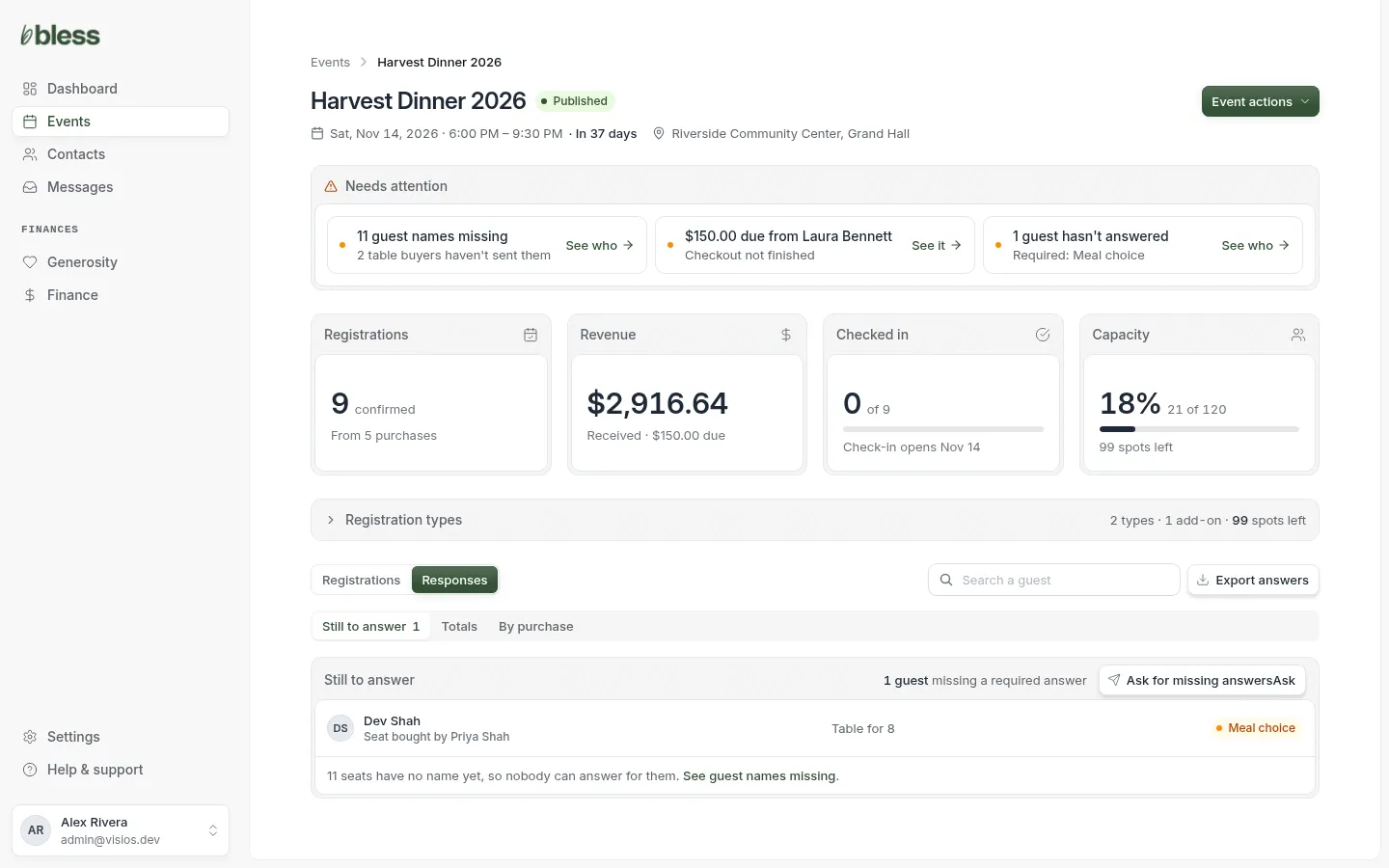
- Still to answer lists each guest with a required question still blank. Press Ask for missing answers to email the buyers. Each buyer gets a link to answer.
- Totals counts the answers to each question. Use it for the caterer.
- By purchase shows the answers for one question, purchase by purchase.
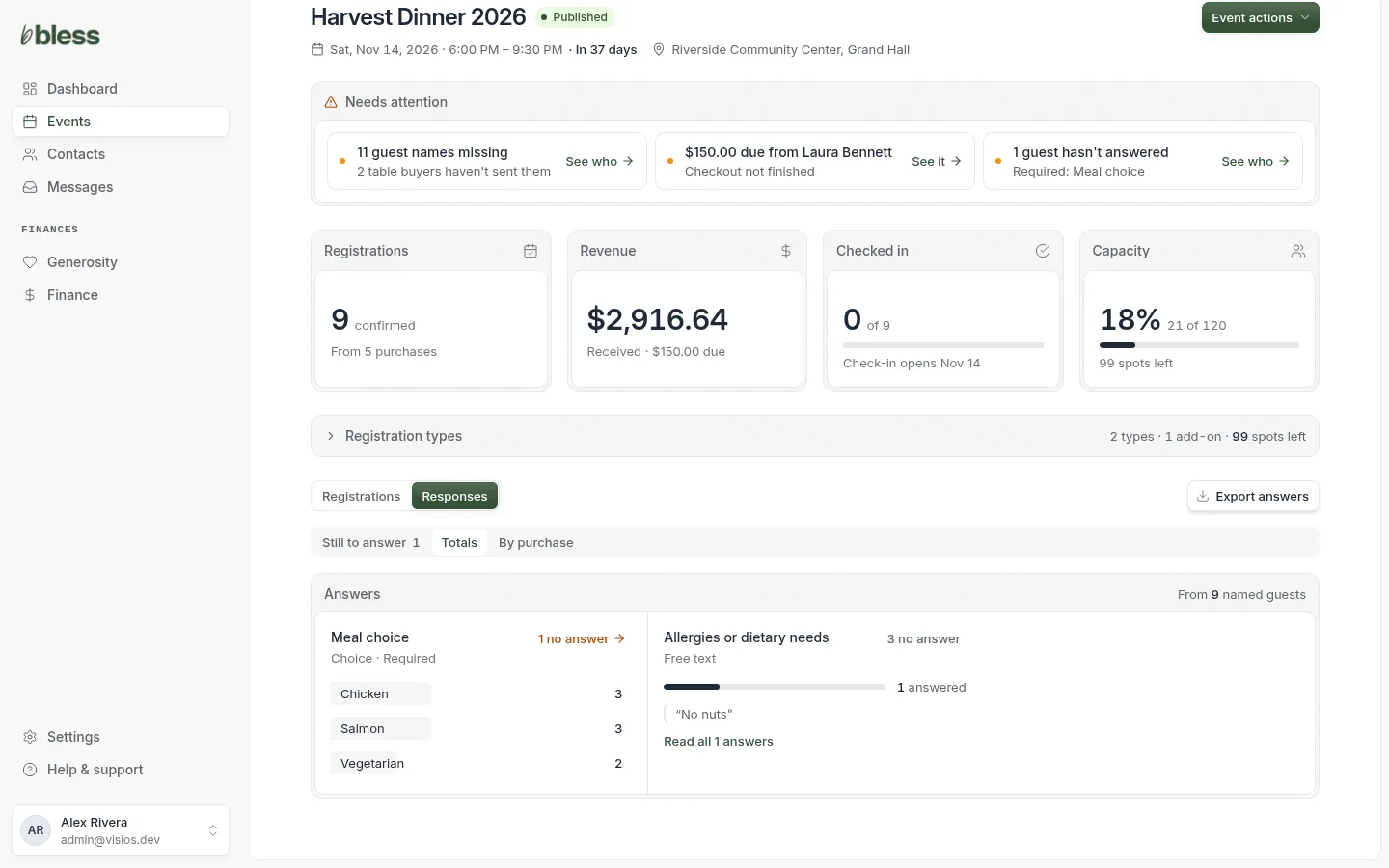
Seats with no name have no answers yet. Get the names first. See Ask for names.
Export
- On the Registrations tab, press Export to download every registration as a CSV file. It has each person’s name, email, registration type, payment, group and check-in time, and their answers.
- On the Responses tab, press Export answers to download only the answers.
Open the file in Excel, Numbers or Google Sheets.
Updated
Was this page helpful?
Thank you. Your answer helps us make these pages better.