Your account
Bless makes an account for you when you register. Set a password to see your events, manage a table and show your check-in code.
Set your password
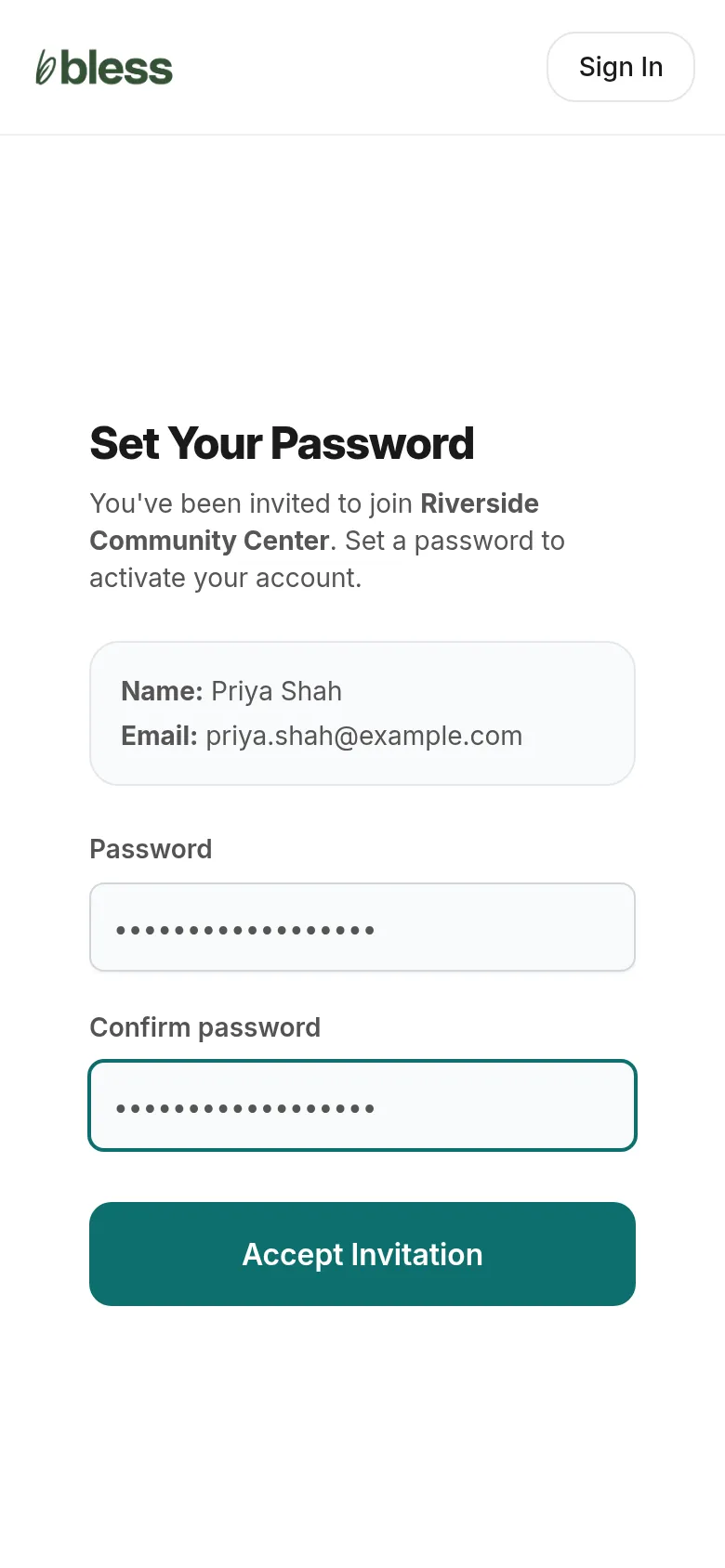
- Press Set your password on your confirmation page, or use the link in your confirmation email.
- Type a password two times.
- Press Accept Invitation.
Next time, press Sign in on any event page and use your email and this password.
Your events
Open Events in your account.
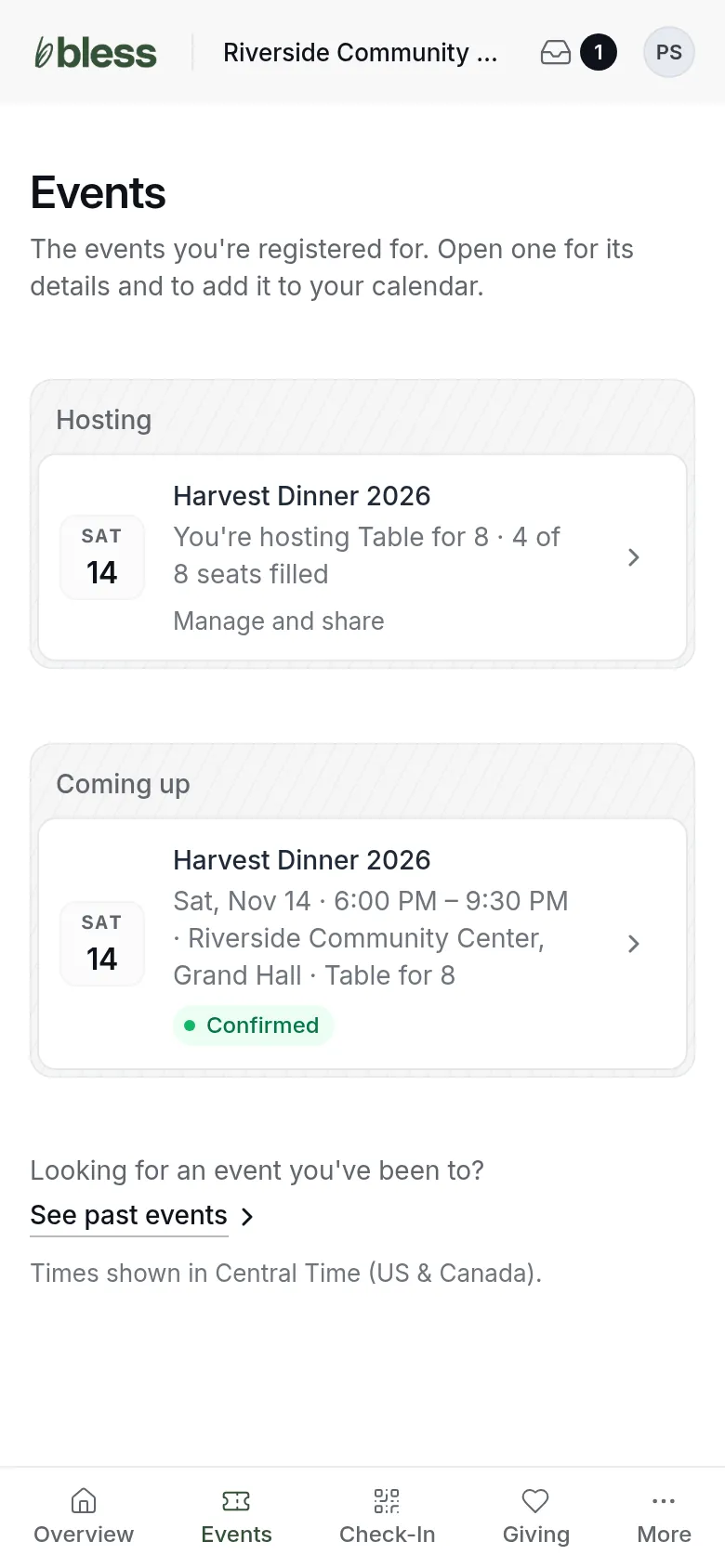
- Hosting shows a table you bought, and how many seats are filled. Press Manage and share to manage your table.
- Coming up shows each event you are registered for, with its status.
- Press See past events for events that are over.
The status is Confirmed, Pending payment, Waitlisted, Attended or Cancelled.
One event
Press an event to open it.
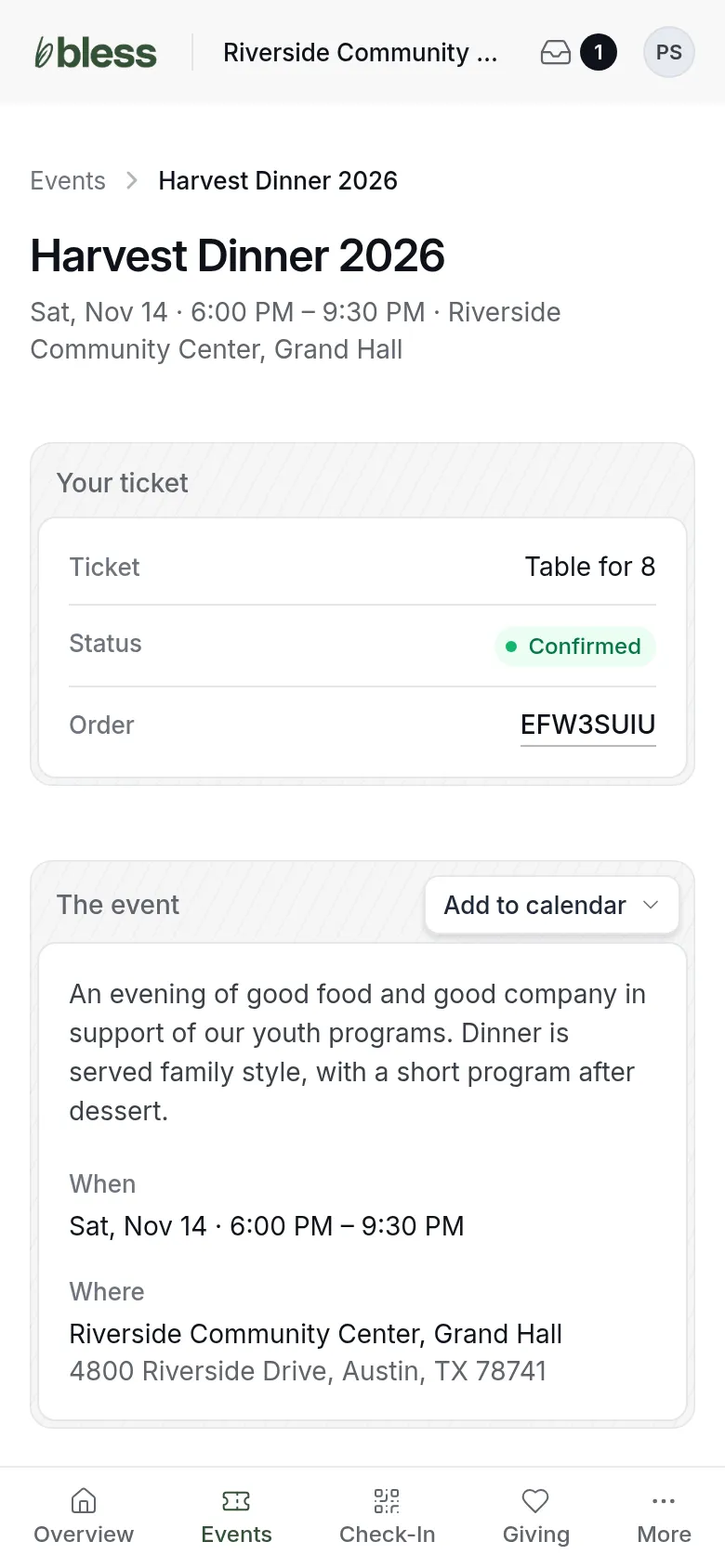
- Your ticket shows the registration, its status and your order number.
- The event shows when and where. Press Add to calendar to save it to Google Calendar, Outlook or another calendar.
Your past orders and receipts are under Orders.
Your check-in code
Open Check-In in your account.
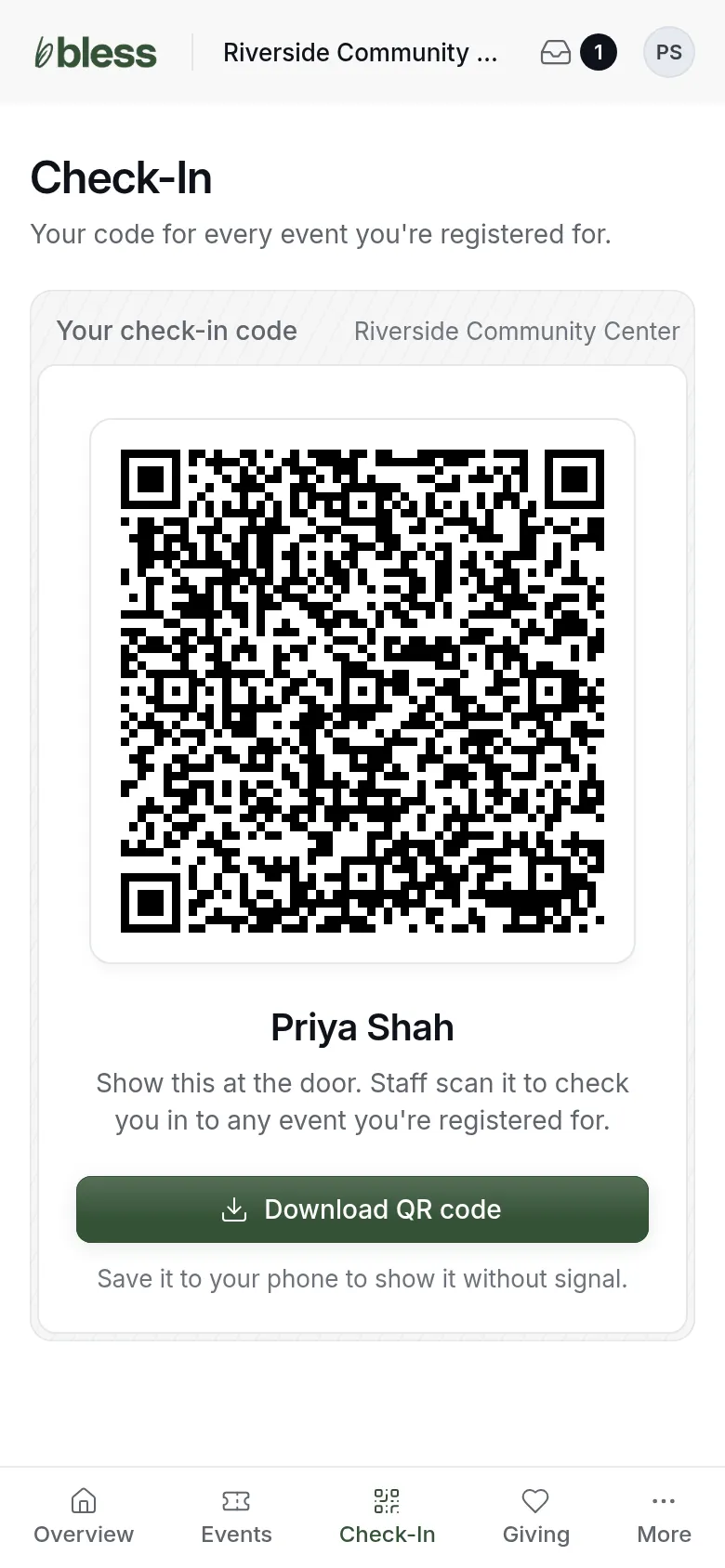
- Show this code at the door. Staff scan it to check you in.
- Press Download QR code to keep it on your phone. Then you can show it without a signal.
One code works for every event you register for with this organization.
Updated
Was this page helpful?
Thank you. Your answer helps us make these pages better.