
Check guests in
Check guests in at the door on a tablet or laptop. Find them by name, or scan the code on their phone.
Before doors
- Sign in on the tablet as an owner or admin of your organization. Check-in needs one of these roles.
- Open the event, press Event actions, then Check in guests.
- If the event has sessions, choose the session at the top. All sessions checks a guest in to the event.
Check a guest in
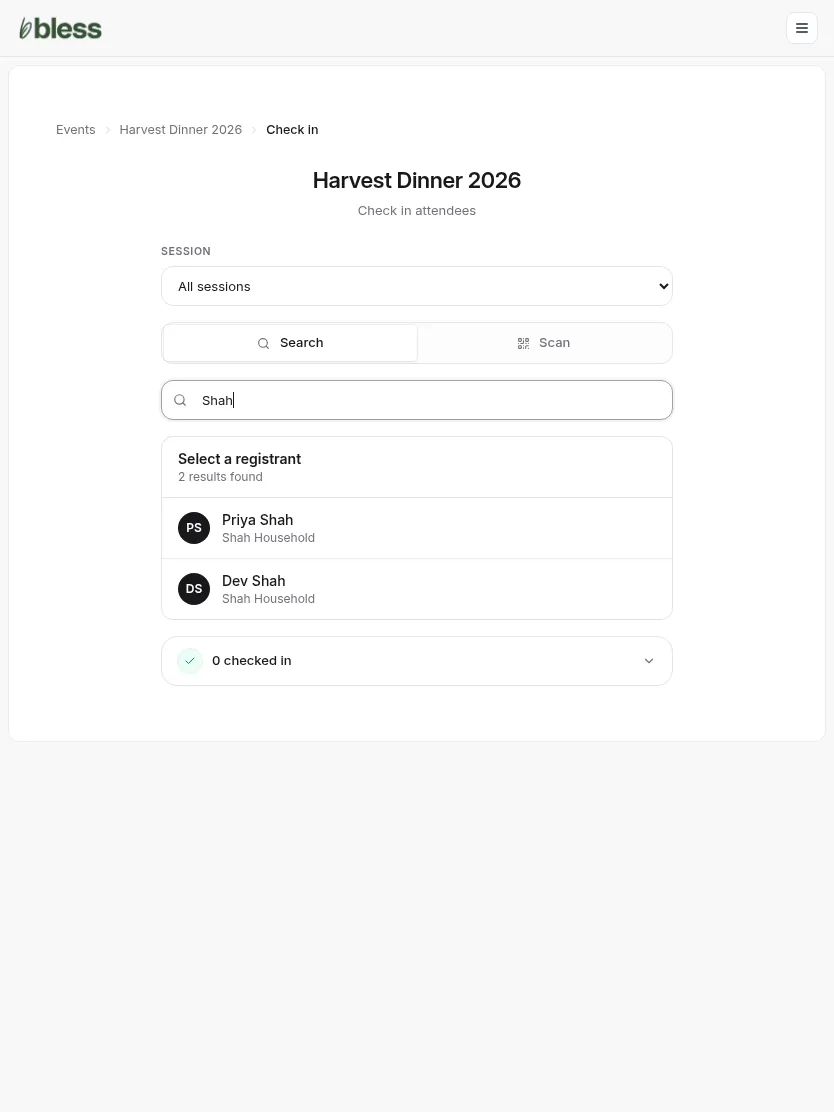
- Type a few letters of a name or an email.
- Press the guest.
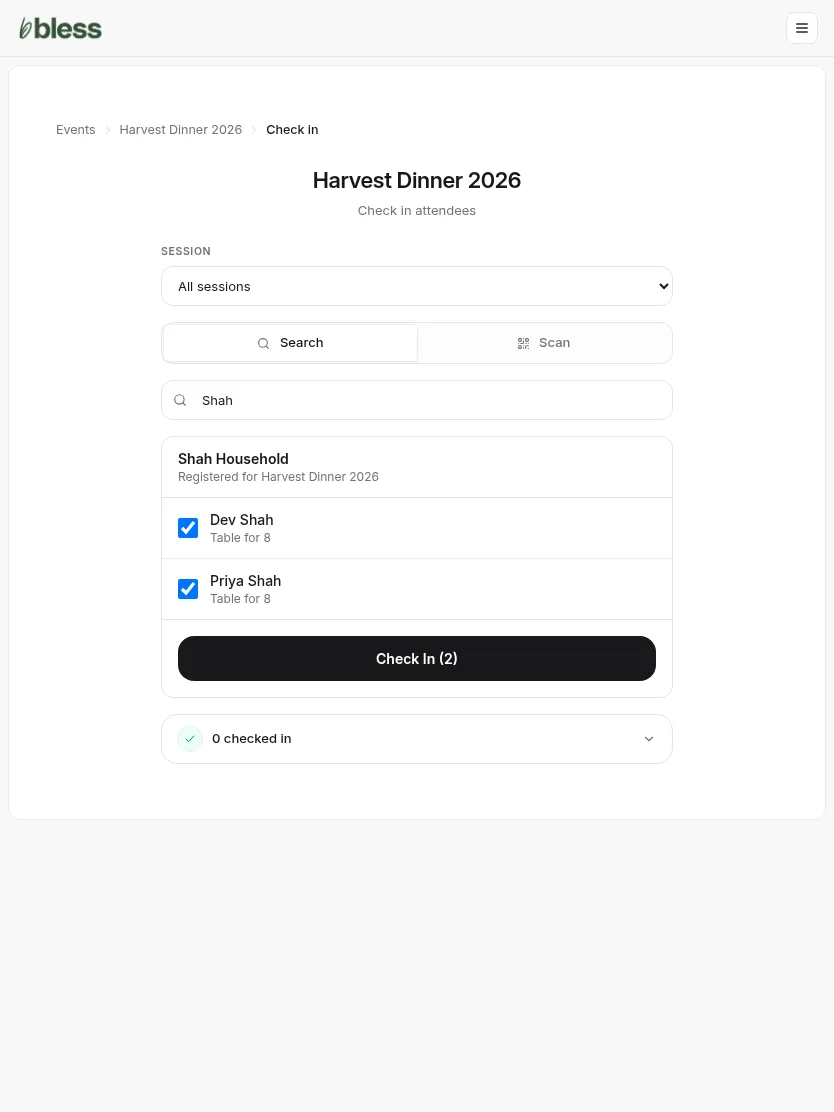
- The card shows everyone in the guest’s household who is registered. Untick anyone who is not here.
- Press Check In. The button shows how many people you will check in.
The search box clears, so you can type the next name at once.
Scan a code
- Press Scan. Allow the camera when the tablet asks.
- Hold the guest’s code in front of the camera.
Guests find their code under Check-In in their account. If a code does not work, press Search and find the guest by name.
Undo a check-in
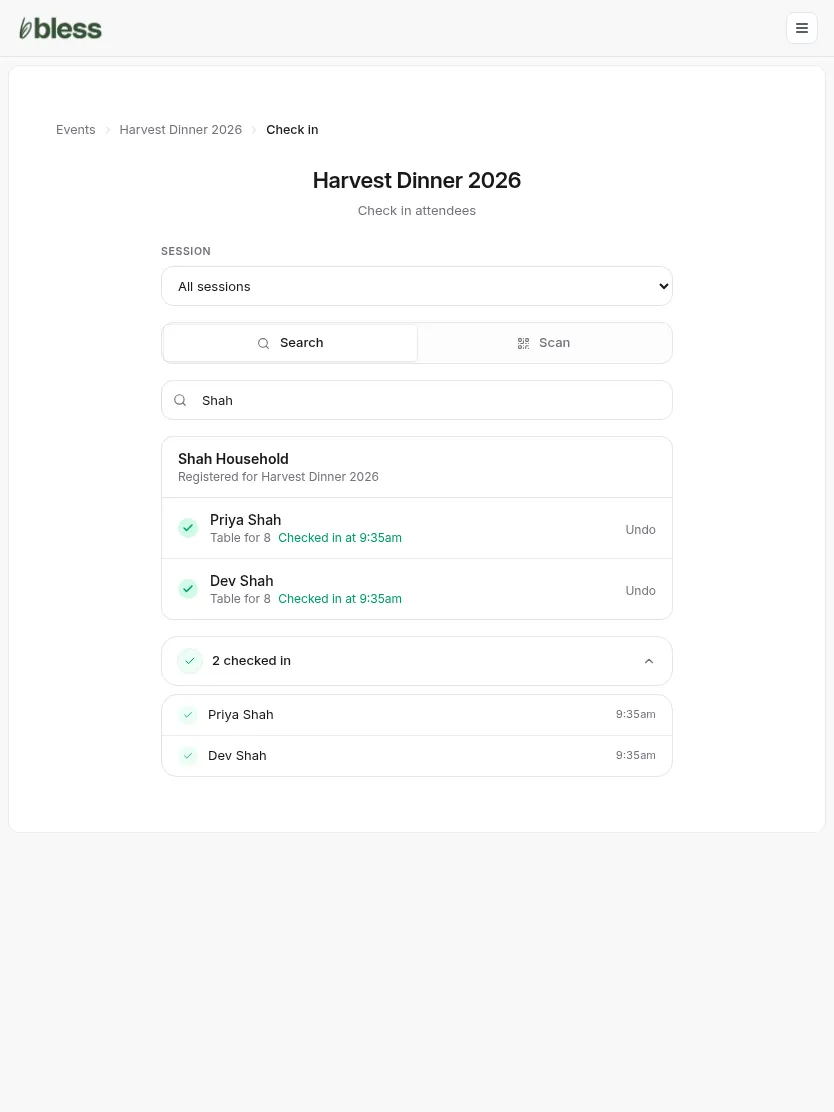
- Search for the guest again.
- The card shows “Checked in at” and the time for each person.
- Press Undo next to the wrong person.
See who is in
Press the count under the search box, such as “2 checked in”. It opens the list of check-ins, with the time of each one.
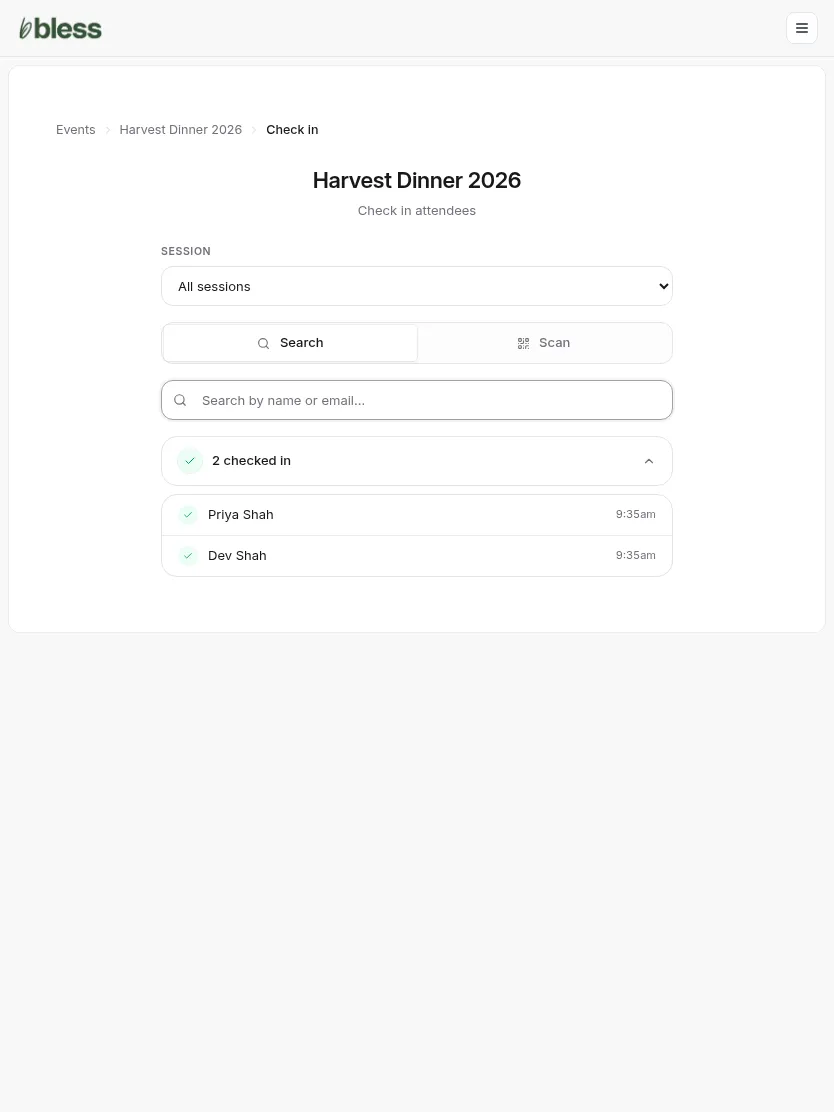
The Checked in number on the event page counts the same check-ins. The export has each person’s check-in time.
Updated
Was this page helpful?
Thank you. Your answer helps us make these pages better.