
Run the night
The day of the event, from handing out tools to closing the auction.
Draft. These pages describe the auction night as it is being built. Some screens are not released yet, and the pictures use sample data.
Overview
The auction’s front page. Open it first, every time.
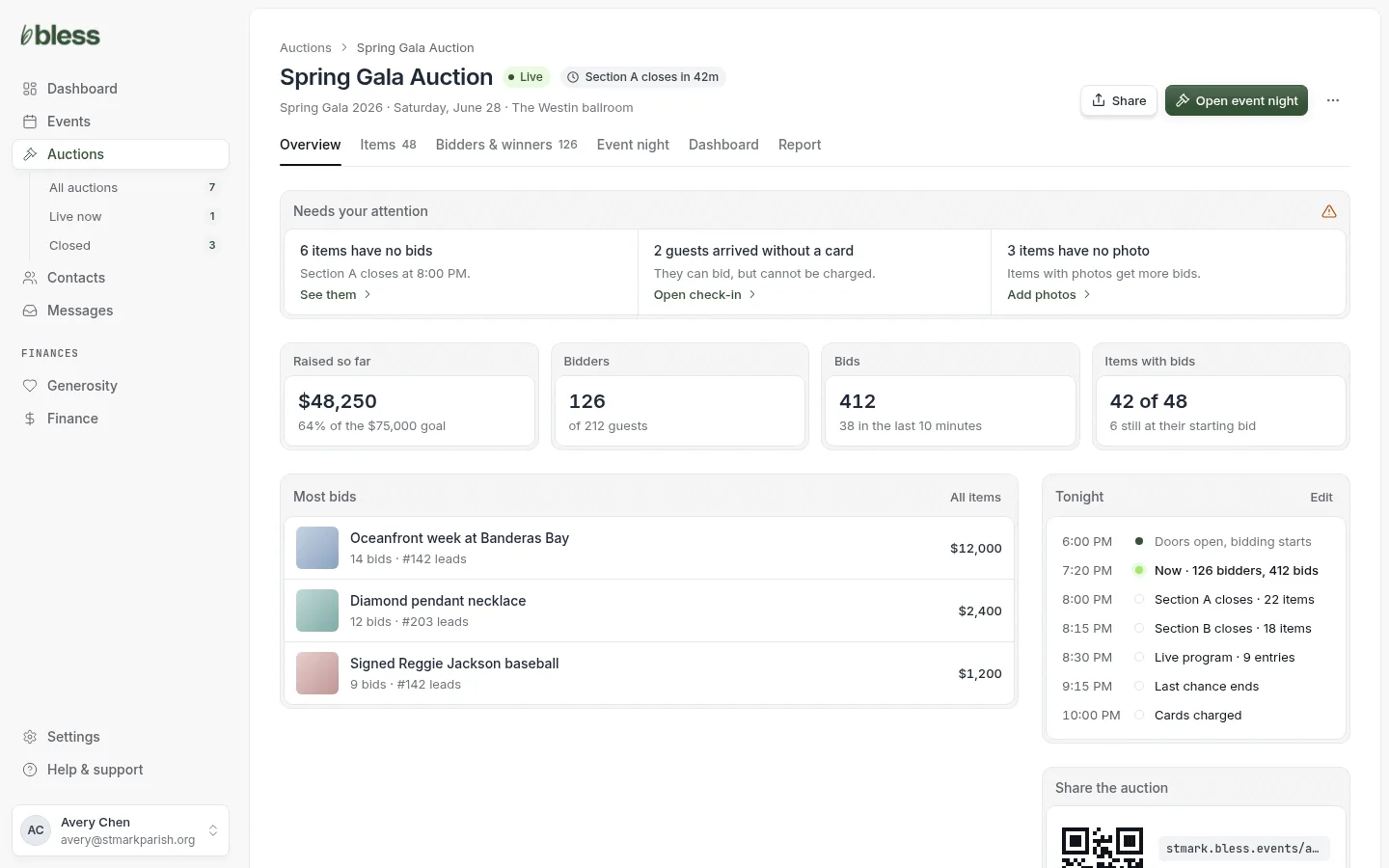
- Clear anything under Needs your attention.
- Glance at the four numbers.
- Copy the auction’s link, or print display sheets.
- Press Open event night when it is time.
Tonight’s schedule is repeated here, so the close and charge times are always in front of you.
Event night
The Event night tab is your base for the day. It lists every tool, whether it is live, and who has it.
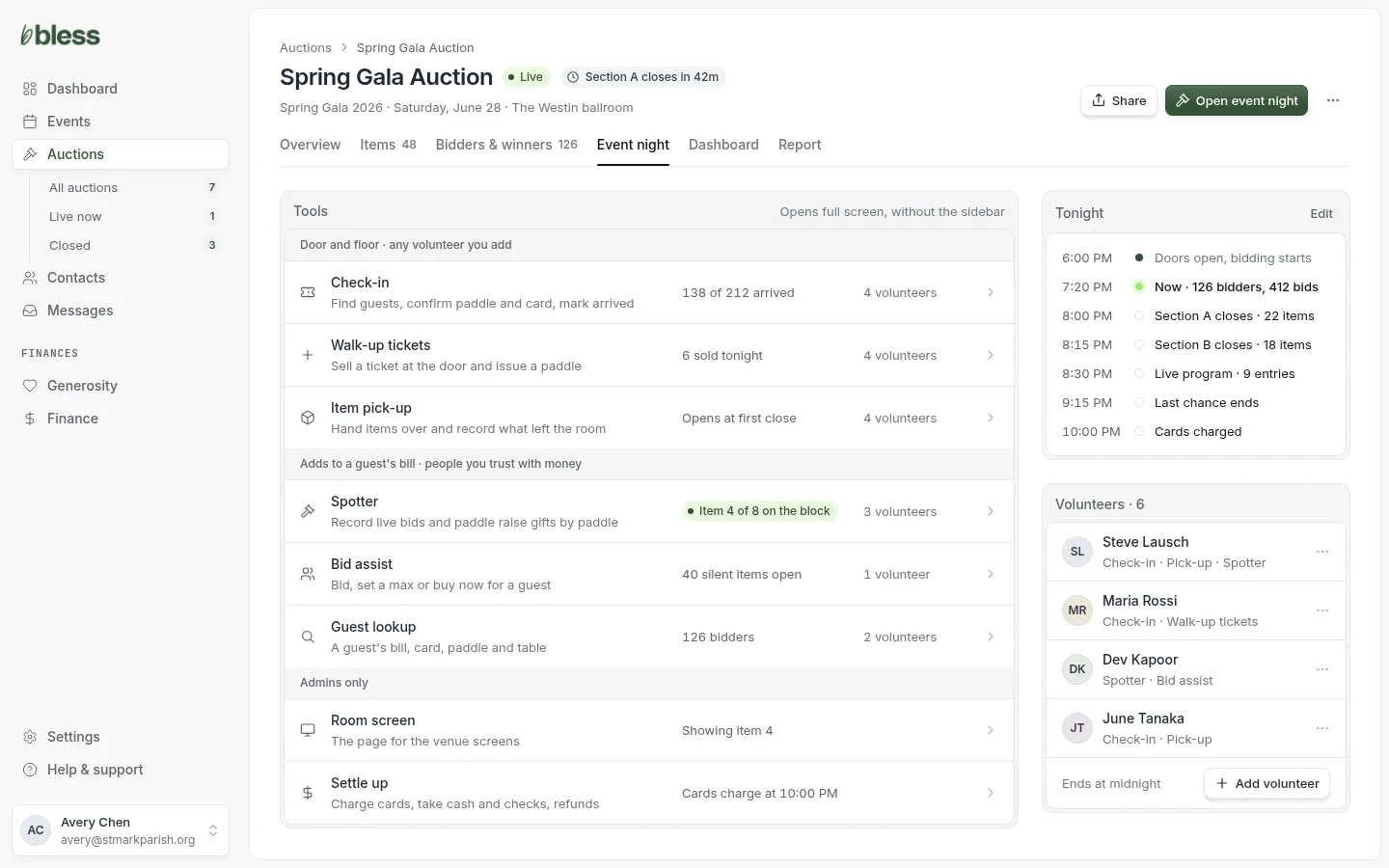
- Open the auction, then the Event night tab.
- Read down the Tools list to see what is live and who has each tool.
- Add volunteers on the right.
- Press Open event night to switch to the full-screen tools.
Tools come in two groups. Basic tools cannot change what a guest owes: check-in, item pick-up and walk-up ticket sales. Advanced tools can: adding to a bill, the spotter tool, bid assist and guest lookup.
Add a volunteer
About twenty seconds a person. Do it before doors.
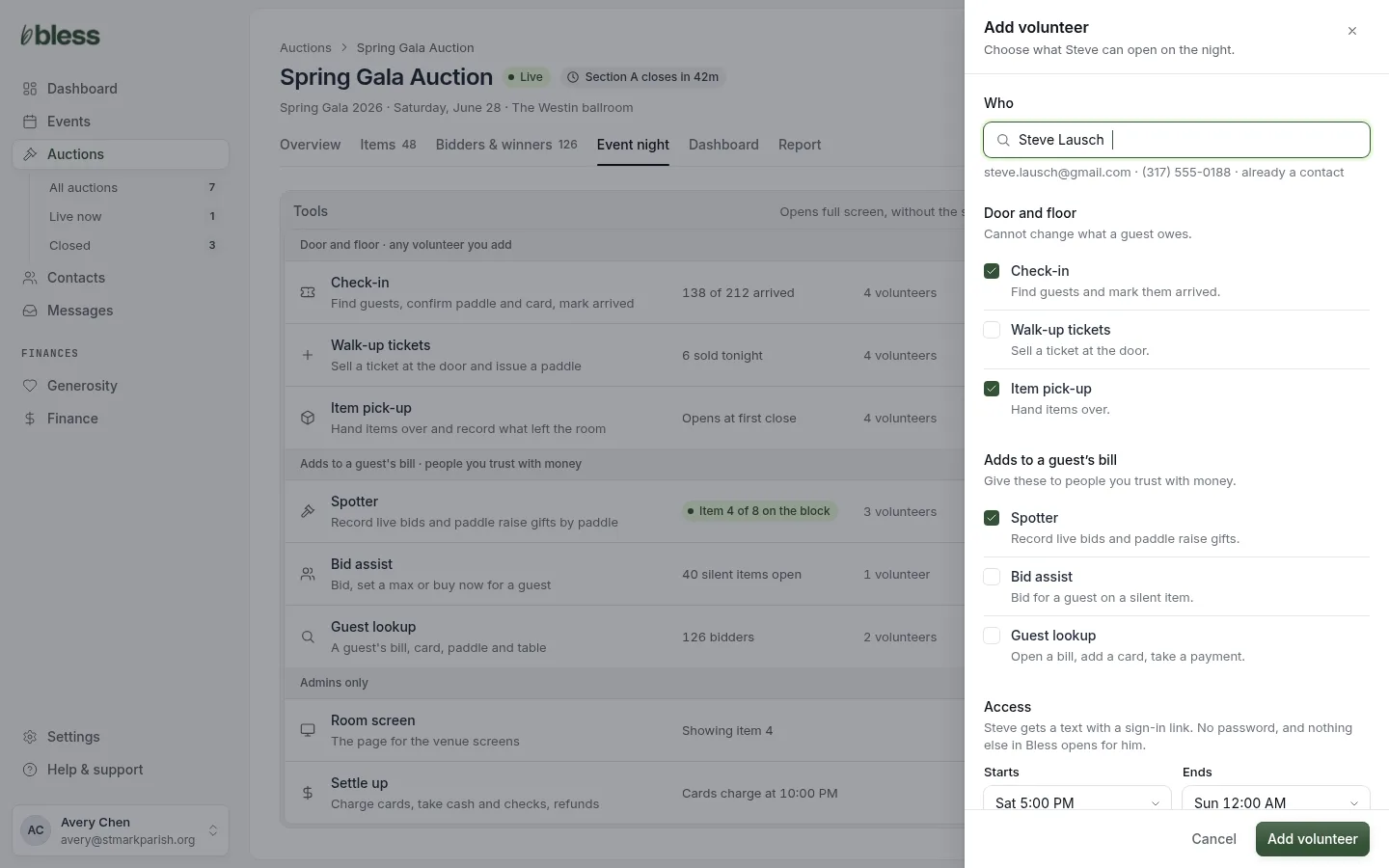
- Type a name. Your contacts are suggested as you type.
- Tick the tools they may use. The two groups tell you which tools can change a guest’s bill.
- Set when their access starts and ends.
- Press Add volunteer. They get an email with a sign-in link.
There is no password to set or share. The volunteer taps the link and sees only the tools you ticked. Send them the volunteer guide for their job.
Tonight
Your home screen during the event. Keep it open all evening on a laptop or tablet.
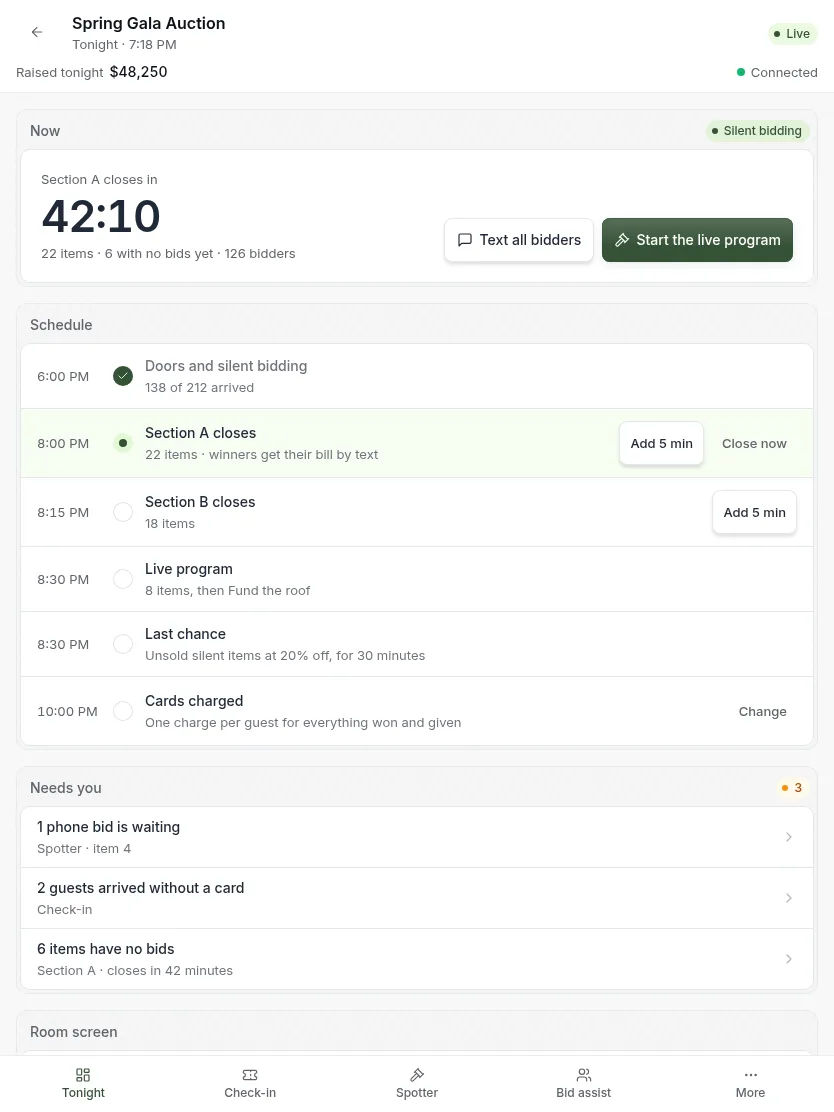
- Watch the countdown to the next close.
- From a section’s row, press Add 5 minutes or close the section.
- Clear the Needs you list as things appear. Each one links to the tool that fixes it.
- Press Start the live program when the auctioneer goes on.
The main button is always the next thing the night needs. It changes as the night moves.
Dashboard
How the auction is doing, live. Board members can watch it too.
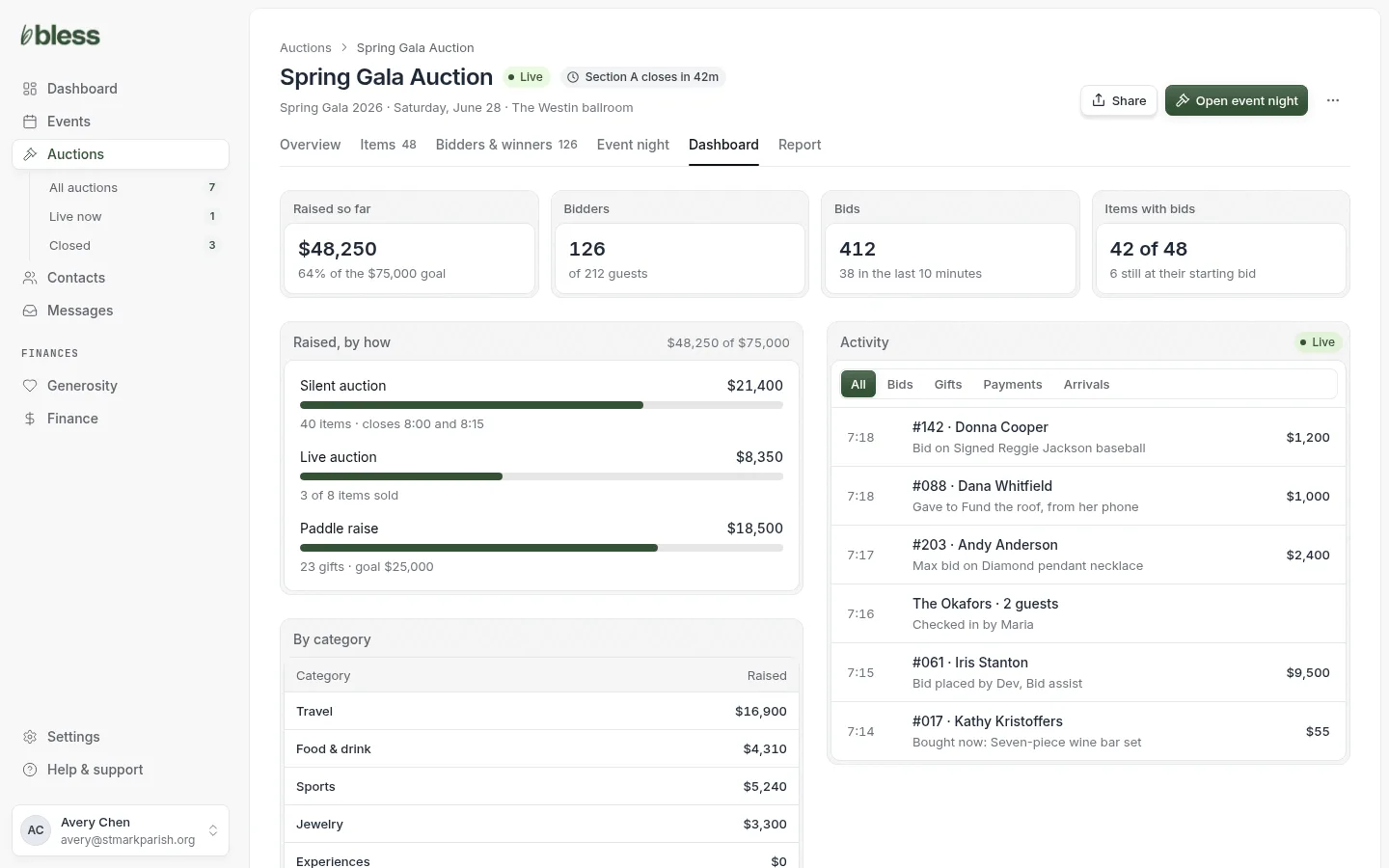
- Read the four numbers.
- See which channel and category is carrying the night.
- Watch the activity feed. Filter it to one kind of activity if you want.
The feed says who did each thing, including a volunteer who bid or gave for a guest.
Close the auction
Closing ends bidding everywhere. You do it once, after the live program, or early if the night is cut short.
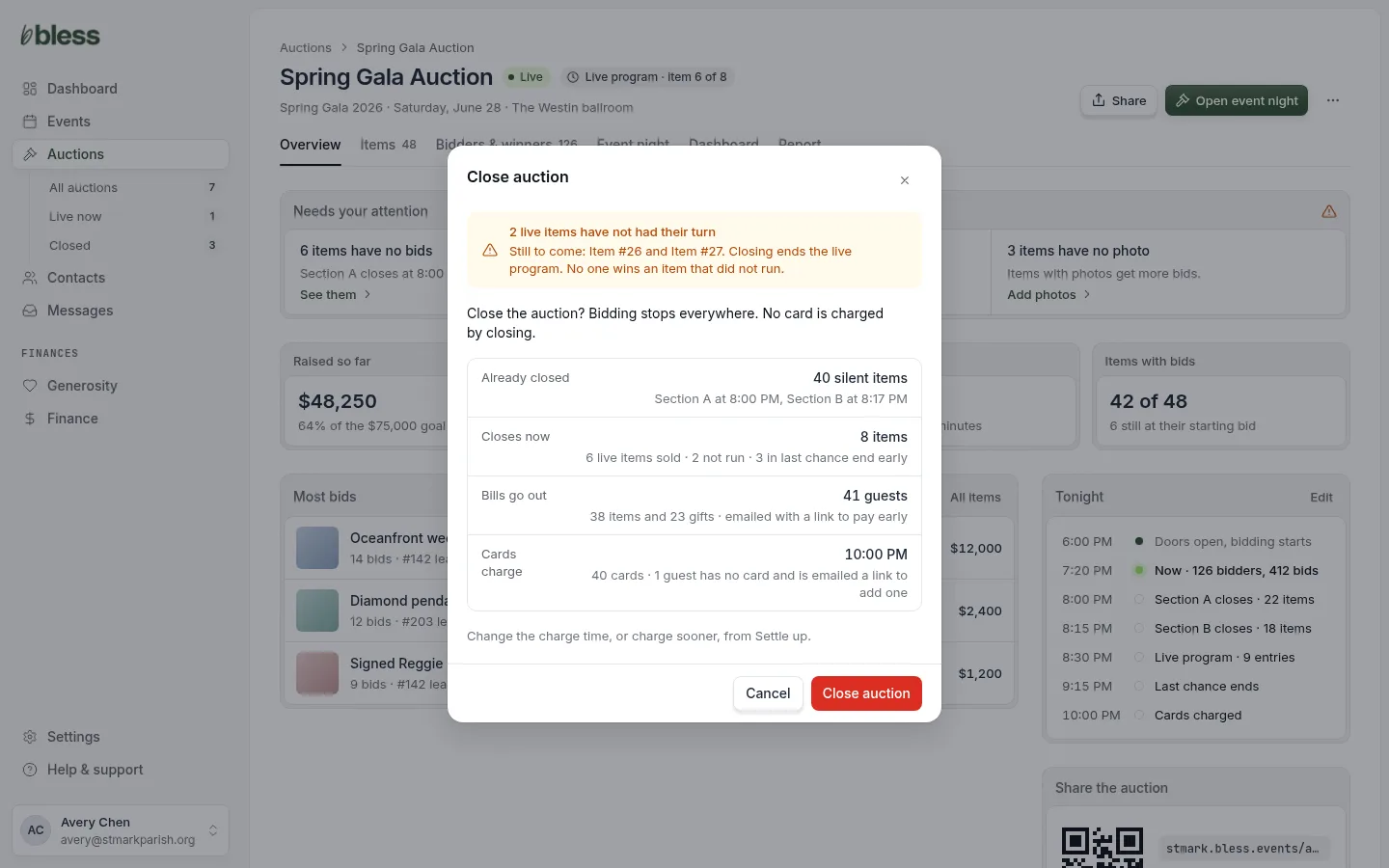
- Press Close auction in the auction’s menu.
- Read what is already closed and what closes now.
- Check when bills go out and when cards are charged.
- Press Close auction, or Cancel.
Closing charges no card. Cards are charged at the time you set in the closing schedule.
If any live items have not run, a warning at the top tells you before you confirm.
Next: After the night.
Updated
Was this page helpful?
Thank you. Your answer helps us make these pages better.