
Locations
Your main location and the other places you hold events. Bless shows them on event pages and in emails.
Your main location
- Open Settings. The General tab opens.
- Under Primary location, type the Location name, such as “Riverside Community Center”.
- Type the Address.
- Press Save changes. You see “Settings updated.”
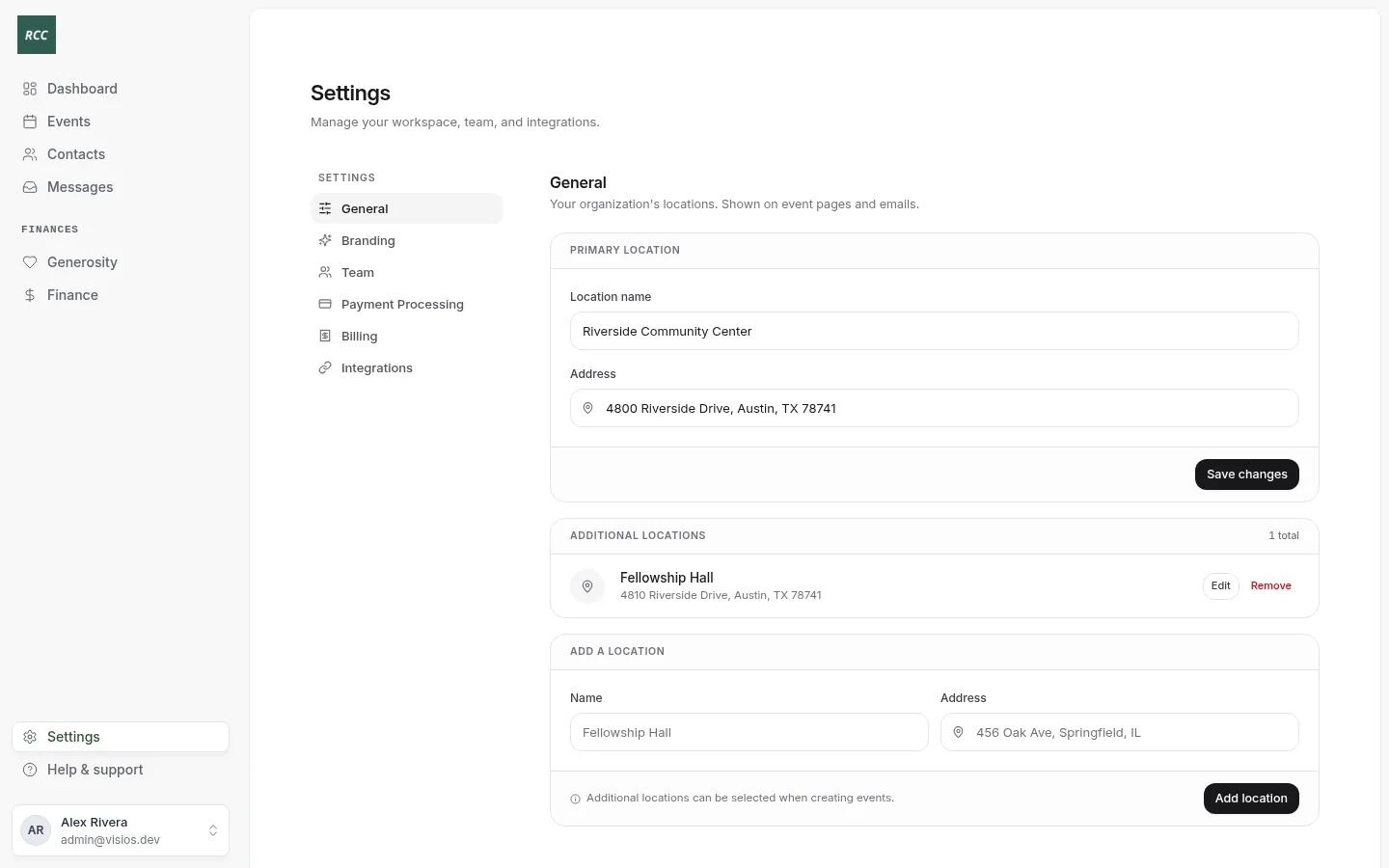
Type the name and the address together. If you type a name with no address, the location does not save.
Add another location
Add each place you hold events, such as a hall or a park.
- Under Add a location, type the Name and the Address.
- Press Add location.
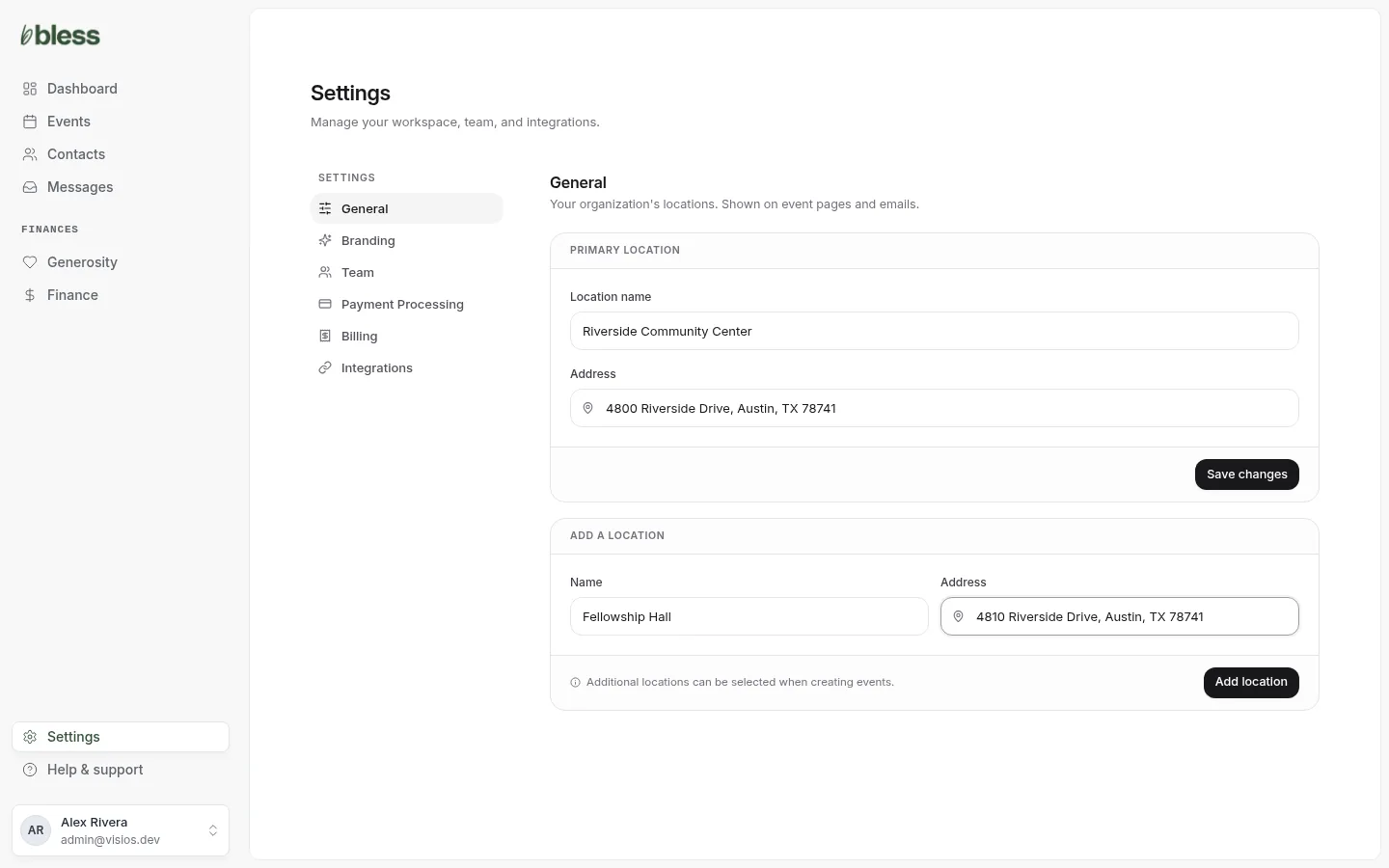
You see “Location was successfully created.” The location shows under Additional locations. You can choose it when you create an event.
Each location needs its own name.
Edit or remove a location
- Under Additional locations, press Edit.
- Change the Name or the Address.
- Press Save changes.
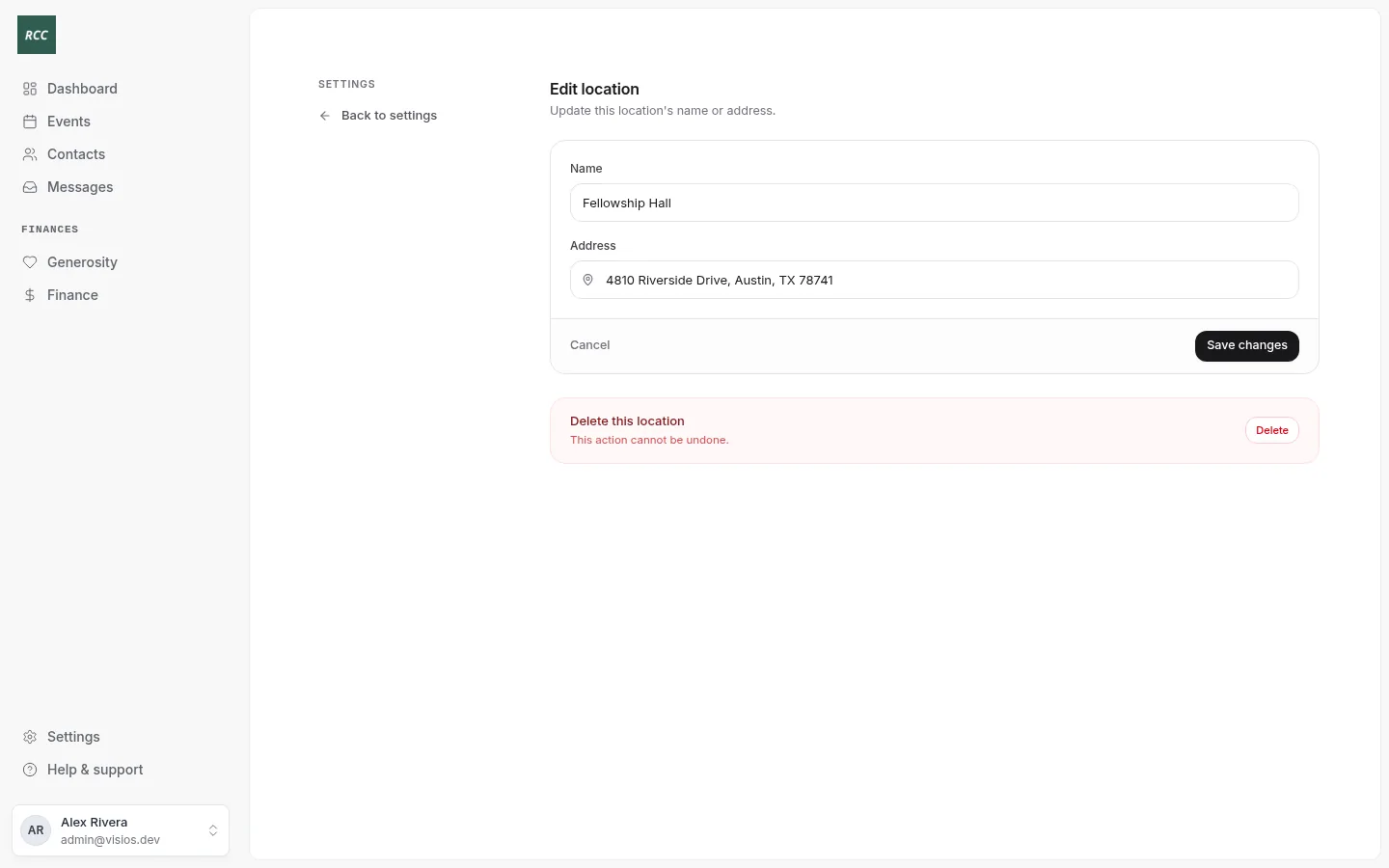
To remove a location, press Remove on its row, or Delete on the edit page. Confirm when Bless asks.
You cannot remove a location that an event uses. You see “Cannot delete — this location is used by” and the number of events. Change those events to another location first.
You cannot delete the primary location. Change it under Primary location instead.
Updated
Was this page helpful?
Thank you. Your answer helps us make these pages better.