
Branding
Your logo and your brand color. They show on your public event and giving pages, and your logo shows in the sidebar.
Upload your logo
- Open Settings and press Branding.
- Under Logo, press Choose file and choose your logo.
- Press Upload.
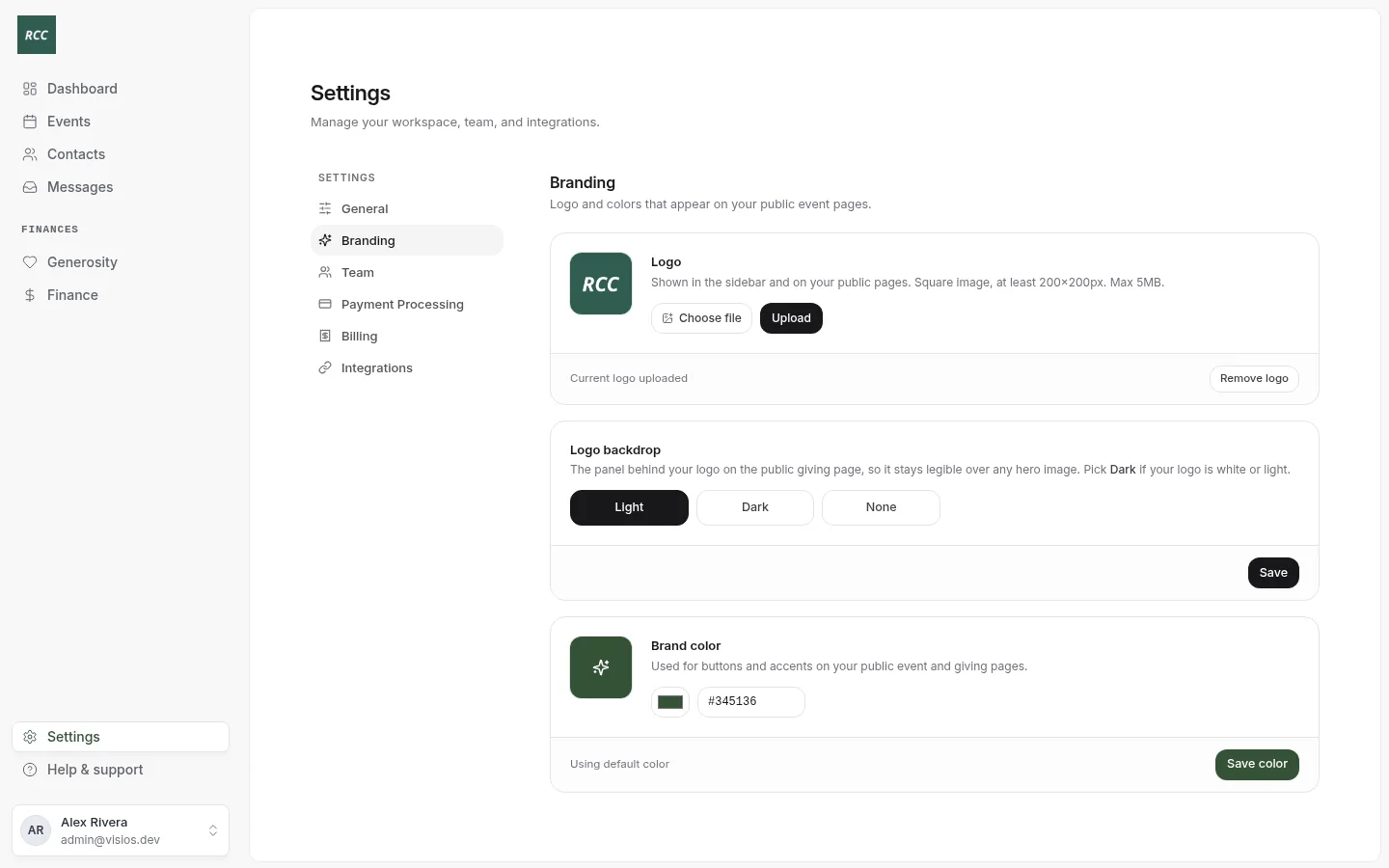
Use a square image of 200 × 200 pixels or more. It can be JPEG, PNG, GIF, WebP or SVG, up to 5 MB.
Your logo shows in the sidebar for your team, and on your public pages. To take it off, press Remove logo.
Choose the logo backdrop
The backdrop is the panel behind your logo on your public giving page. It keeps the logo easy to see on a photo. It shows after you upload a logo.
- Under Logo backdrop, choose Light, Dark or None. Choose Dark if your logo is white or light.
- Press Save.
Choose your brand color
Your brand color is used for buttons and accents on your public event and giving pages.
- Under Brand color, press the color square and choose a color. You can also type its code, such as
#345136. - Press Save color.
If you see “This color may have poor contrast with white text”, choose a darker color. People must be able to read white text on your buttons.
To go back to the Bless green, press Reset to default.
Updated
Was this page helpful?
Thank you. Your answer helps us make these pages better.