
Donations and refunds
Every gift shows in Finance. Read the totals, find one gift, export them for your books, and give a refund.
Finance › Generosity
Open Finance in the sidebar, then the Generosity tab.
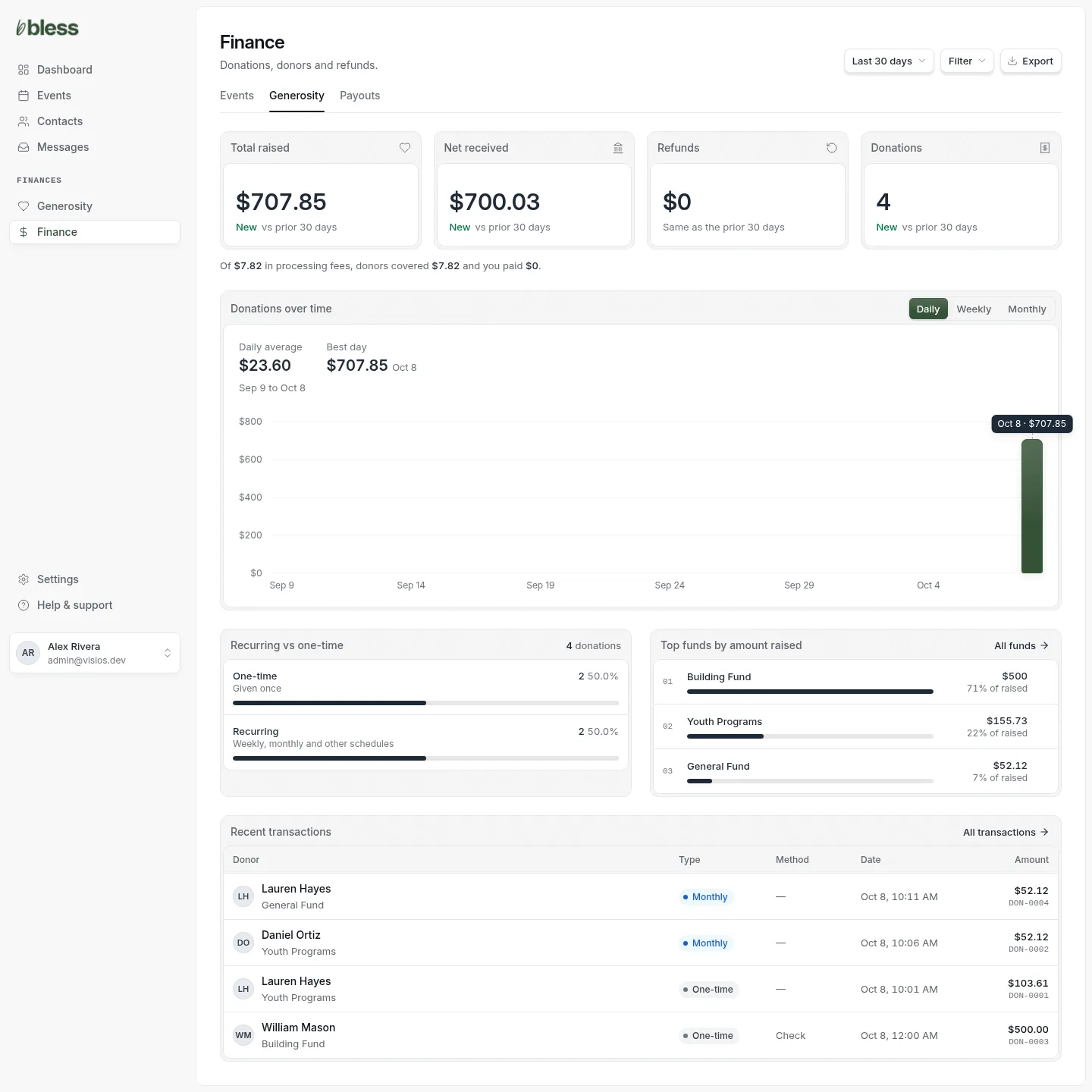
- Choose the period at the top, such as Last 30 days or This year.
- Total raised, Net received, Refunds and Donations compare the period with the one before.
- The line under the totals tells you how much of the processing fees donors covered.
- Donations over time shows the money by day, week or month.
- Recurring vs one-time and Top funds by amount raised show where it came from.
- Recent transactions lists the newest gifts. Press All transactions for the full list.
Owners, admins and accountants can open Finance.
Filter by fund or campaign
Press Filter and choose a fund or a campaign.
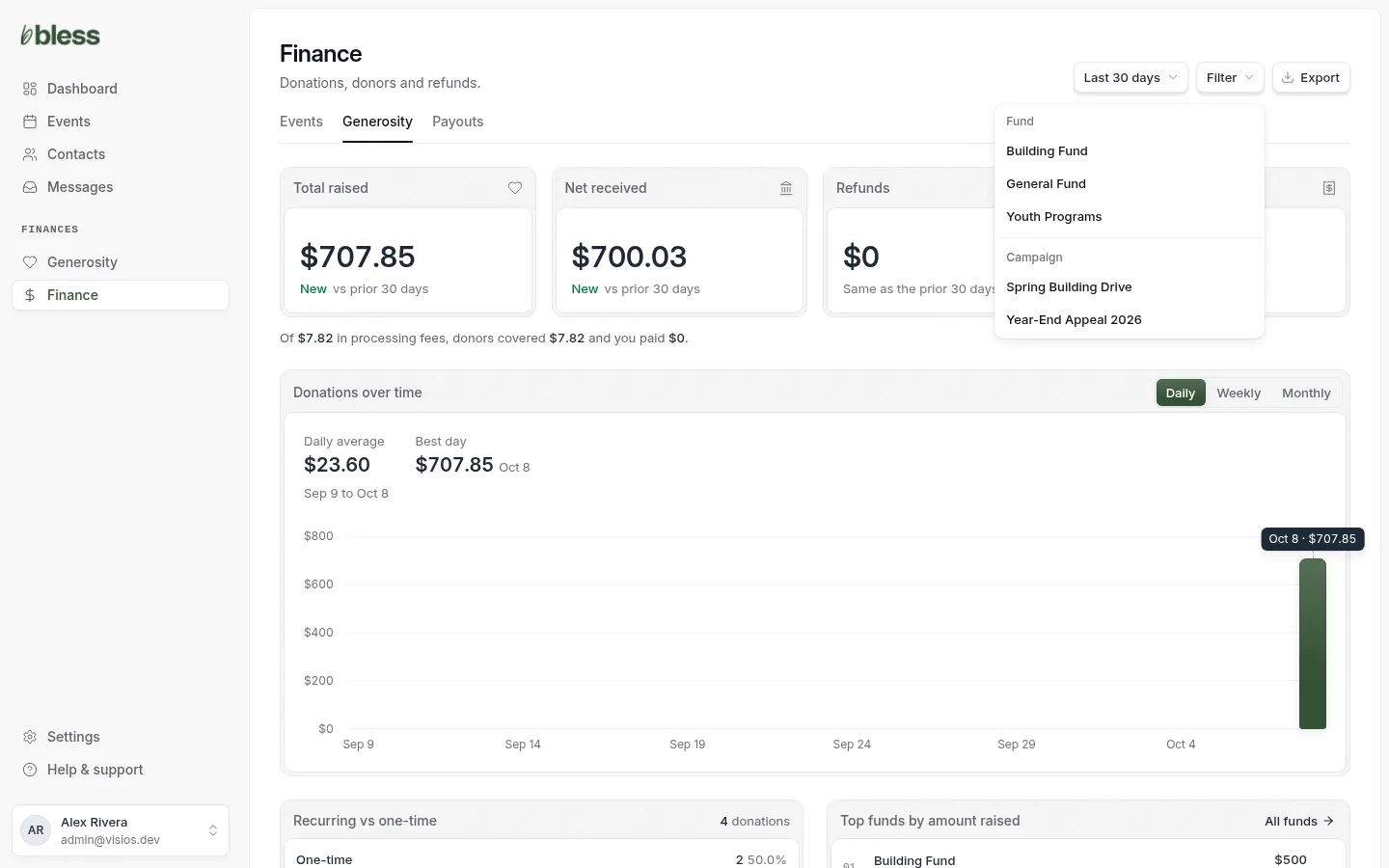
The page shows only those gifts. Press Clear to see all of them again.
Transactions
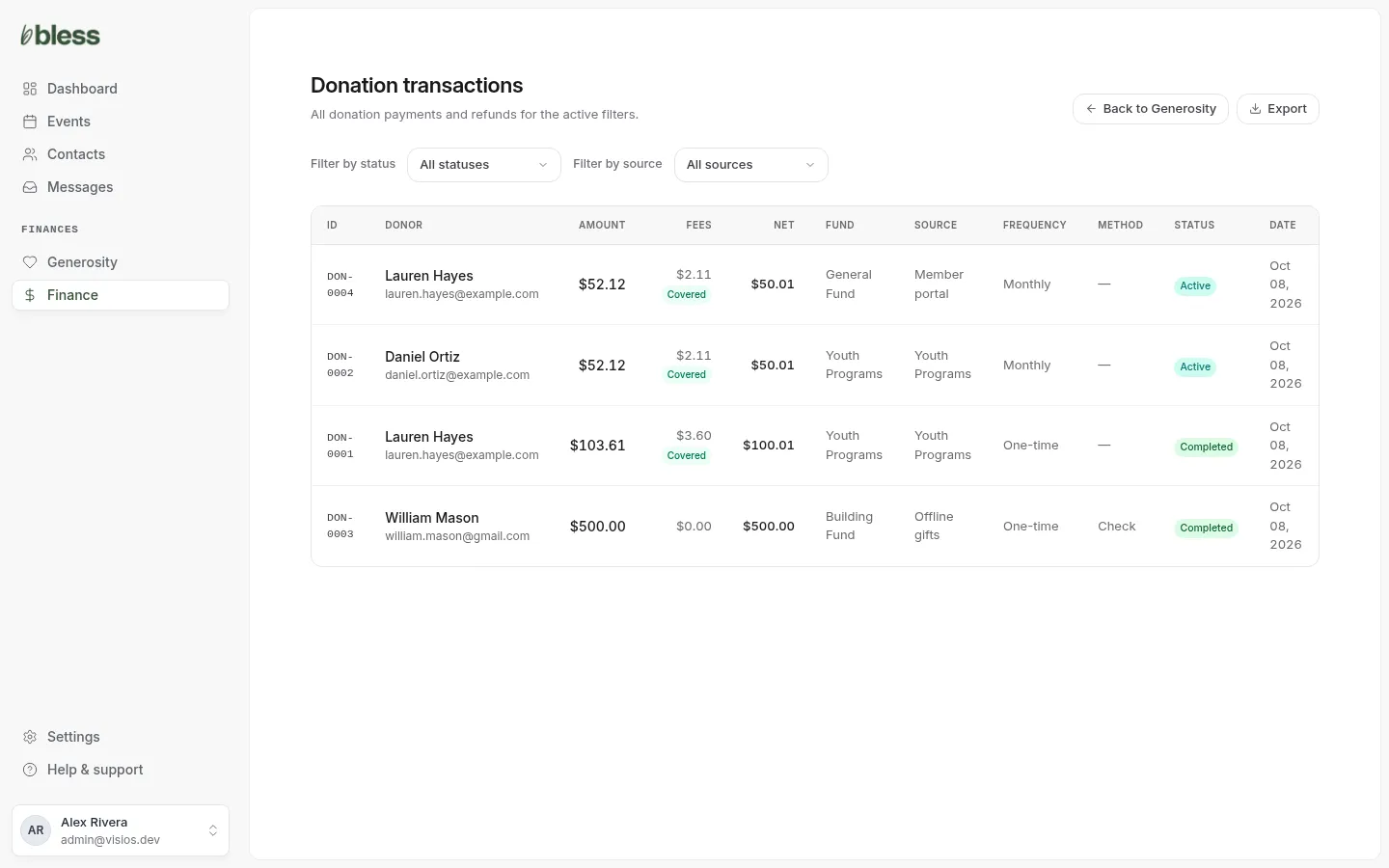
Each row is one payment or refund, with the amount, the fees, the net, the fund, the source, how often, how it was paid and the status.
- Filter by status: Active, Past due, Completed, Pending, Failed, Canceled, Refunded.
- Filter by source: Offline gifts, Giving pages, Member portal.
- A Covered tag under the fees means the donor paid them.
| Status | Meaning |
|---|---|
| Completed | A one-time gift that went through. |
| Active | A recurring gift that is charging on schedule. |
| Past due | The last recurring charge failed. Stripe tries again. |
| Pending | The payment has not gone through yet. A bank payment takes about four business days. |
| Failed | Nothing was charged. |
| Canceled | A recurring gift that was stopped. |
| Refunded, Partially refunded | Some or all of the money went back. |
Export
Press Export on Finance › Generosity or on Transactions. You get a CSV file of the gifts for the period and filters you chose. It has the donor, email, amount, fees, net, fund, source, frequency, method, status and date.
One donation
Press a gift’s ID or donor to open it.
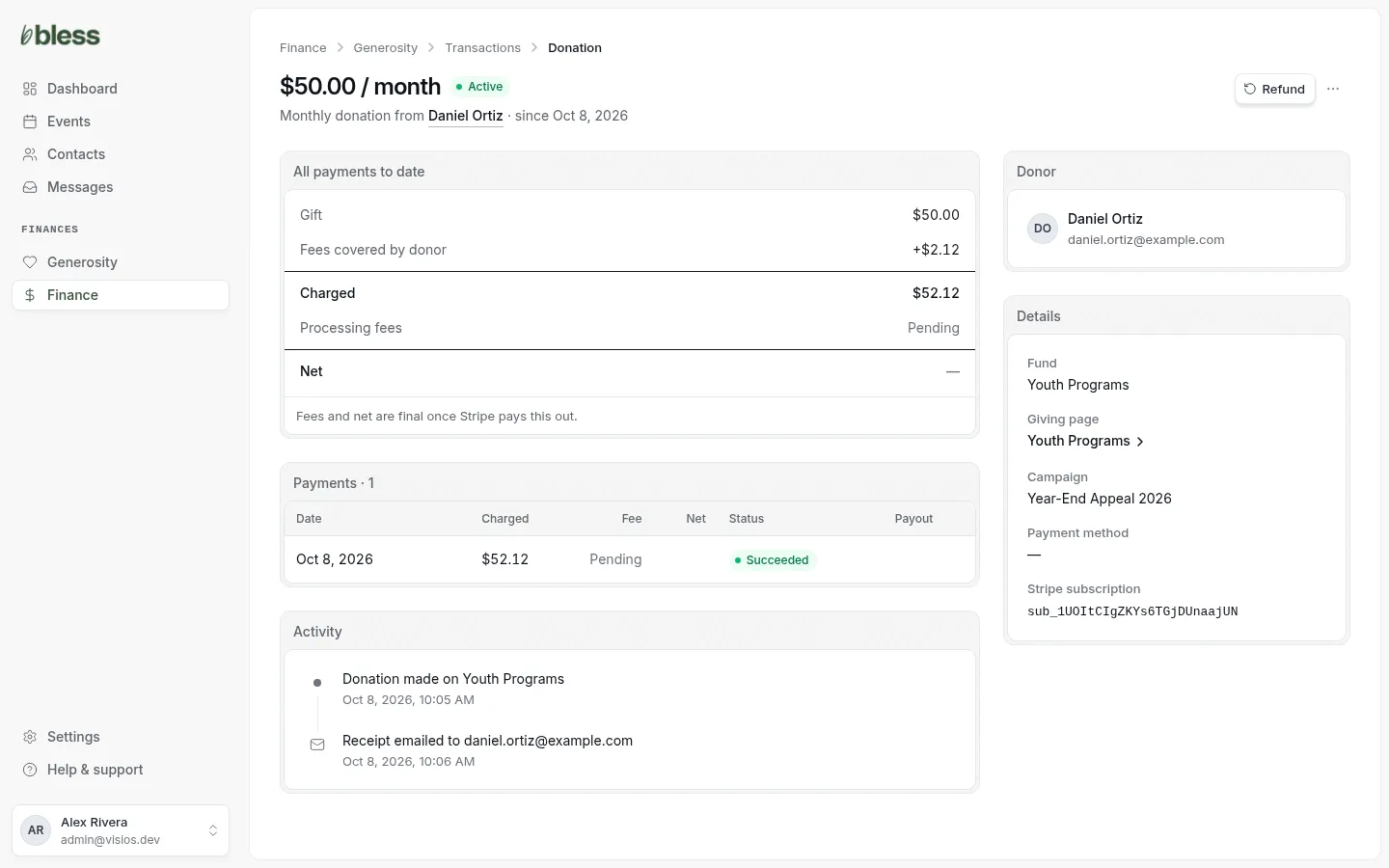
- The top shows the amount, how often, the donor and the status.
- All payments to date shows the gift, the fees the donor covered, the charge, the processing fees and the net.
- Payments lists each charge. A recurring gift adds a row each time.
- Activity shows when the gift was made, when receipts went out and any refunds.
- Donor and Details show the contact, fund, giving page, campaign and payment method.
Processing fees say Pending until Stripe pays the money out to you. More actions has View in Stripe and Copy payment ID.
Refund a gift
Owners and admins can refund.
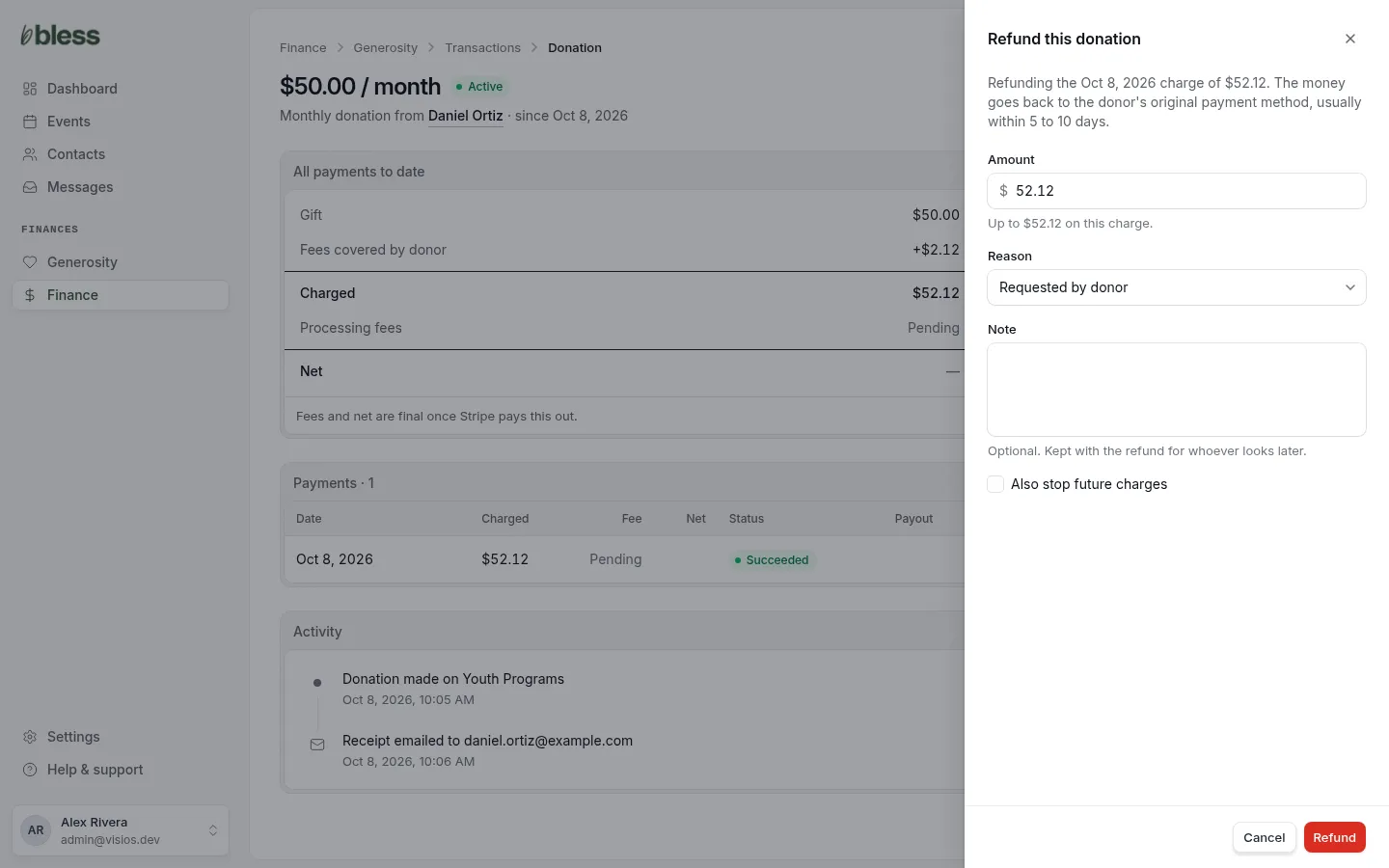
- Open the donation and press Refund.
- Type the amount. You can refund part of a charge.
- Choose the reason: Requested by donor, Duplicate or Fraudulent.
- Add a note for whoever looks later.
- For a recurring gift, tick Also stop future charges if the donor wants to stop.
- Press Refund.
The money goes back to the donor’s card or bank, usually in 5 to 10 days. Stripe keeps its processing fee. The donation shows Refunded or Partially refunded.
You cannot refund an offline gift in Bless.
Stop a recurring gift
Bless does not have a button that only stops a recurring gift. Use one of these:
- The donor stops it. Send them to Manage a recurring gift.
- Refund the last charge and tick Also stop future charges.
- Cancel the subscription in Stripe. Use More actions › View in Stripe.
The gift then shows Canceled.
Updated
Was this page helpful?
Thank you. Your answer helps us make these pages better.