
Your giving
Sign in and open Giving to see every gift you made, set a goal for the year, give again, change a monthly gift and download a statement.
The Giving page
Sign in, then press Giving.
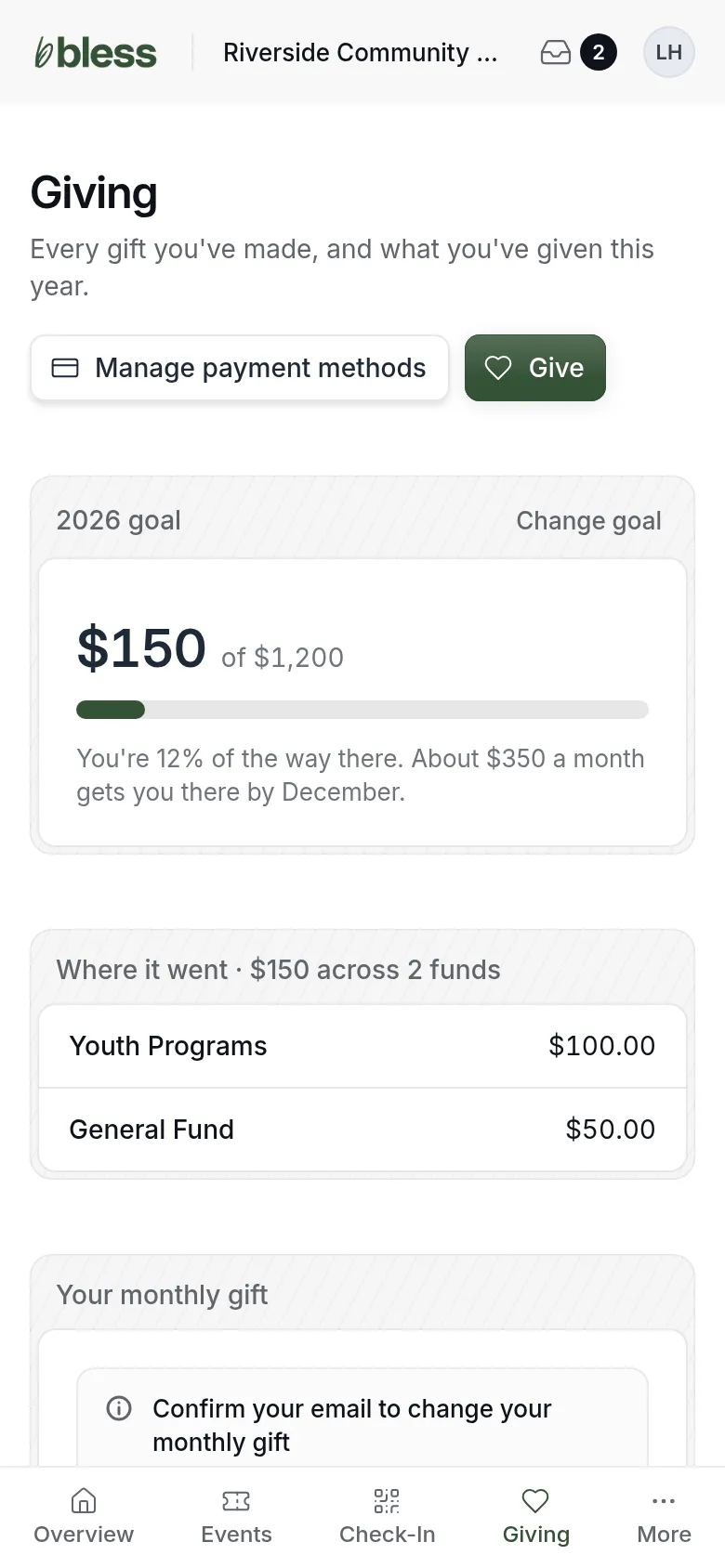
- Where it went shows your gifts this year by fund.
- This year, All time and Gifts show your totals.
- Gifts this year lists each gift with its date and status. Press See all gifts for older ones.
- Receipts are emailed the day each gift goes through.
Set a giving goal
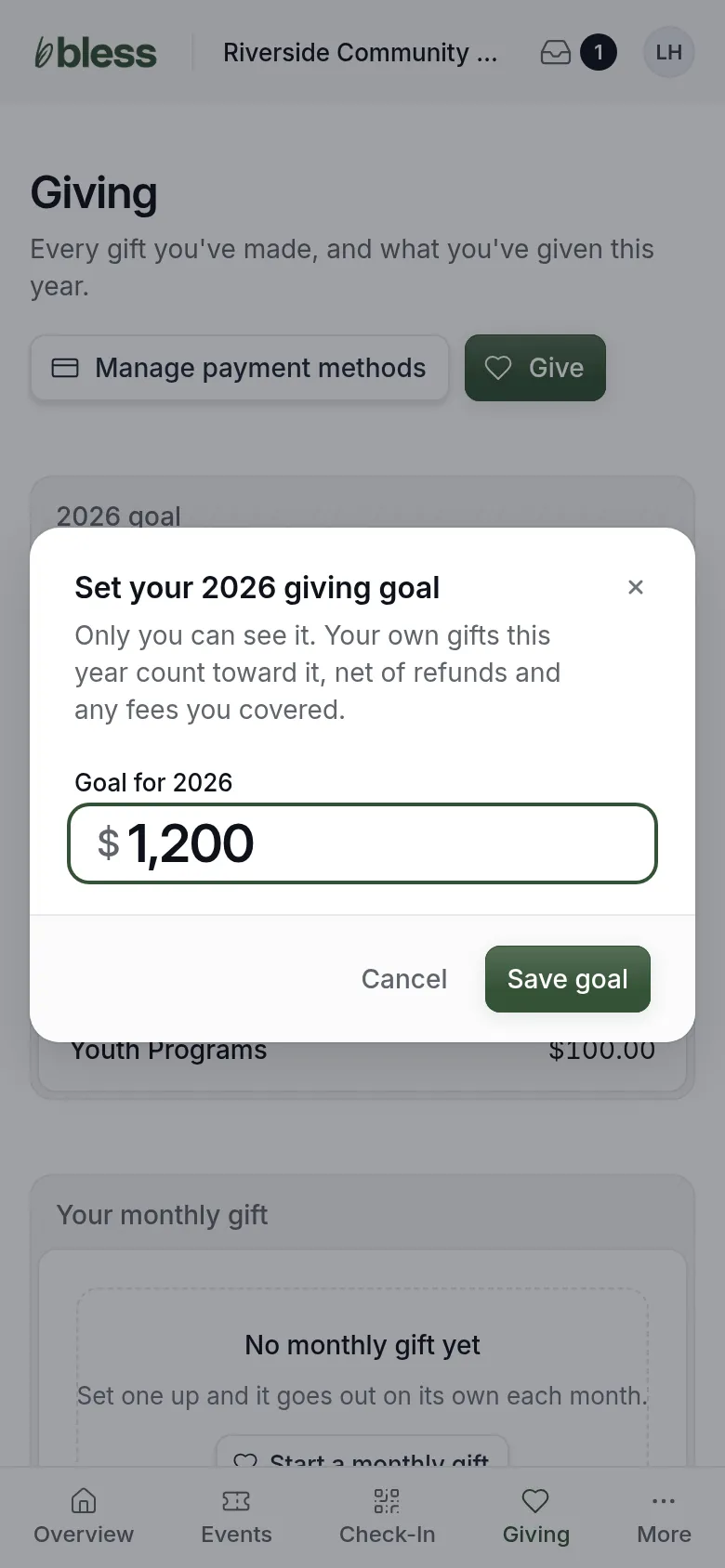
- Press Set goal.
- Type the amount you want to give this year.
- Press Save goal.
Only you can see your goal. Your gifts this year count toward it. The card shows how far along you are. Press Change goal to change it or Remove goal to clear it.
Give
Press Give at the top of the page.
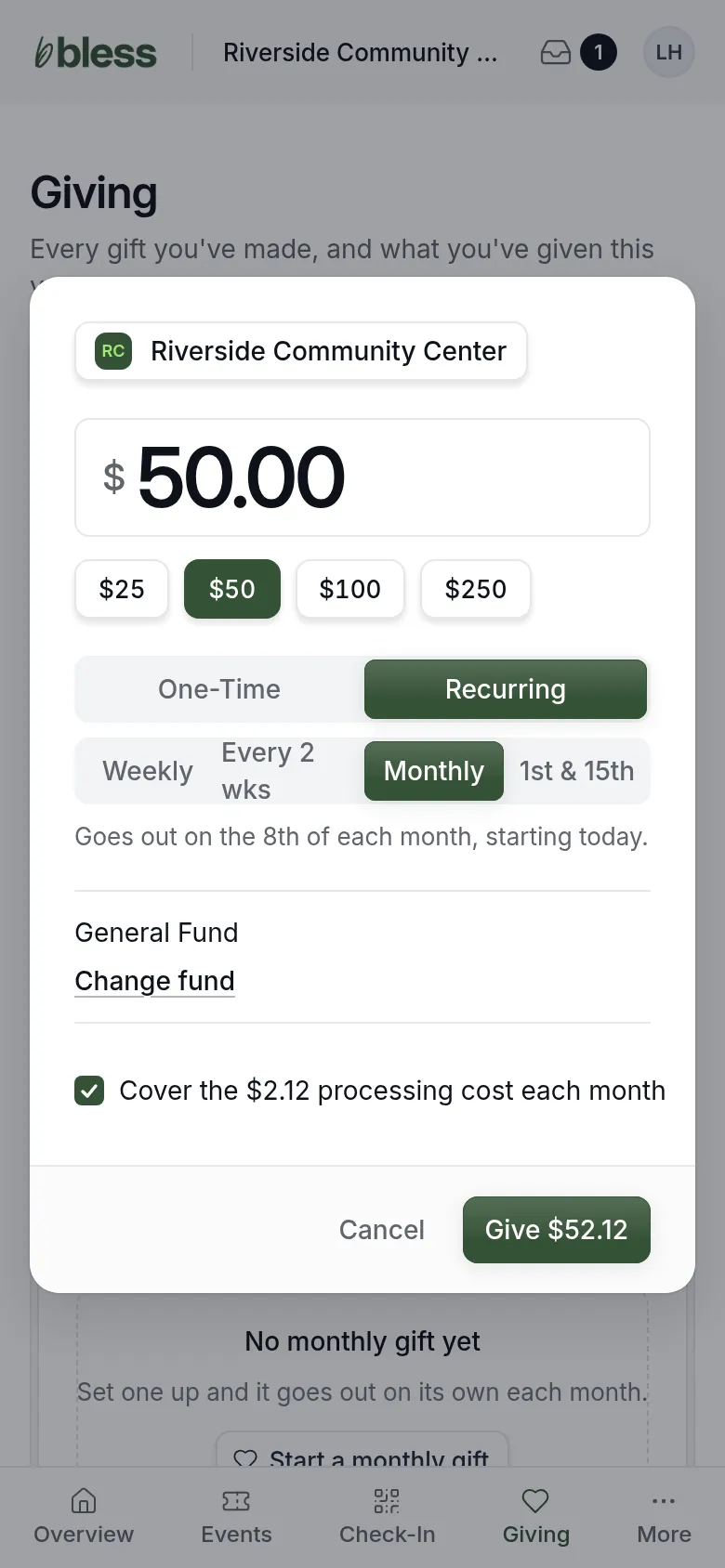
- Type an amount, or press a suggested one.
- Choose One-Time or Recurring. For recurring, choose how often.
- Check the fund. Press Change fund to give to another one.
- Tick the box to cover the processing cost, if you want.
- Press Give.
- Type your card details and press Pay.
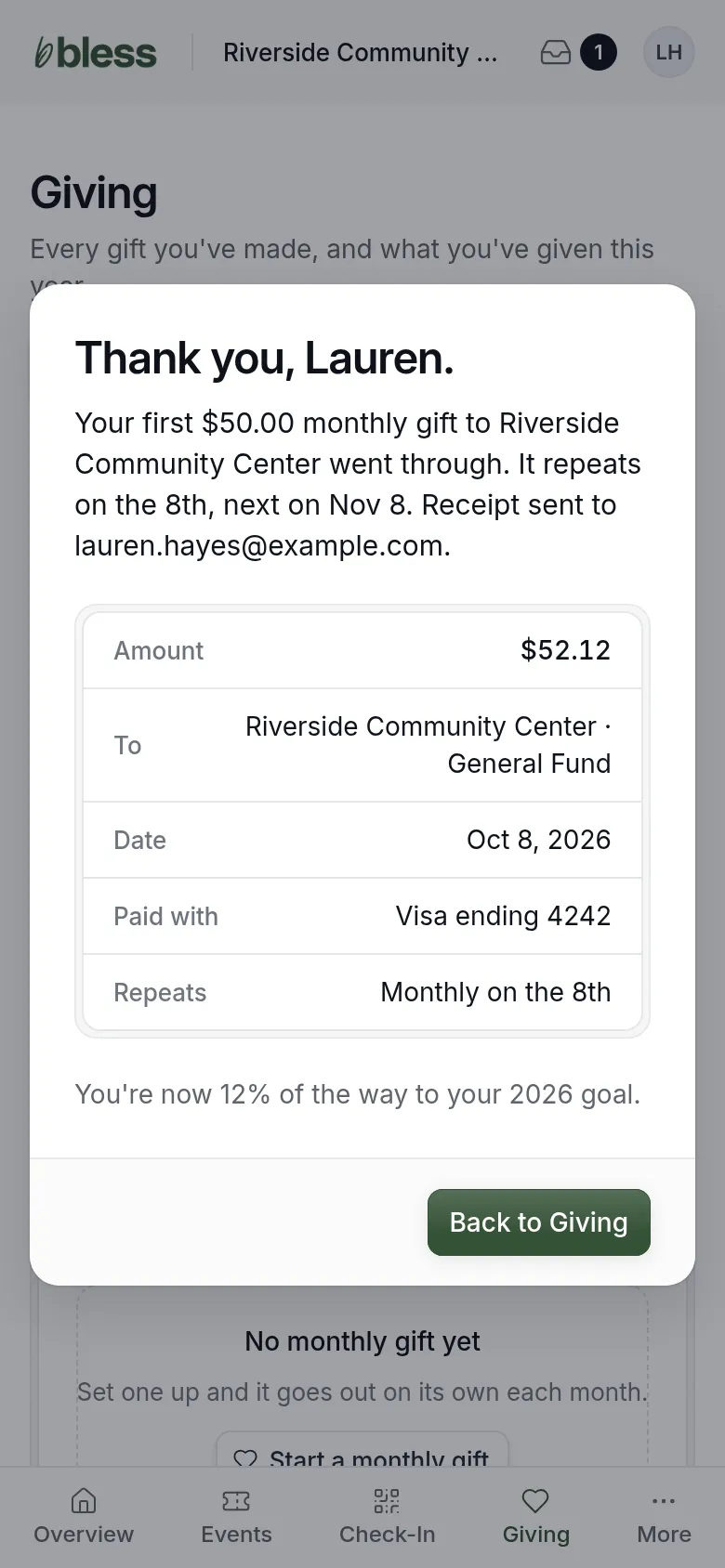
You see the amount, the fund, the card and, for a monthly gift, the day it repeats. Press Back to Giving.
Your monthly gift
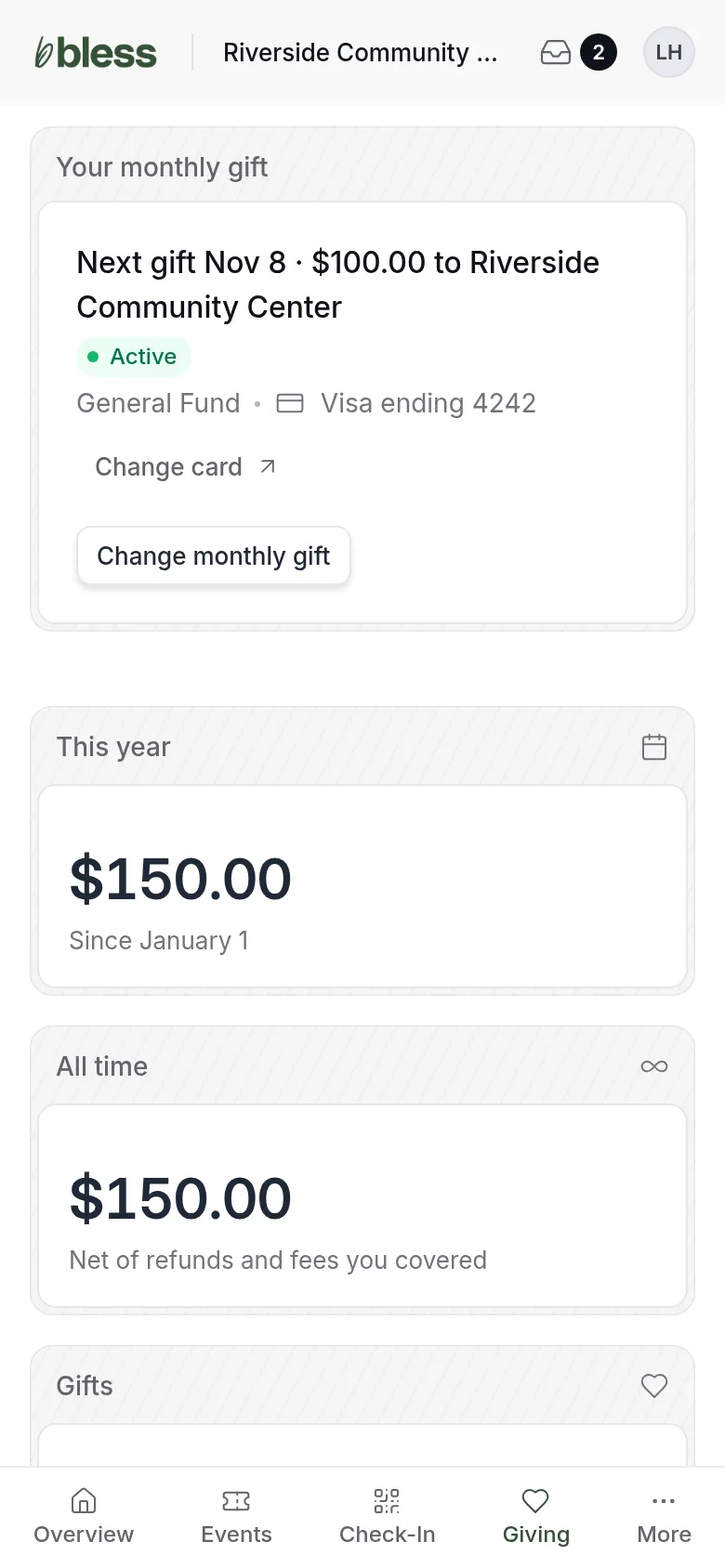
The card shows the next gift, its amount, the fund and the card it uses.
To change the amount:
- Press Change monthly gift.
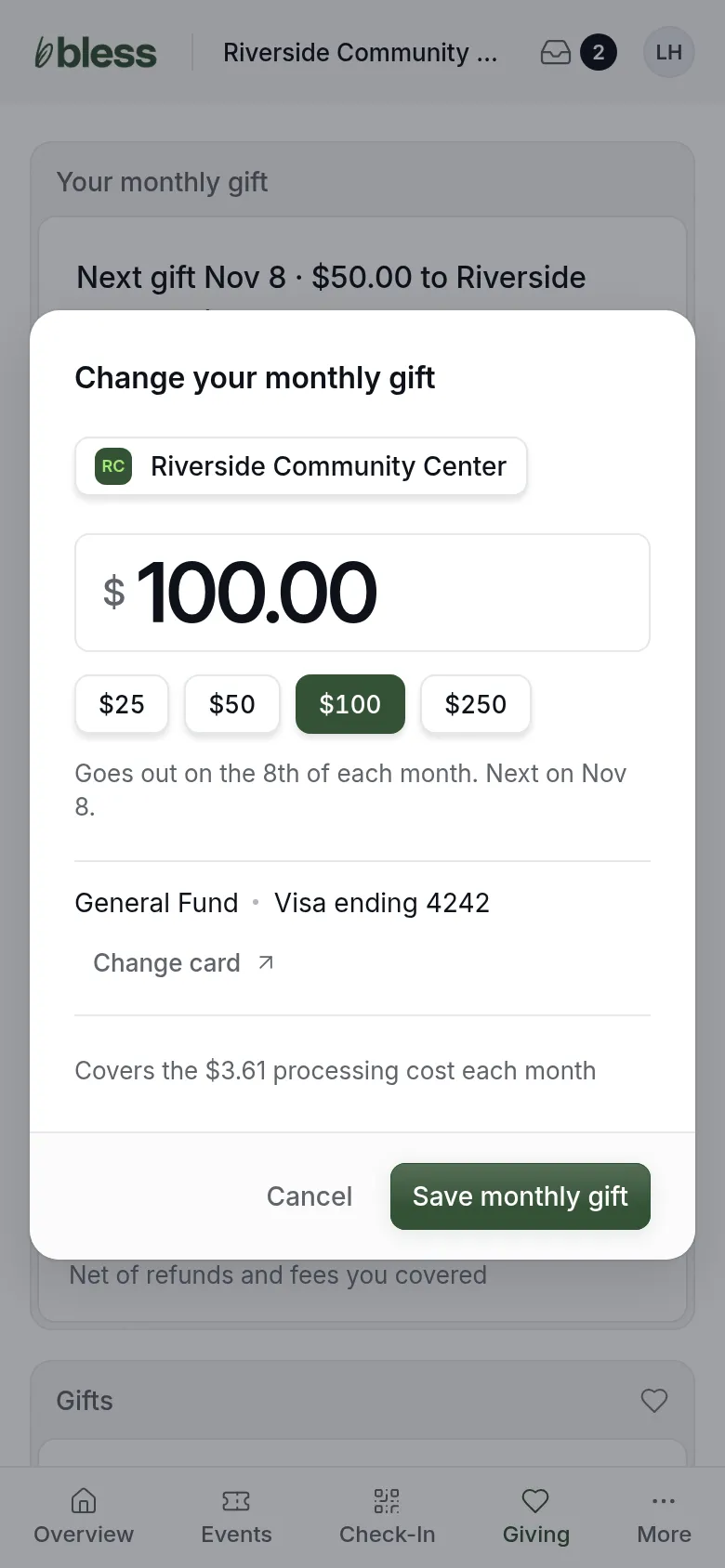
- Type the new amount, or press a suggested one.
- Press Save monthly gift. The change starts with your next gift.
To change the card, or to stop the gift, press Change card or Manage payment methods. A secure Stripe page opens.
Good to know:
- Before you can change a monthly gift, Bless asks you to confirm your email. Press Send confirmation email and open the link.
- You can change the amount of a monthly gift here. To change a weekly gift, contact the organization.
- The fund and the covered fee stay the same when you change the amount.
Your giving statement
Some organizations let you download a statement of your giving.
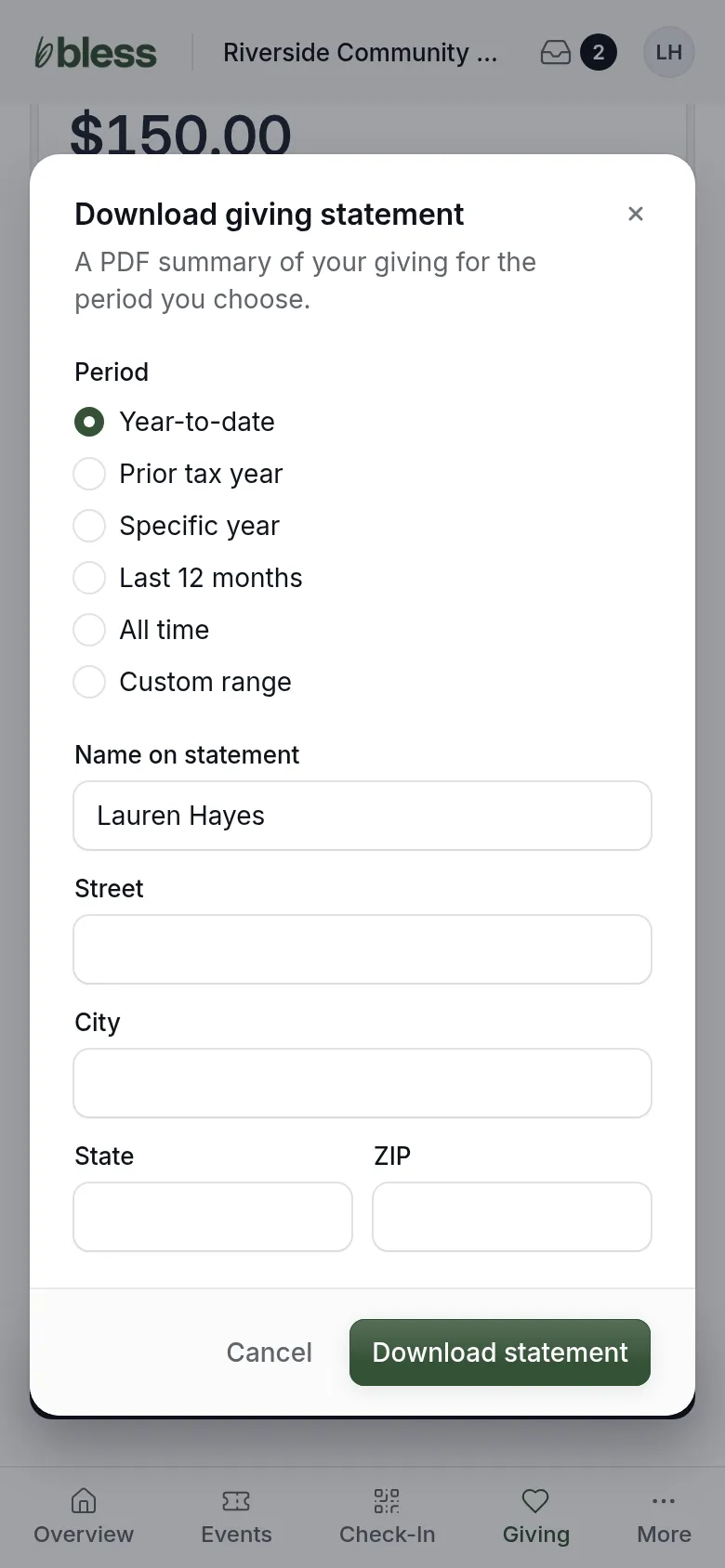
- Press Download tax statement under Gifts this year.
- Choose the period, such as Prior tax year.
- Check your name and type your address.
- Press Download statement.
You get a PDF with each gift’s date, fund and amount, and the total for the period. If you see “No donations found for this period”, choose another period.
Updated
Was this page helpful?
Thank you. Your answer helps us make these pages better.