
Your profile and household
See your details, add the people who live with you, and change your household's name and address.
Profile and settings
Sign in. Press your initials at the top of the page, then press Profile and settings.
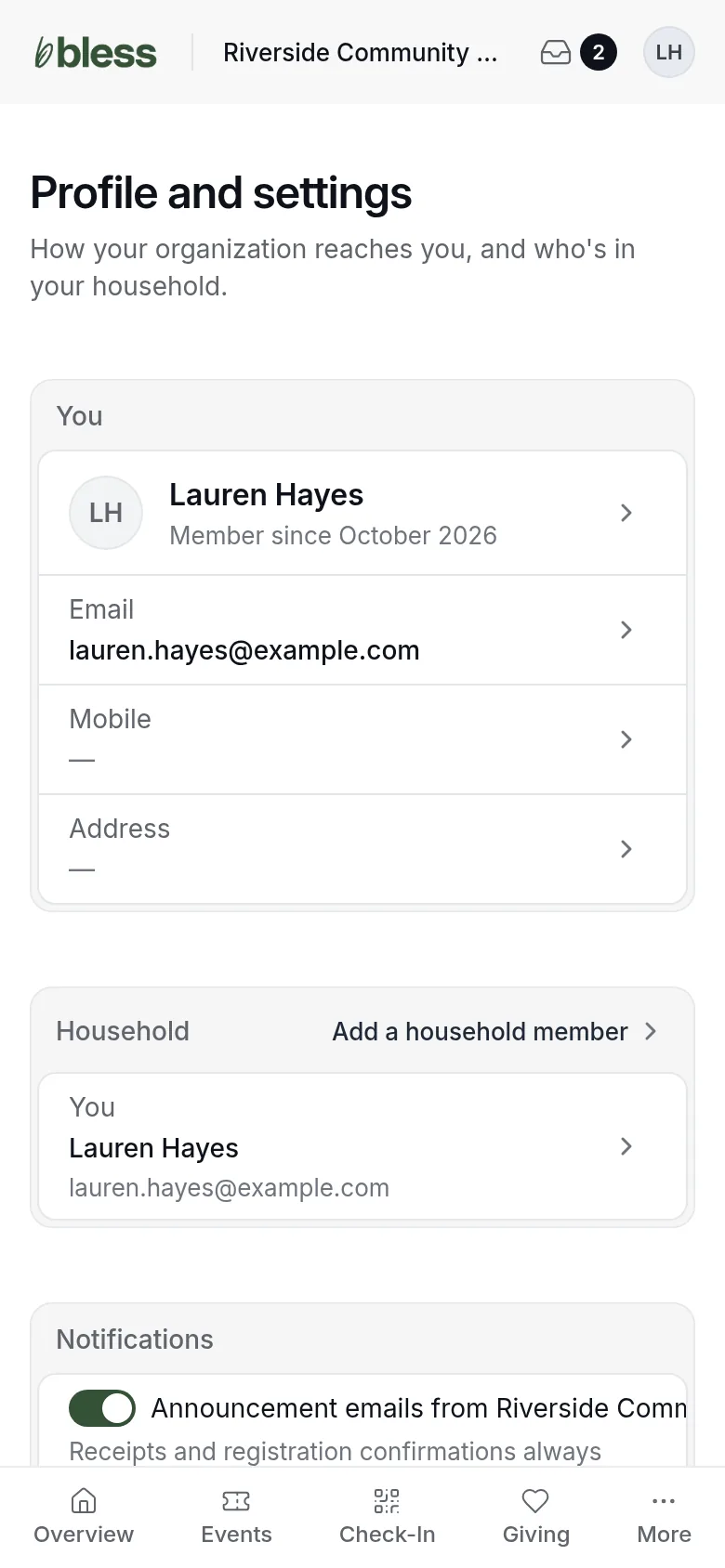
- You shows your name, your Email, your Mobile and your Address. Press a row to change it.
- Household shows each person in your household and how they are related to you.
- Notifications turns announcement emails on or off. See Stop announcement emails.
Add a household member
Add the people who live with you, so you can register them for events.
- Under Household, press Add a household member.
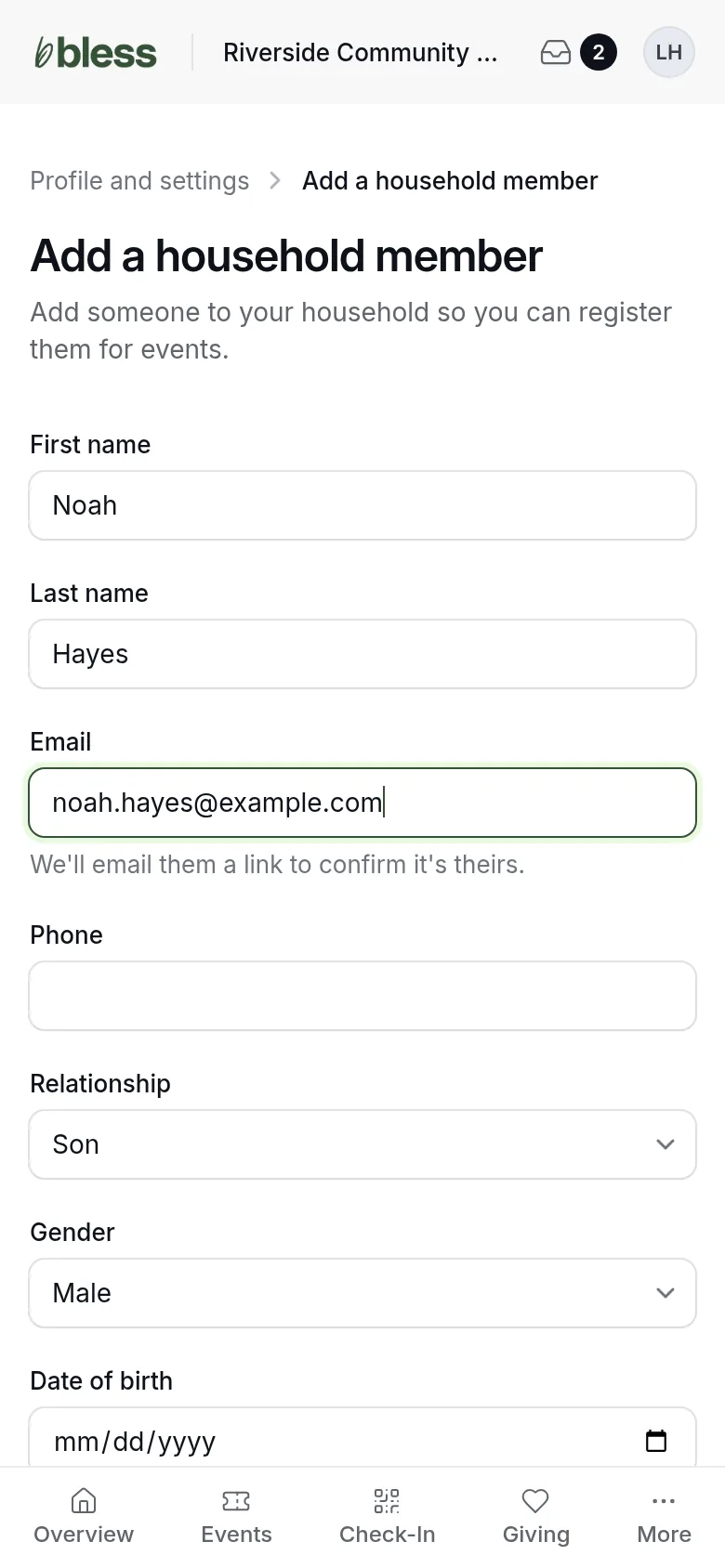
- Type the First name and Last name.
- Type their Email and Phone, if they have them. A child does not need an email.
- Choose the Relationship, such as Son.
- Choose the Gender and type the Date of birth, if you want.
- Press Add member.
You see “Member added.” The person shows under Household.
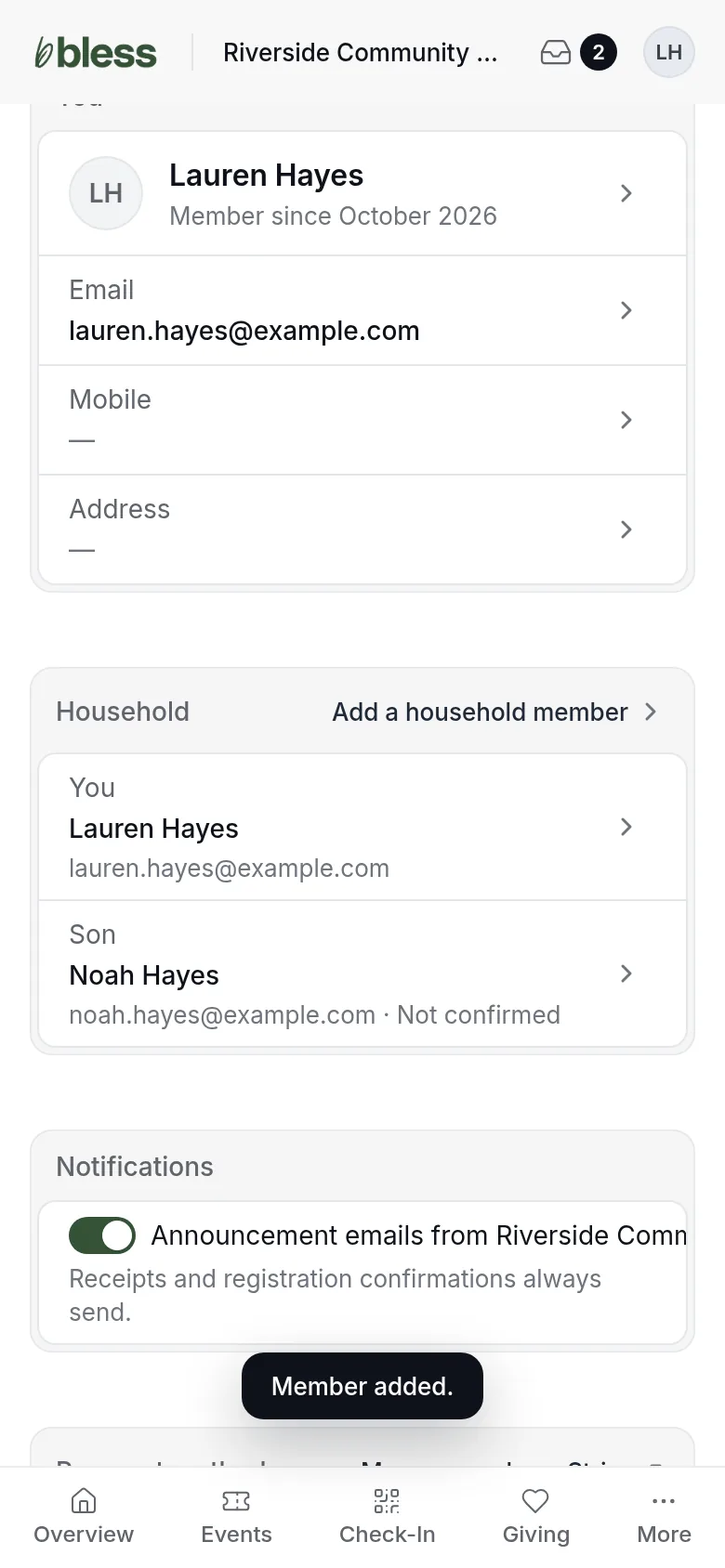
If you type an email for them, Bless emails them a link to confirm it. Until they confirm it, the email shows Not confirmed. Their event emails still go to it. See Confirm your email.
Edit a household member
- Under Household, press the person.
- Change their details.
- Press Save changes. You see “Member updated.”
You cannot change an email that belongs to the person. You see “To change it, contact” and your organization’s name. Ask your organization to change it.
Change your household name and address
- Press Address under You.
- Change the Household name, Street address, City, State or ZIP code.
- Press Save changes. You see “Household updated.”
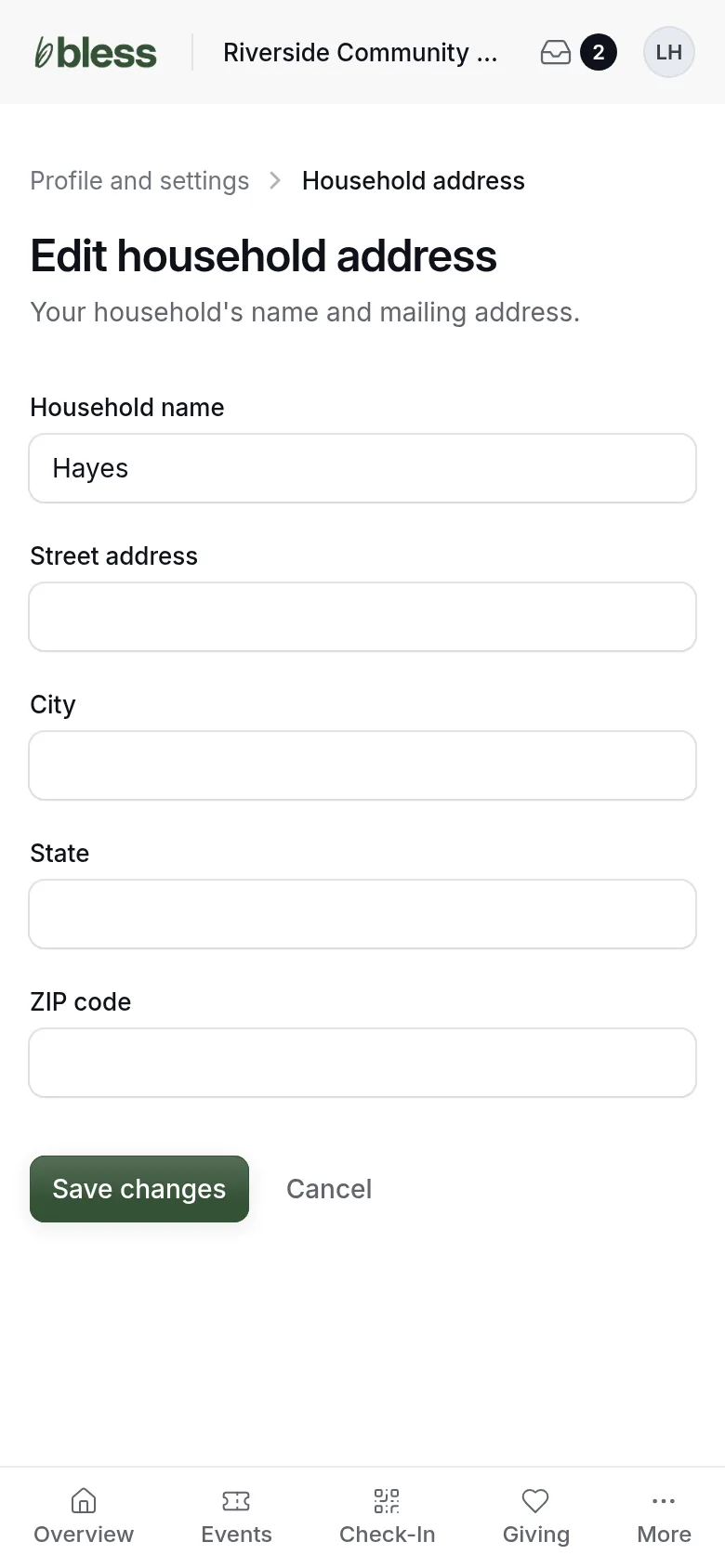
The address is for everyone in your household. Your organization uses it for giving statements and mailings.
Updated
Was this page helpful?
Thank you. Your answer helps us make these pages better.