
Edit a contact
Correct a person's name, email, phone or details, change their household's address, or send them a password reset.
Edit a contact
- Open the contact page.
- Press Edit contact.
- Change what you need under Person, Details and Household address.
- Press Save changes.
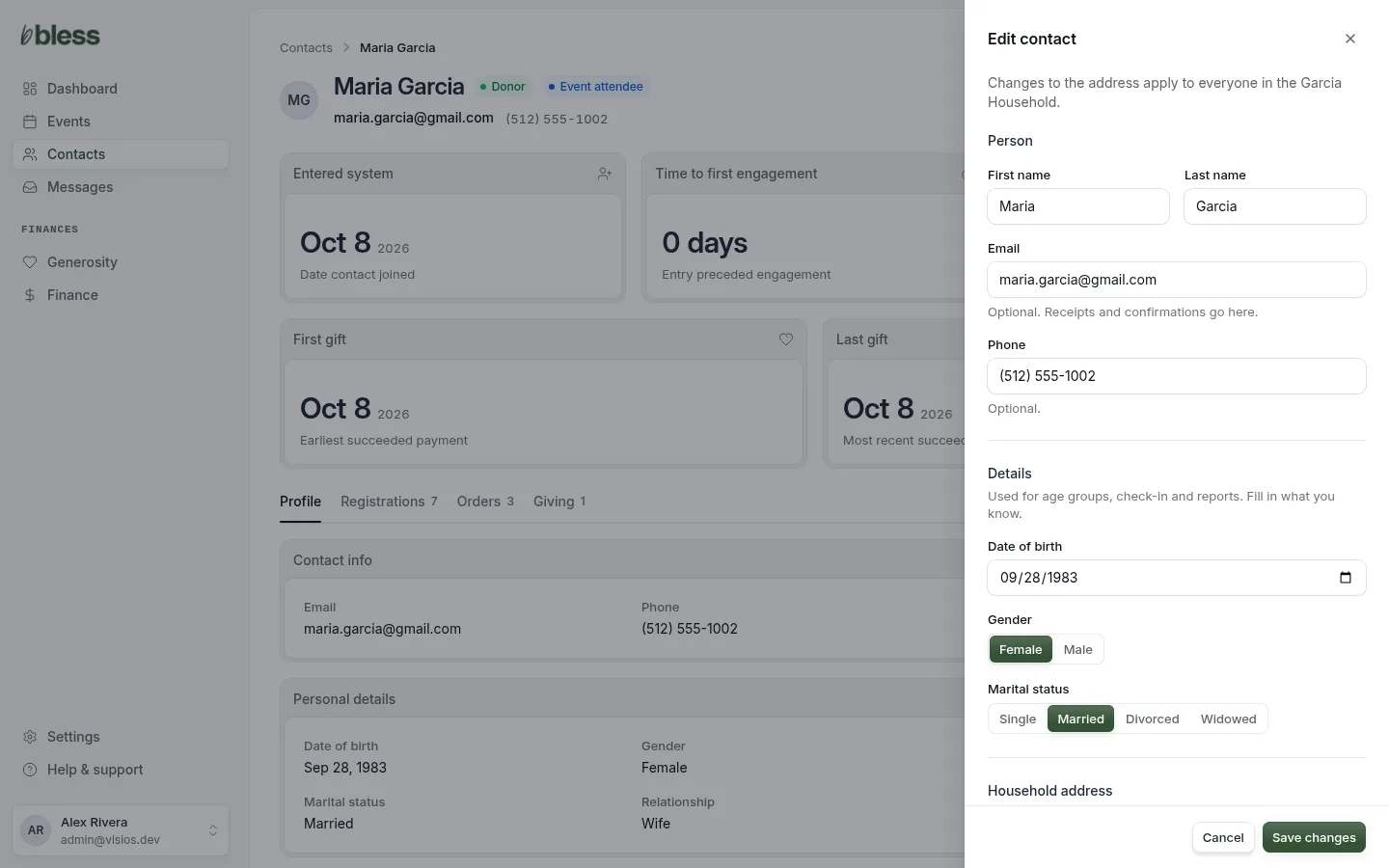
You see “Changes to Maria Garcia saved.”
Change the email
Type the new email and press Save changes. The change takes effect at once. Bless sends no email to the old or the new address.
- Receipts, confirmations and announcements go to the new email.
- If the person has an account, they still sign in with their old email. Tell them.
- After you change it, the person cannot change their email from their account. They must ask you.
- Two contacts cannot have the same email. See If the email is already used.
Change the household address
The address belongs to the household, not to one person. When you change it on one contact, it changes for everyone in the household. The sheet tells you this at the top.
What you cannot change here
- The Relationship in the household.
- The household name.
- The household. You cannot move a person to another household.
A member can rename their household and change relationships from their account. See Your household.
Send a password reset
Use this when a member cannot sign in. The button shows only for a contact with an account.
- Open the contact page.
- Press Send password reset.
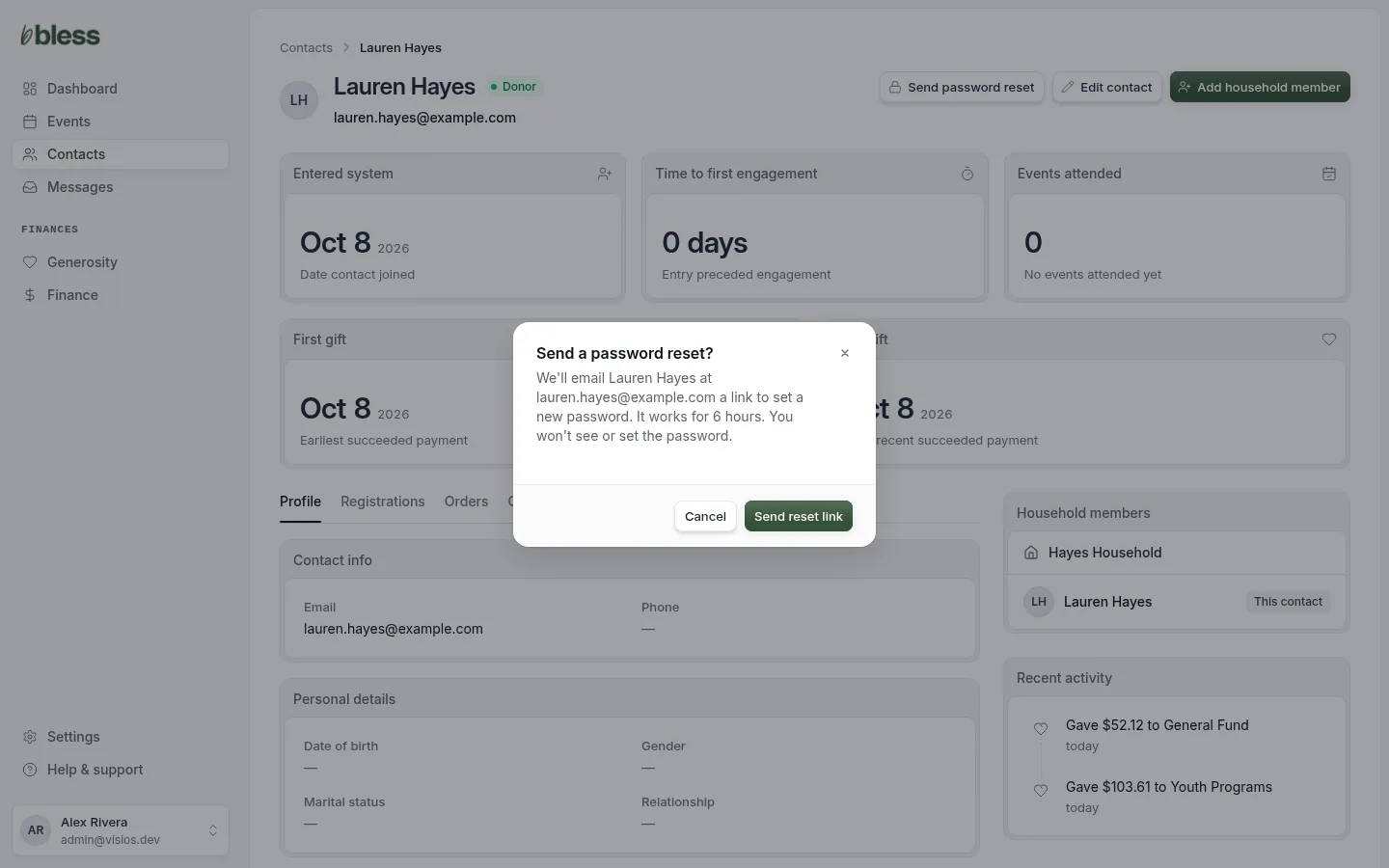
- Press Send reset link.
You see “Password reset link sent to” and the email. The link works for 6 hours. You never see or set the password.
If you sent a link a short time ago, you see “Try again in a few minutes.”
Updated
Was this page helpful?
Thank you. Your answer helps us make these pages better.