
Add a contact
Add a person Bless does not know yet. Put them in a new household, or in their family's household.
Most contacts arrive on their own, when a person registers, gives or bids. Add a contact by hand only for a person who has not done any of these. See How contacts arrive.
Add a contact in a new household
- Open Contacts and press Add contact. You can also use Add contact in Quick actions on the Dashboard.
- Under Person, type the First name and Last name.
- Type the Email, if you know it. Receipts and confirmations go to this email.
- Type the Phone, if you know it.
- Under Household, leave Start a new household selected.
- Type the address, if you know it. Giving statements and mailings use it.
- Under Details, fill in what you know: Date of birth, Gender and Marital status.
- Press Add contact.
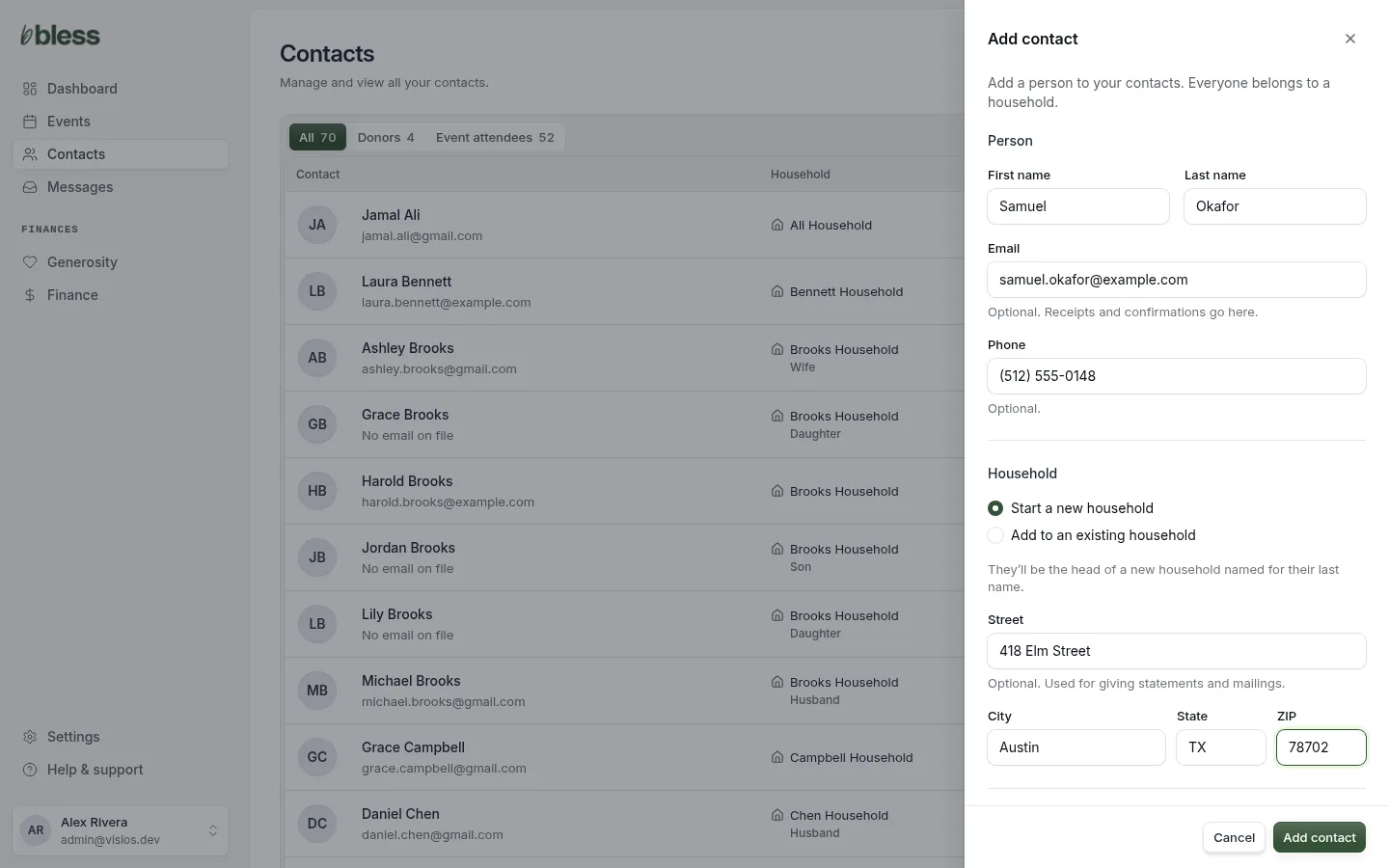
You see “Samuel Okafor added to Okafor Household.” The contact page opens. The new household has the person’s last name.
Only the first name and the last name are necessary. Bless uses the details for age groups, check-in and reports.
Add a contact to an existing household
Use this for a person whose family is already in Contacts, such as a daughter.
- Press Add contact and type the person’s details.
- Under Household, choose Add to an existing household.
- In Find a household, type the household name or the name of a person in it. Type two letters or more.
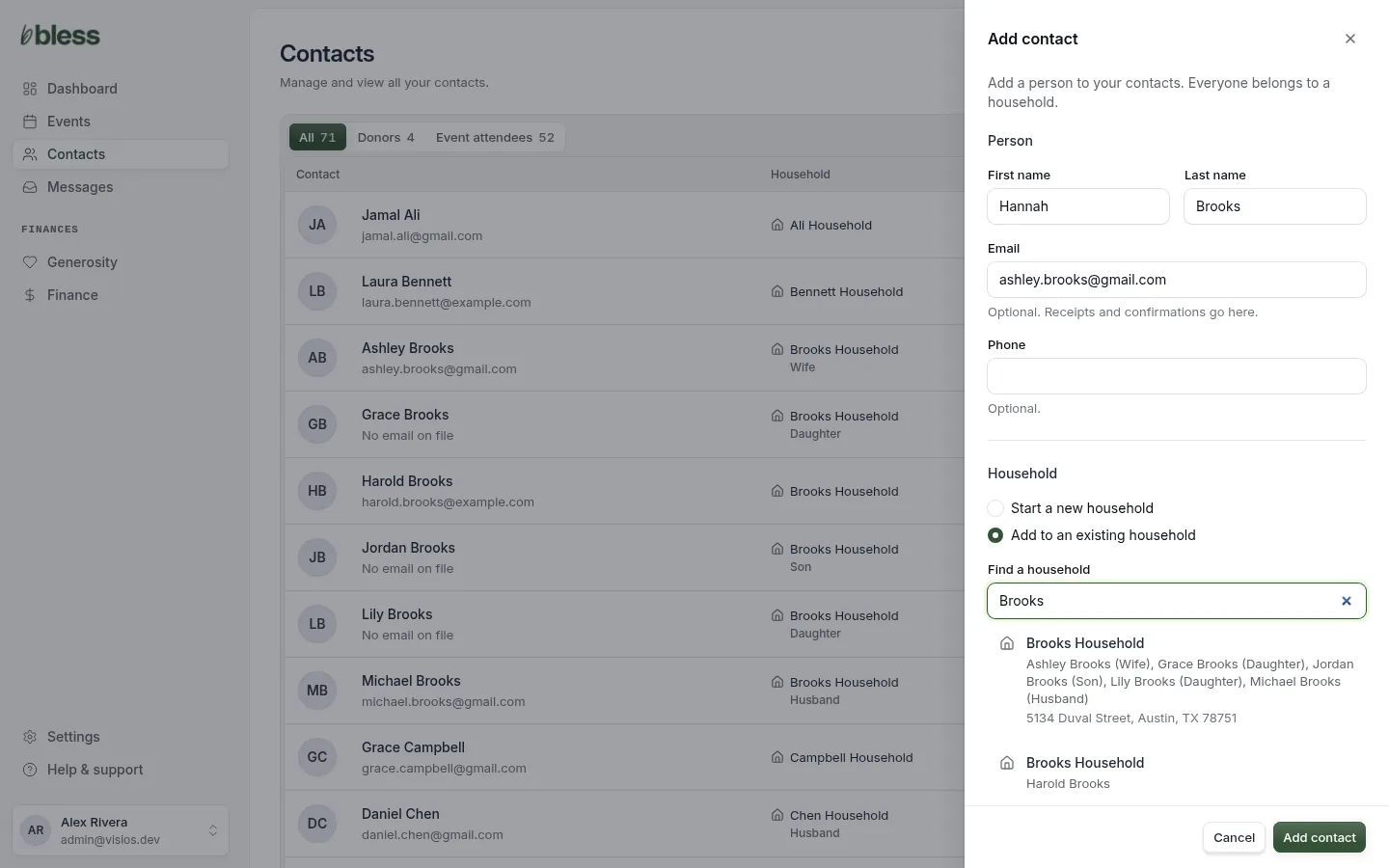
- Press the household. Check the members and the address, so you get the right family. Press Change to choose another one.
- Under Relationship to (the head of the household), choose Spouse, Daughter, Son or Other. Choose Other for anyone else who lives with them.
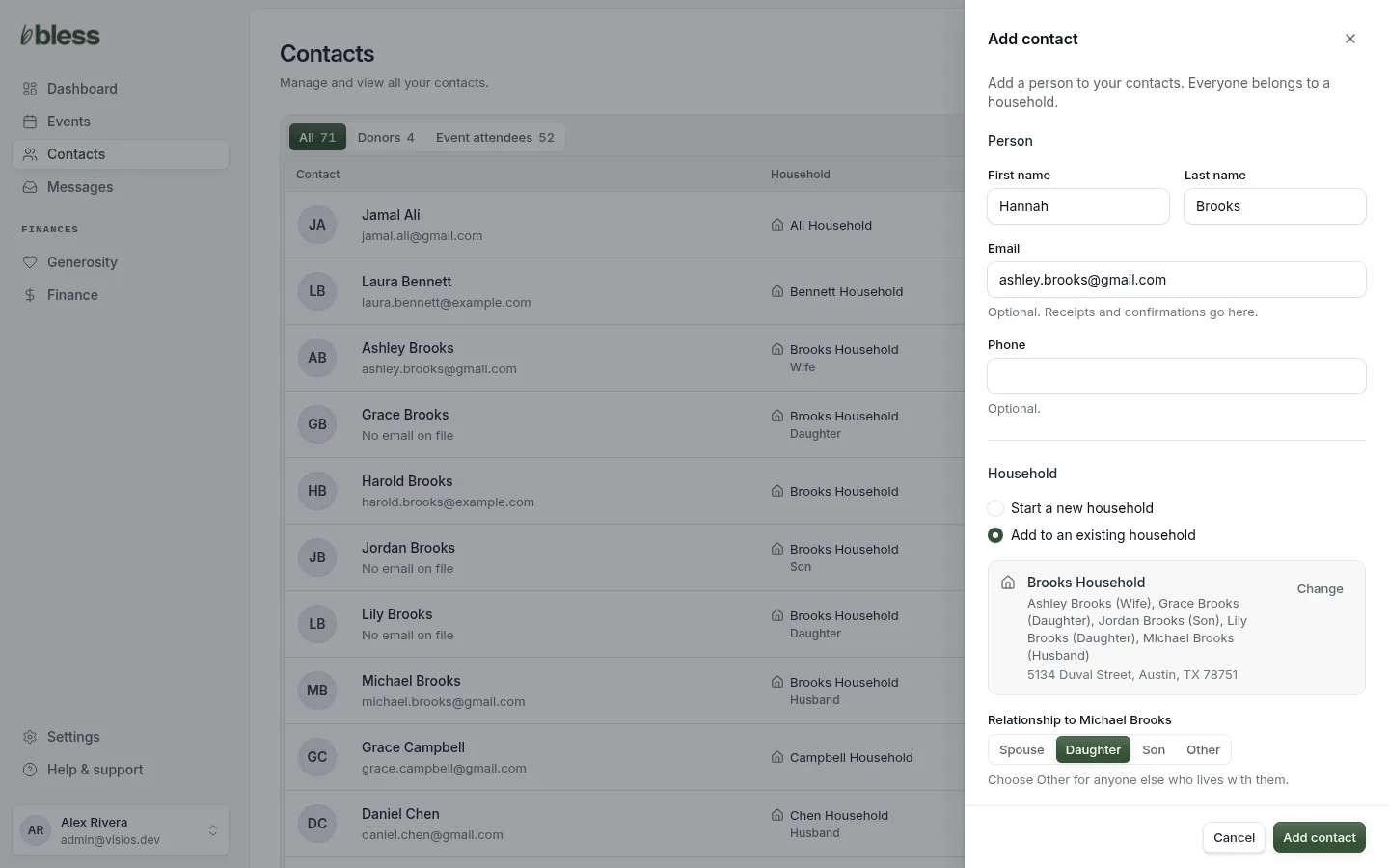
- Press Add contact.
The person gets the household’s address. You do not type an address.
If the email is already used
Two contacts cannot have the same email. If you type an email that another contact has, you see “Already a contact” and that person’s name.
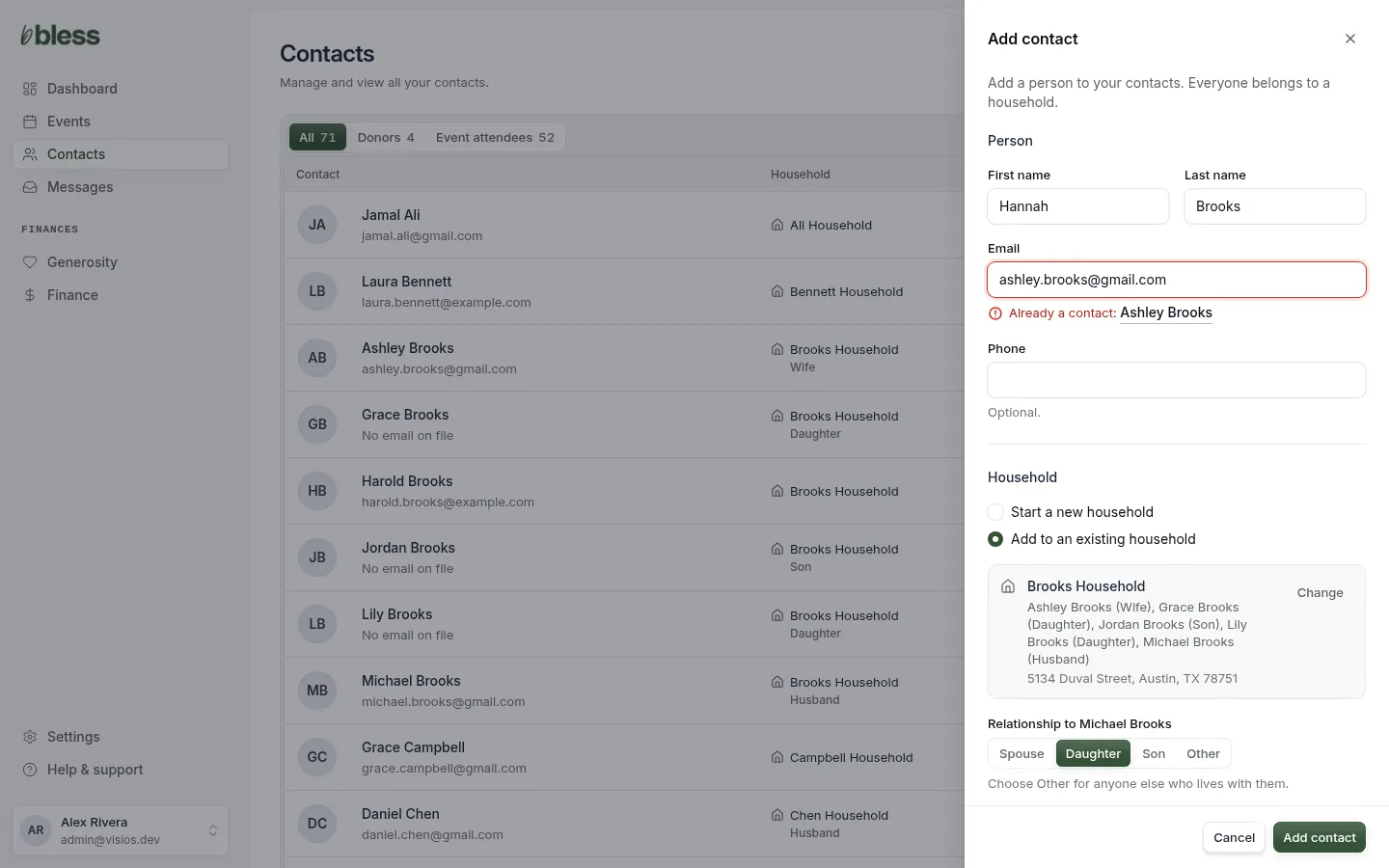
- If it is the same person, press the name to open their contact page. Do not add them again.
- If it is a different person who shares the email, such as a child, clear the Email and add them without it.
Bless finds the same email in capital letters or small letters.
Add a household member
Use this to add a person to the household of a contact you already have open.
- Open the contact page of a person in the household.
- Press Add household member.
- Type the First name and Last name, and the email and phone if you know them.
- Under Household, choose the relationship to the head of the household.
- Fill in the Details you know.
- Press Add member.
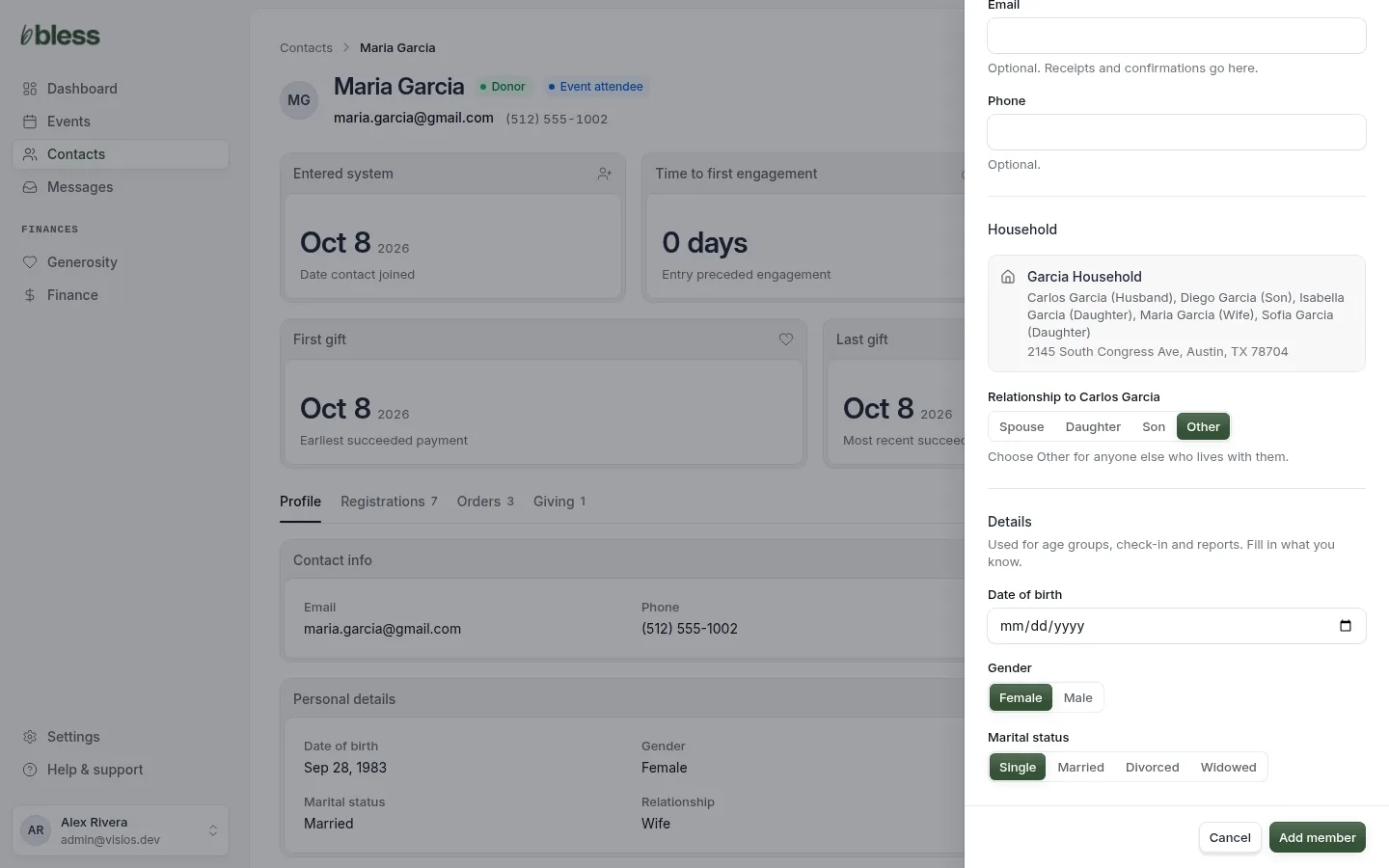
You see “Elena Garcia added to Garcia Household.” The new member shows in Household members on the contact page.
Good to know
- Adding a contact sends no email. The person does not get an account.
- If your organization has reached its contact limit, you see “You’ve reached your contact limit”. The owner can upgrade the plan. The limit never stops a person who registers for an event online.
- You cannot delete a contact. Check the name and the household before you press Add contact.
Updated
Was this page helpful?
Thank you. Your answer helps us make these pages better.