
Stop announcement emails
Stop your organization's announcement emails with one press, or turn them on again from your account. Receipts and confirmations always come.
Unsubscribe from an email
- Open an announcement email.
- Press Unsubscribe at the bottom.
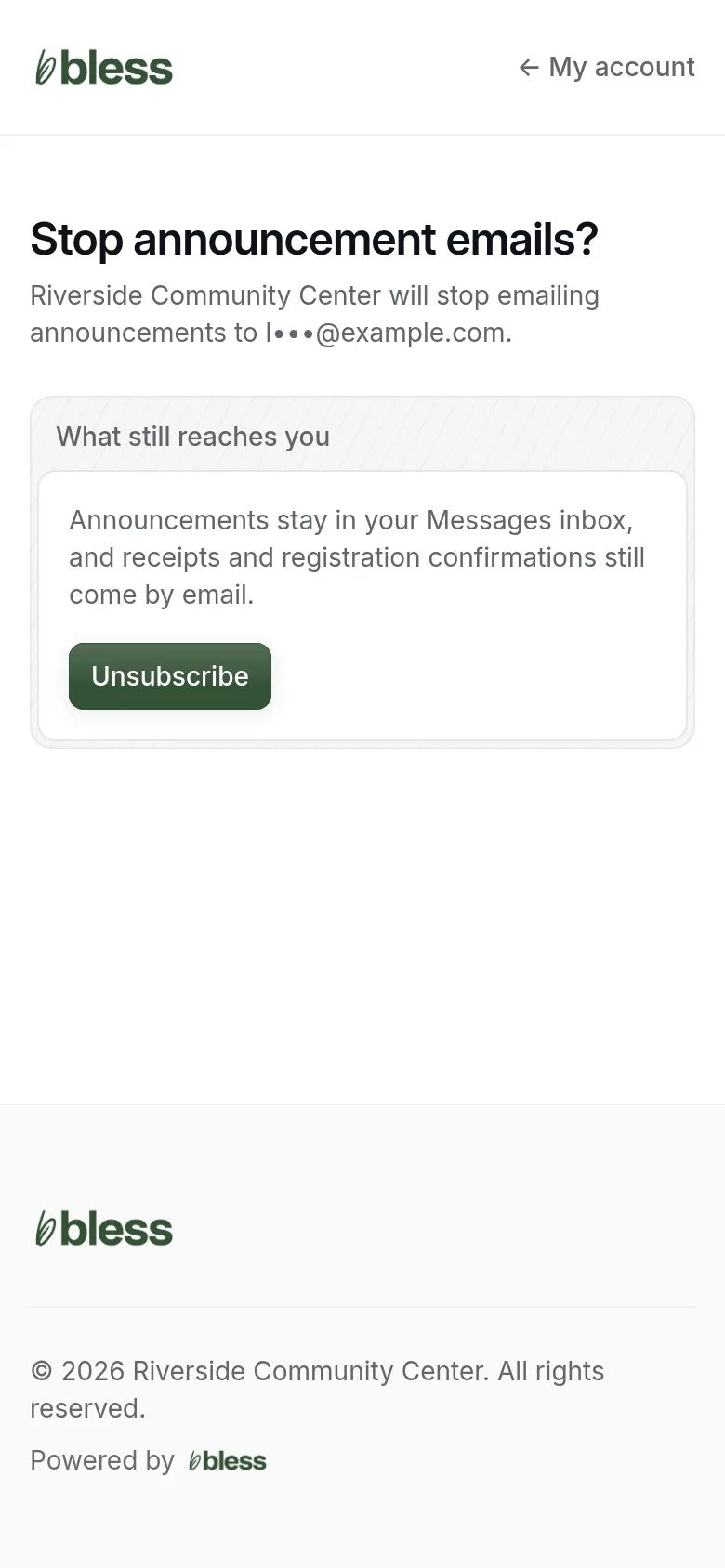
- Press Unsubscribe.
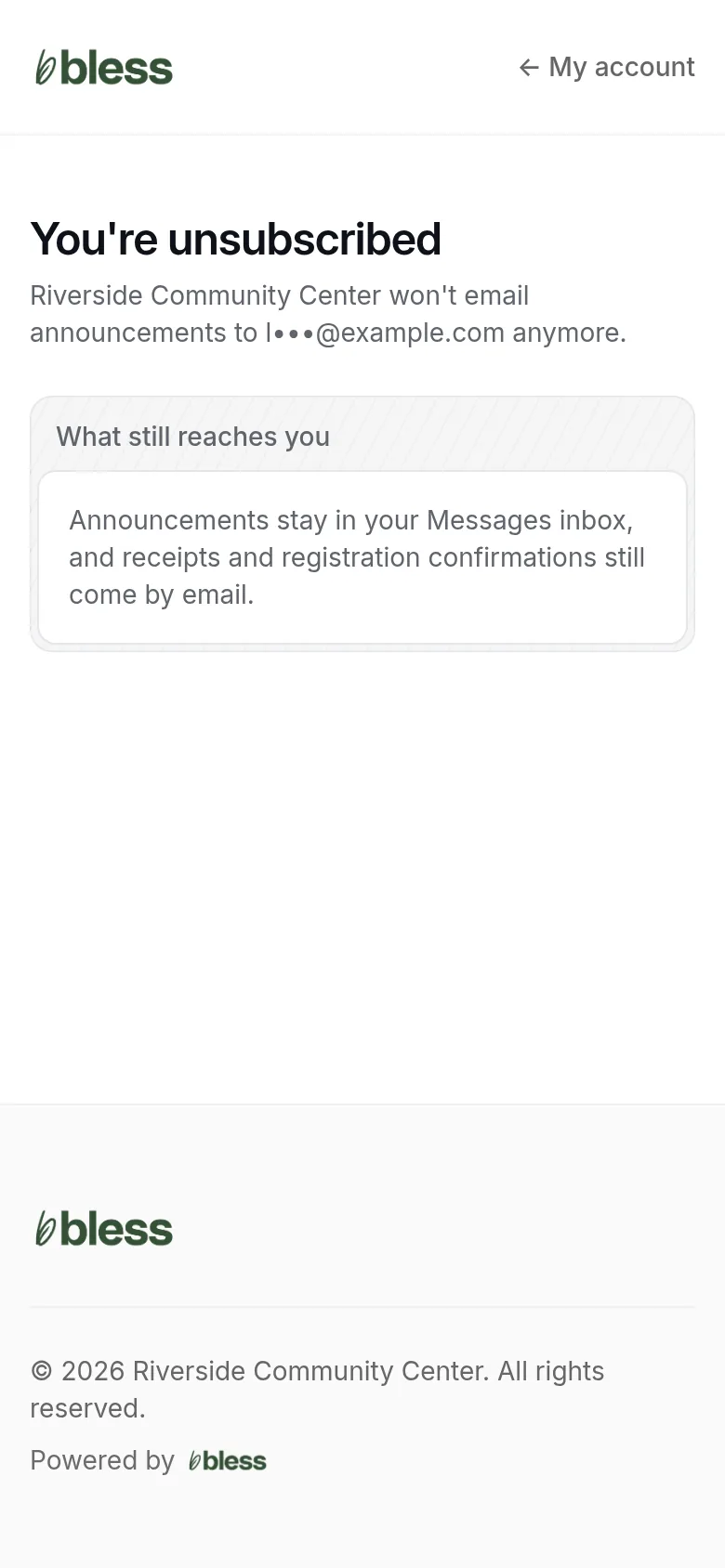
You see “You’re unsubscribed”. You do not need to sign in.
Your email app can also show its own Unsubscribe button at the top of the email. It does the same thing.
What still reaches you
- Announcements still go to your Messages inbox.
- Receipts still come by email.
- Registration confirmations still come by email.
Unsubscribe works for one organization. If you belong to more than one, unsubscribe from each.
Turn announcement emails on or off in your account
- Sign in. Press your initials at the top of the page, then press Profile and settings.
- Under Notifications, press the switch Announcement emails from (your organization).
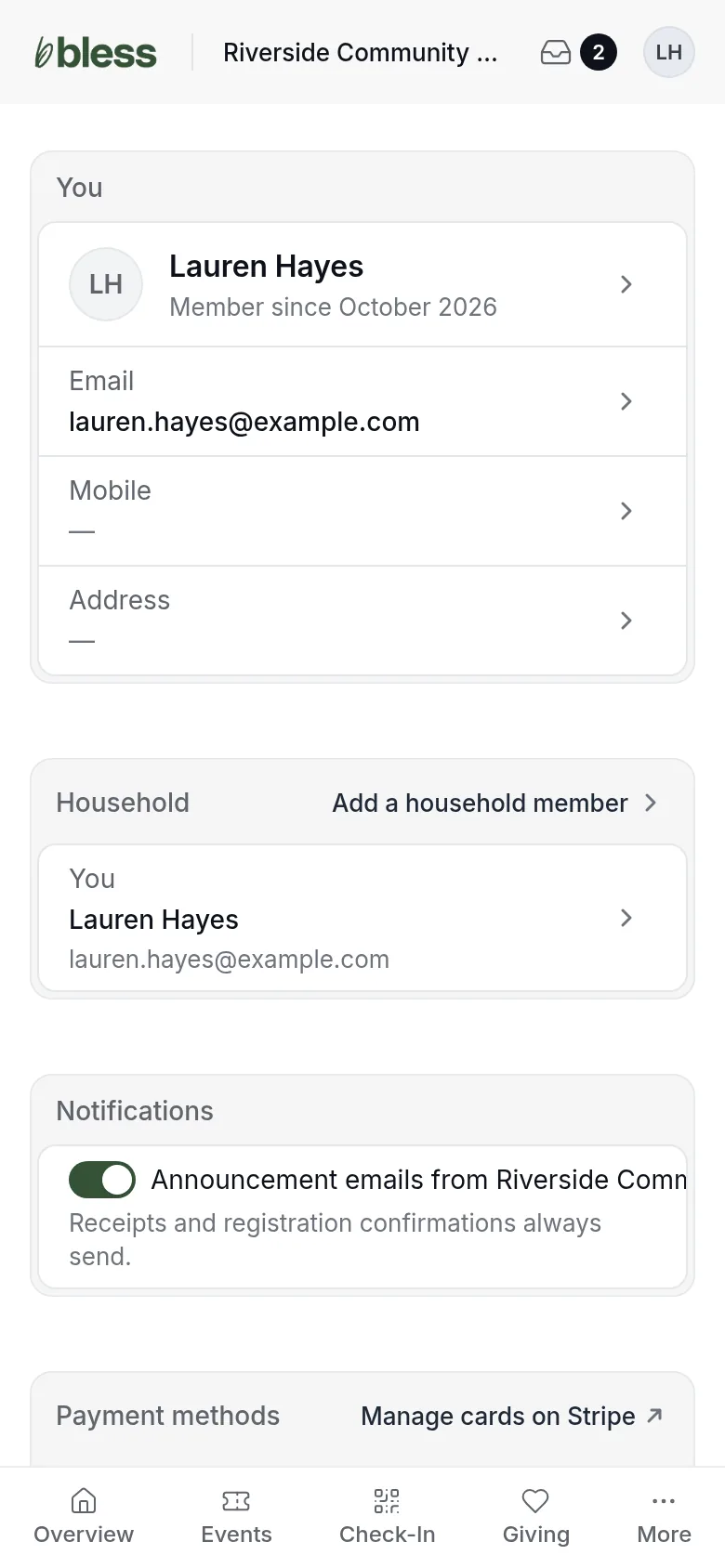
The change saves at once. You see “You’ll get Announcement emails” or “You won’t get Announcement emails”.
This is the only way to turn announcement emails on again after you unsubscribe.
Updated
Was this page helpful?
Thank you. Your answer helps us make these pages better.