
Send an announcement
Write a subject and a message, choose who gets it, read the preview, send a test to yourself, then send it.
Write it
- Press Messages in the sidebar.
- Press New announcement.
- Type the Subject. It is the email subject and the heading in the inbox. Use 200 characters or fewer.
- Type the Message.
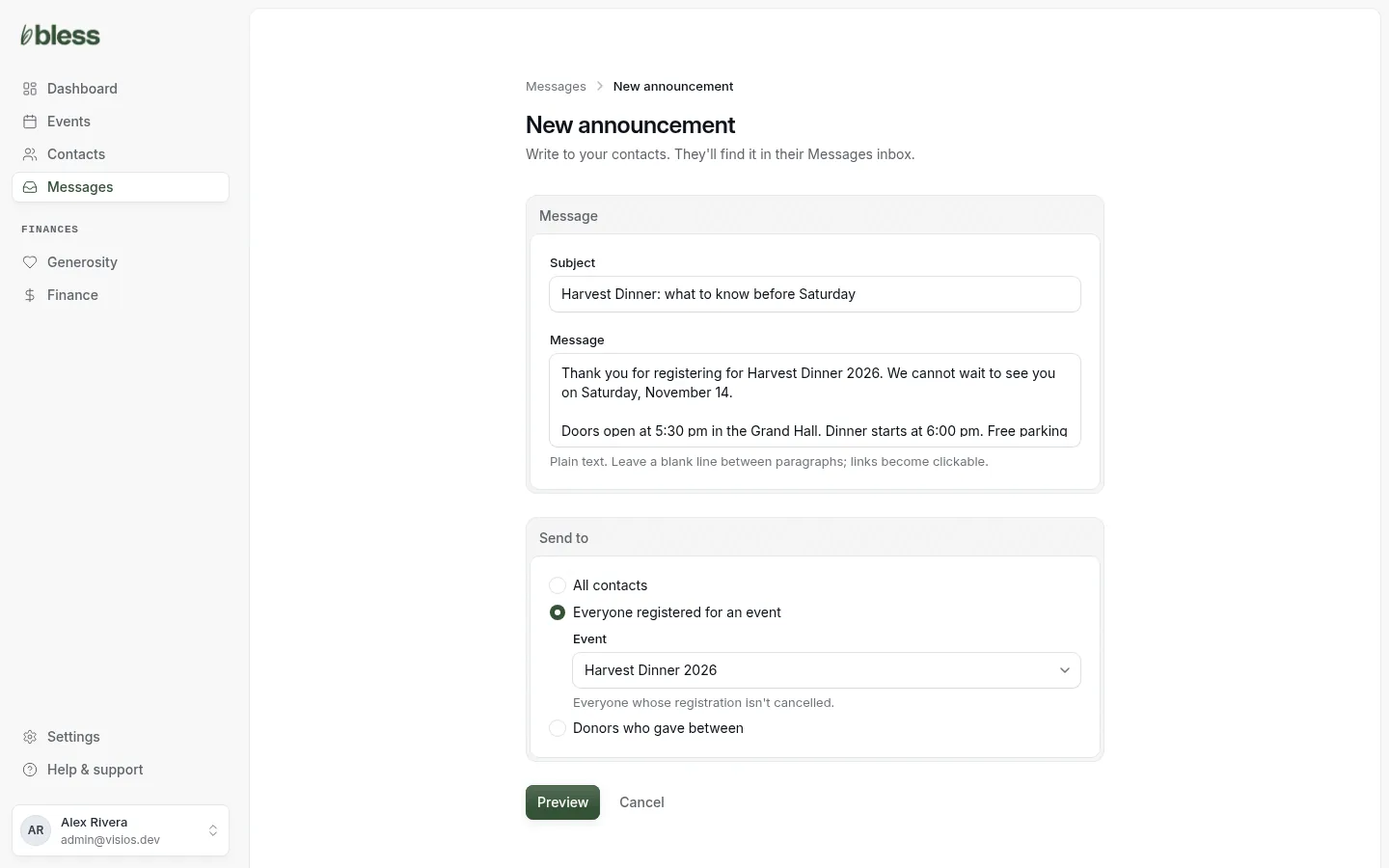
The message is plain text:
- Leave a blank line between paragraphs.
- Type a full link, such as
https://riverside.example.org/report. It becomes a link people can press. A link withouthttps://stays plain text. - You cannot make text bold, or add pictures or files.
Choose who gets it
Under Send to, choose one:
- All contacts: every contact in your organization.
- Everyone registered for an event: choose the Event. It goes to everyone whose registration is not canceled. This includes the waitlist and people whose payment is pending. Only published events are in the list.
- Donors who gave between: type the First day and the Last day. It goes to everyone who gave in those days, online or offline.
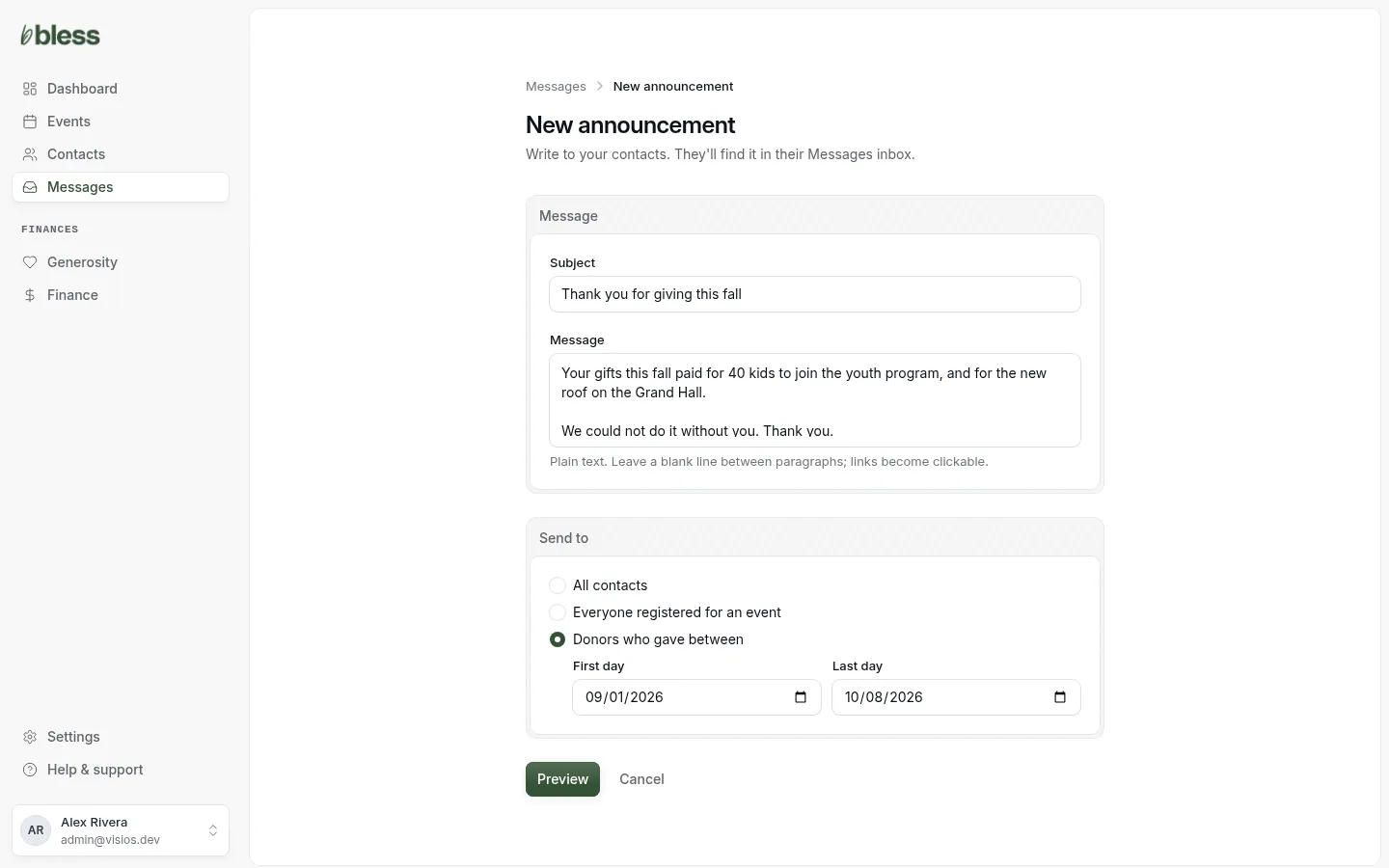
Press Preview.
If you see “can’t be blank”, type the subject or the message. If you see “Choose an event” or “Pick the first day of the range”, finish the Send to part.
Read the preview
The Review and send page shows the announcement as your contacts will see it in their inbox.
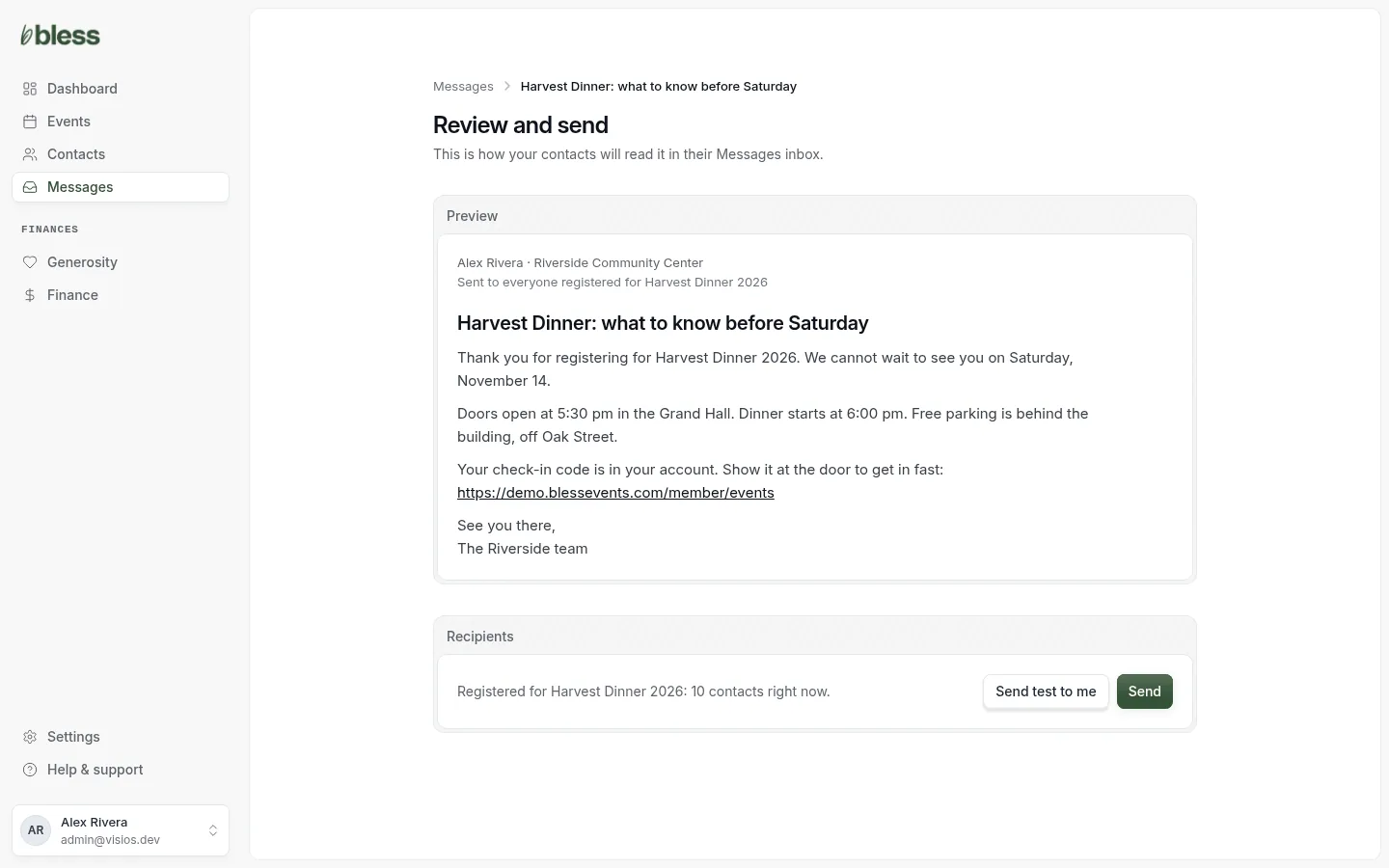
- The top line shows your name and your organization’s name.
- The second line tells people why they got it, such as “Sent to everyone registered for Harvest Dinner 2026”.
- Recipients shows how many contacts are in the audience now.
The number includes contacts who have no email or who unsubscribed. They get the inbox copy only.
You cannot edit the announcement on this page. To change it, press Messages and start a new announcement. Bless never sends the one you left.
If no one is in the audience, you see “No one to send to yet” and you cannot send.
Send a test
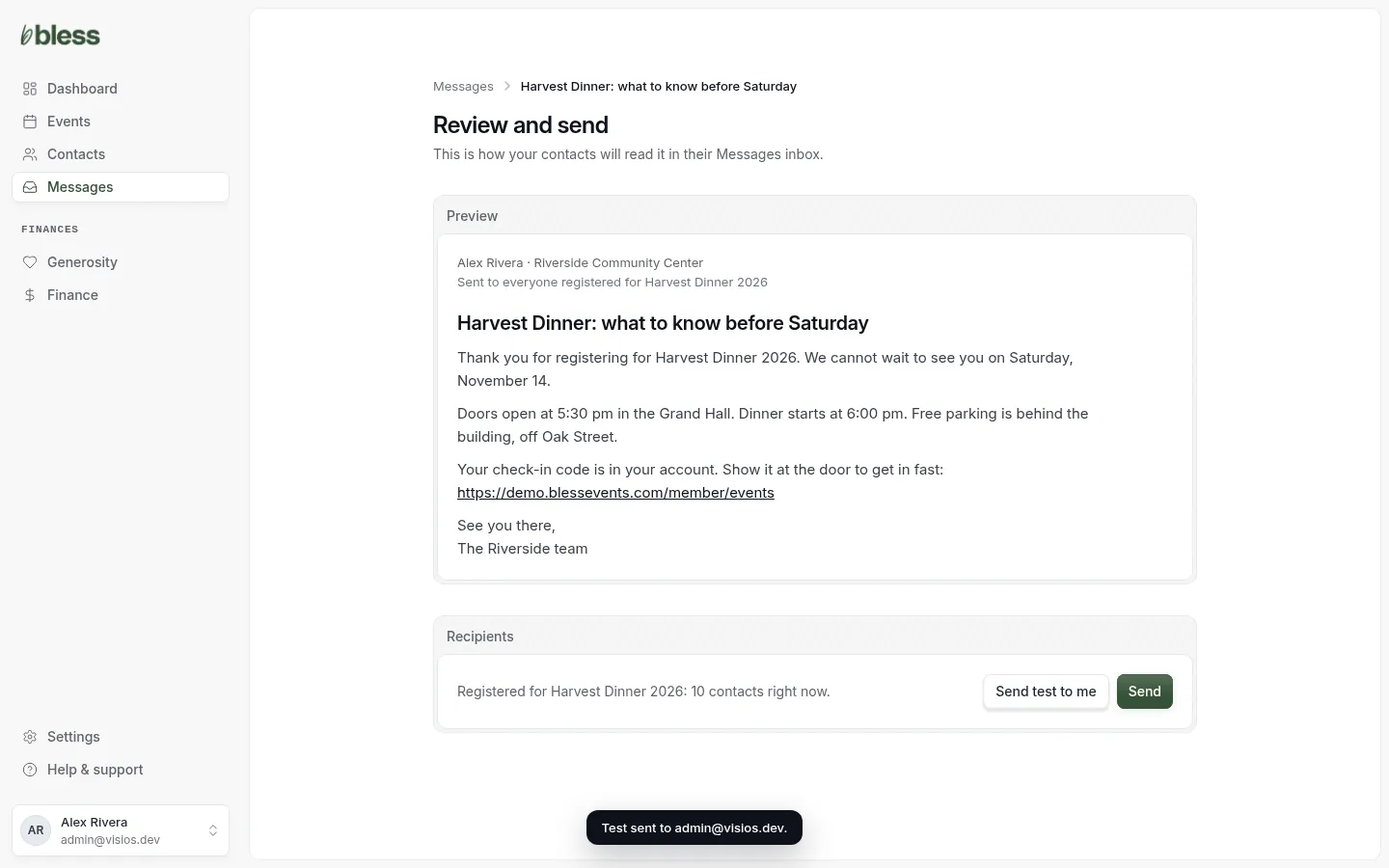
- Press Send test to me.
- You see “Test sent to” and your email.
- Open the email. Check the words and press each link.
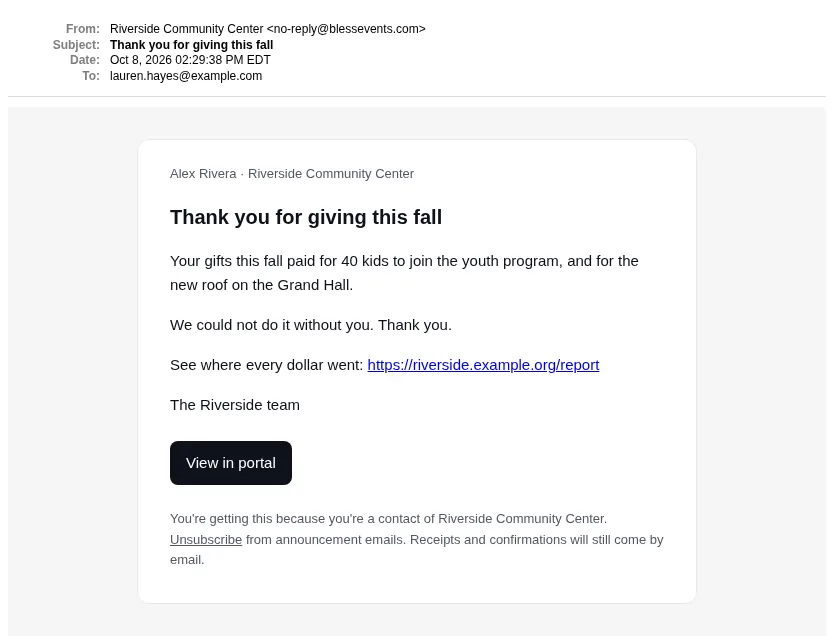
The test goes only to you. It has the same subject as the real email. It does not go in any inbox, and you can still send the announcement after it.
Send it
- Press Send.
- Read the number of contacts and the subject.
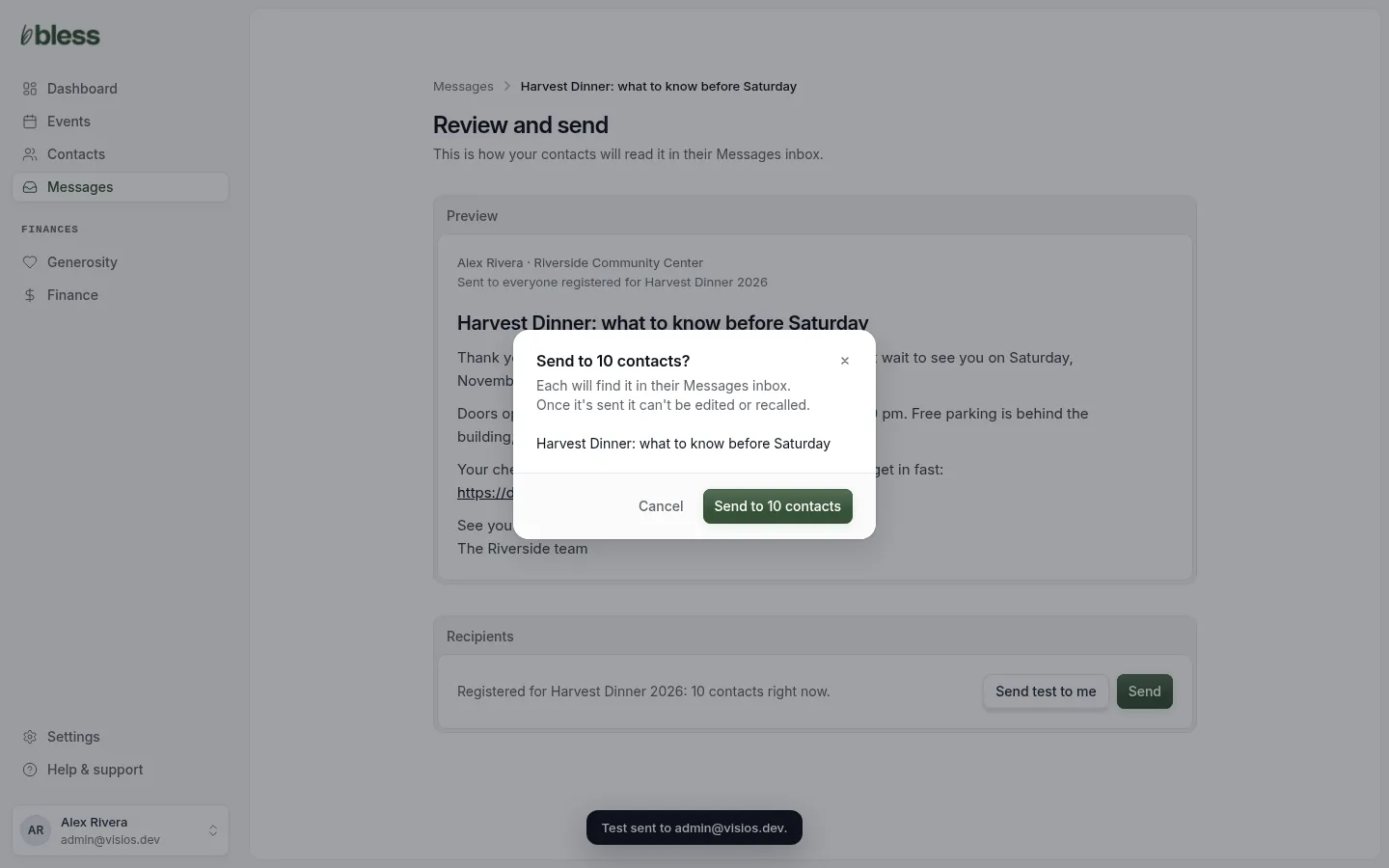
- Press Send to (the number) contacts.
You see “Sending” and the subject. Messages opens. The announcement shows Sending… under Recipients for a short time.
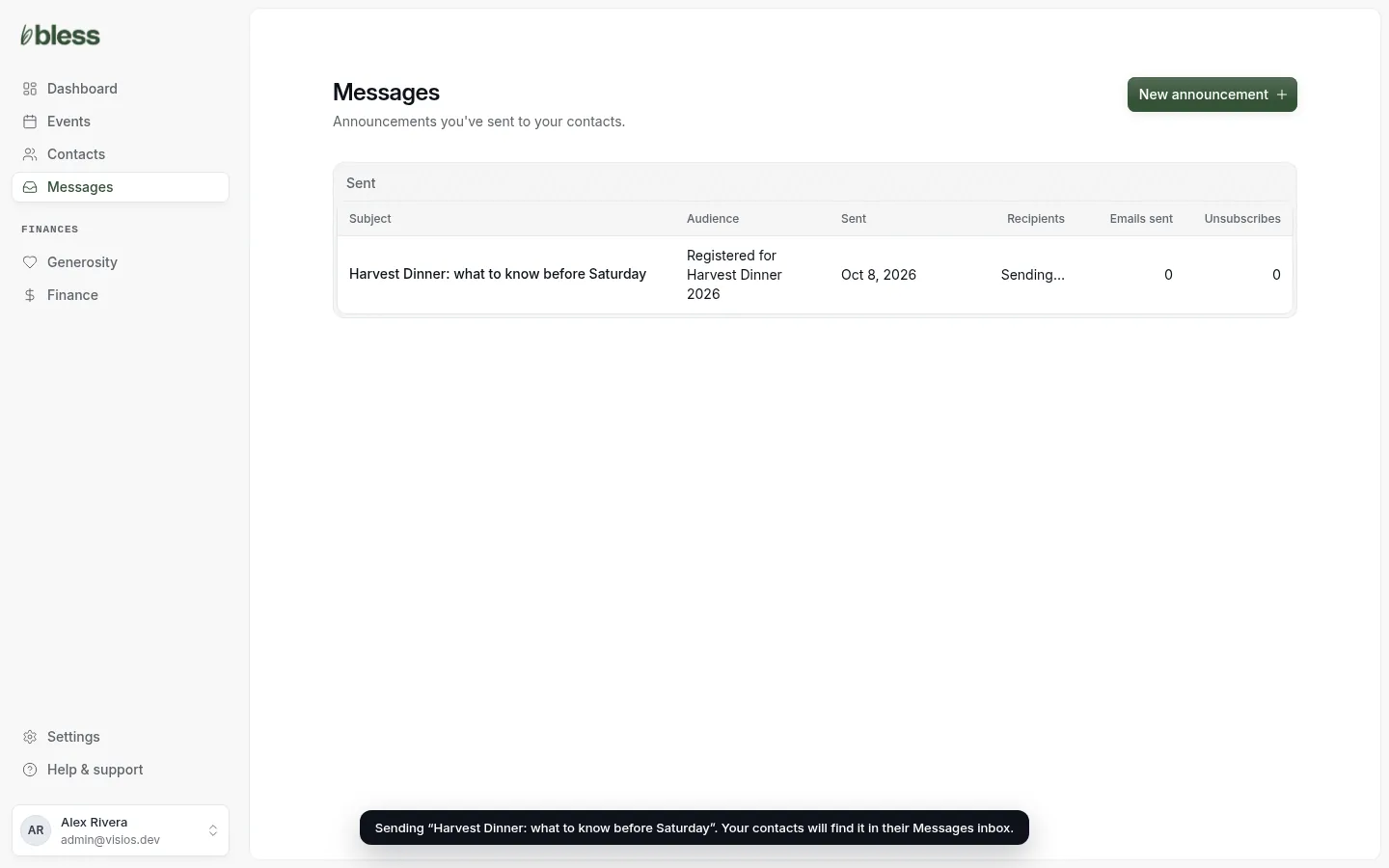
Each contact gets the inbox copy in a few seconds. The emails go out at about 2 each second. For 1,000 contacts, this takes about 8 minutes.
What people get
- The email comes from your organization’s name, at a no-reply address. It has your name and your organization’s name at the top, the subject, the message and a View in portal button. At the bottom, it tells them why they got it and has an Unsubscribe link.
- The inbox copy is in Messages in their account. See Your inbox.
People cannot reply to the email. Put a phone number or an email address in the message if you want answers.
Updated
Was this page helpful?
Thank you. Your answer helps us make these pages better.