When something goes wrong
The connection states, failed records, reconnecting and disconnecting, and what to do about each problem.
The connection states
Open Settings and press Integrations. The Salesforce card shows one of these:
| State | Means | What to do |
|---|---|---|
| Connected | Bless is sending, and nothing failed in the last 7 days. | Nothing. |
| Syncing with errors | Bless is sending, but Salesforce refused some records in the last 7 days. | Read Failed records. |
| Needs attention | Salesforce refused Bless’s sign-in, so Bless stopped sending. | Reconnect. |
| Not connected | Salesforce is not connected. | Connect it. |
Failed records
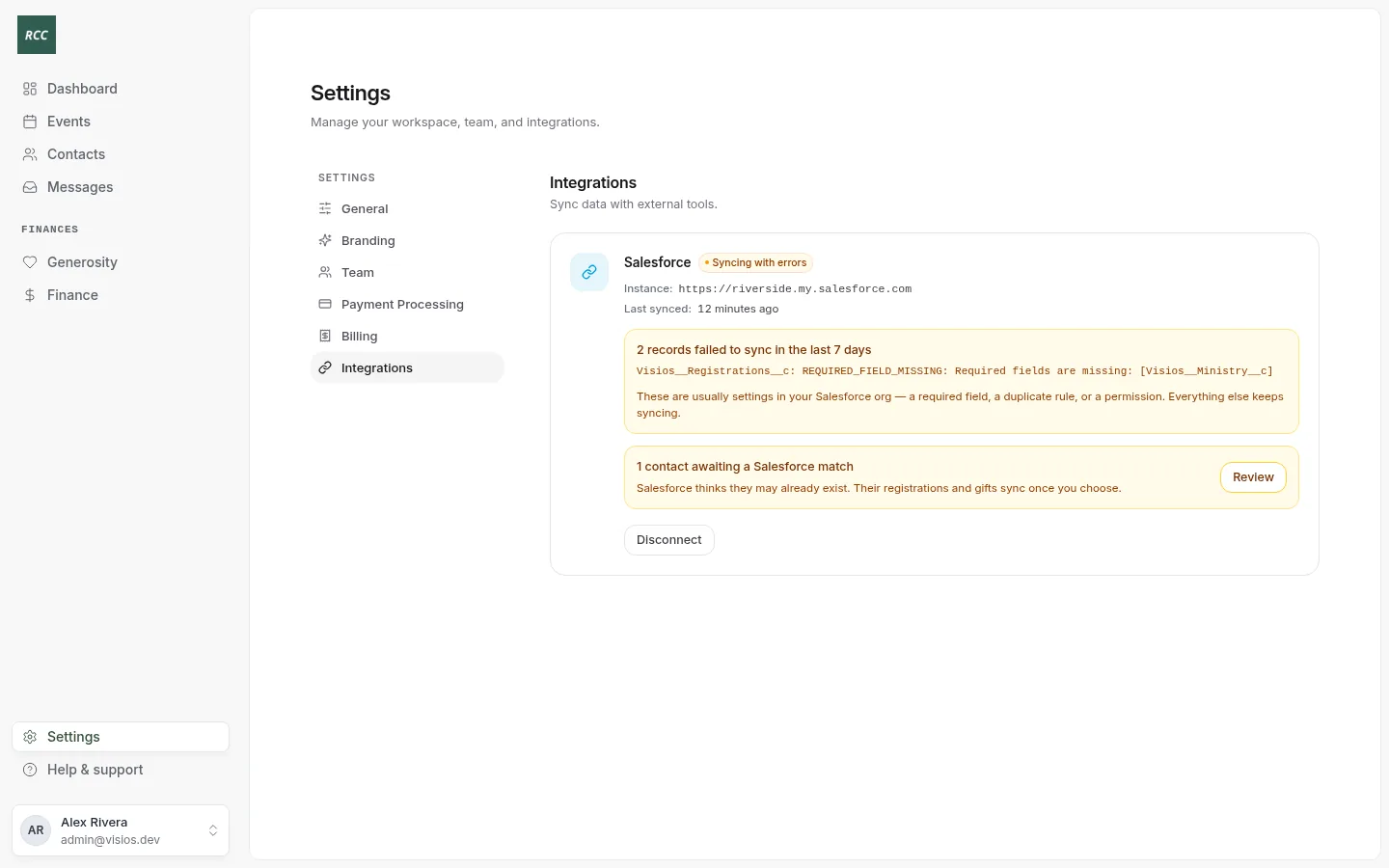
The card shows how many failures there were in the last 7 days, and the latest one: the Salesforce object and Salesforce’s own message. The count includes each try, so one record that failed three times counts three times.
Everything else keeps syncing. A failure is almost always a setting in your Salesforce org. Give the message to your Salesforce admin.
| Salesforce says | Means | What your Salesforce admin does |
|---|---|---|
REQUIRED_FIELD_MISSING |
Your org made a field required that Bless does not fill. | Make the field not required, or give it a default value. |
INVALID_FIELD or “No such column” |
A Visios field is missing. | Update the Visios package. |
INVALID_OR_NULL_FOR_RESTRICTED_PICKLIST |
A picklist does not allow a value Bless sends. | Add the value. The values are in What syncs. |
DUPLICATES_DETECTED |
A duplicate rule blocked a record. | Contacts go to Contact matches. For other objects, change the rule. |
INSUFFICIENT_ACCESS |
The integration user cannot write that object. | Give the integration user access. |
FIELD_CUSTOM_VALIDATION_EXCEPTION |
A validation rule refused the record. | Change the rule so it allows records from the integration user. |
After the fix, Bless sends the record again at the next 6-hourly check. You do not need to change it in Bless. A record that fails 15 times in a day waits 24 hours before Bless tries it again.
Reconnect
Needs attention means Salesforce refused the sign-in. This happens when the integration user’s password changes, the user is turned off, or the connected app changes.
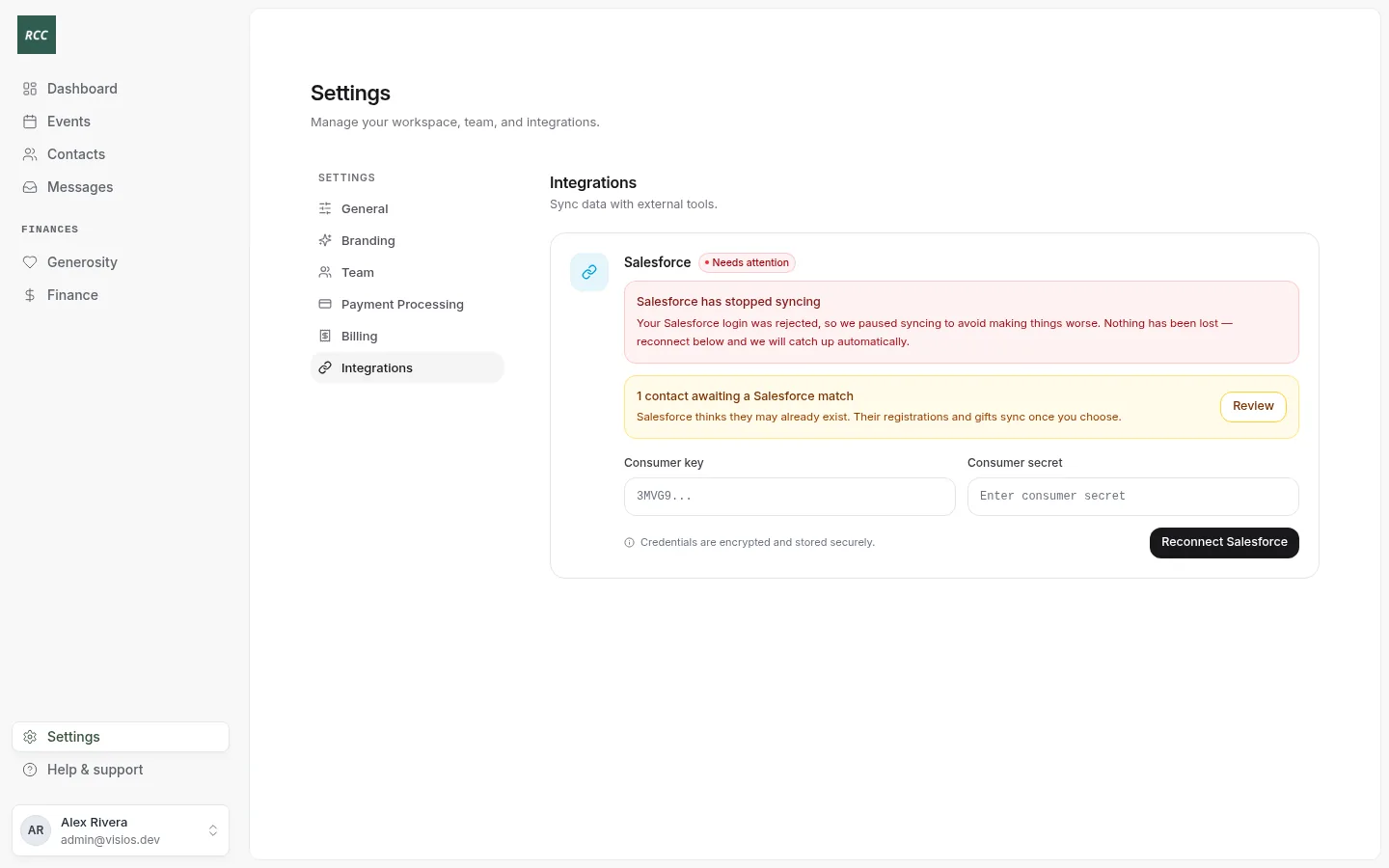
- Fix the cause in Salesforce.
- In Settings › Integrations, type the Consumer key and Consumer secret again.
- Press Reconnect Salesforce and sign in as the integration user.
Nothing is lost. Bless sends what changed while it was stopped at its next 6-hourly check. This can take up to 6 hours, and longer if many records changed.
Disconnect
- In Settings › Integrations, press Disconnect.
- Confirm “Disconnect Salesforce? Sync will stop immediately.”
You see “Salesforce disconnected.”
- Bless stops sending at once.
- Nothing in Salesforce is deleted.
- Bless deletes the consumer key, the secret and its sign-in. Type them again to connect.
- If you connect again, Bless creates a second Campus record. Delete the extra one in Salesforce, or ask the Bless team before you reconnect.
Do not connect a different Salesforce org without the Bless team. Bless remembers the IDs of the old org’s records.
Common questions
| What happened | What to do |
|---|---|
| A record is in Bless but not in Salesforce | Check that it is ready to sync. Check its contact is not waiting for a match. Wait for the next 6-hourly check. |
| A change in Salesforce was undone | Bless writes Always fields each time the record changes in Bless. Change those fields in Bless. |
| A refund is not in Salesforce | Refunds do not sync. Record them in Salesforce by hand. |
| Two campaigns have the same name | Bless links to the first it finds. Give each campaign its own name. |
| Event times look an hour off | Bless uses your organization’s time zone. Ask the Bless team to check it. |
| You use a sandbox | Sandboxes cannot connect yet. Test in production with a test event. |
| Records show the wrong creator | Bless writes as the user who connected. Reconnect as an integration user. |
Updated
Was this page helpful?
Thank you. Your answer helps us make these pages better.